
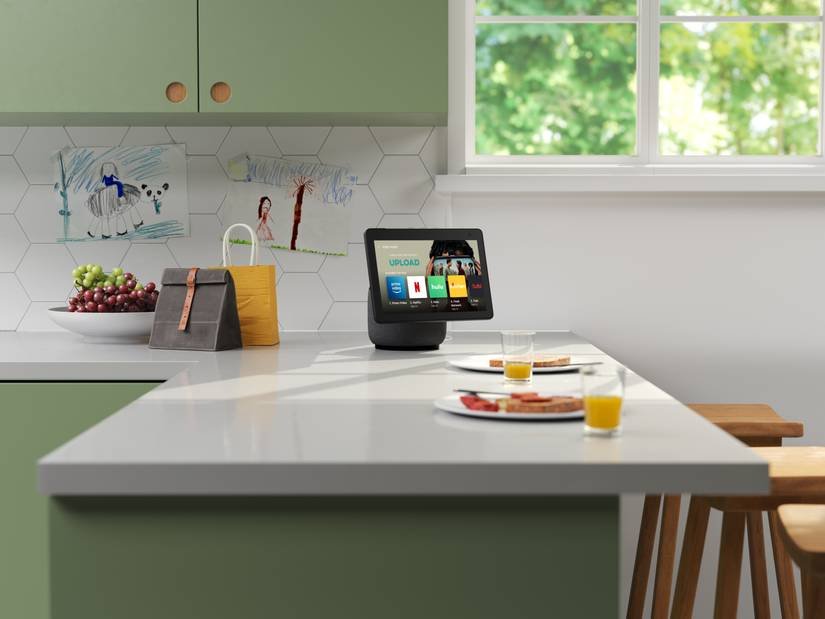
Imagine controlling your kitchen with just your voice—turning on the coffee maker, preheating the oven, or checking your grocery list without lifting a finger. Connecting your smart kitchen devices to Alexa can make this a reality, but getting everything set up smoothly can sometimes feel tricky.
Don’t worry—you’re about to discover simple, effective tips that will help you link your devices quickly and effortlessly. Ready to transform your kitchen into a smart hub? Keep reading, and you’ll master the connection process in no time.

Credit: apps.apple.com
Choosing Compatible Smart Devices
Connecting smart kitchen devices to Alexa makes cooking easier. It is important to pick devices that work well with Alexa.
Not all smart kitchen gadgets are compatible with Alexa. Choosing the right ones helps avoid setup problems.
Popular Smart Kitchen Gadgets
Many smart kitchen gadgets help save time and improve cooking. Popular options include smart ovens, coffee makers, and refrigerators.
- Smart ovens allow voice control for cooking times and temperatures.
- Smart coffee makers start brewing with voice commands.
- Smart refrigerators can track groceries and adjust temperatures.
- Smart scales help measure ingredients accurately.
- Smart slow cookers let you control settings remotely.
Checking Alexa Compatibility
Check if a device supports Alexa before buying. Look for the Alexa logo or mention in the product details.
Using the Alexa app, you can add and manage compatible devices. Some devices require extra setup steps or skills.
- Confirm the device supports Alexa voice commands.
- Check if a dedicated Alexa skill is available.
- Review user manuals for Alexa setup instructions.
- Test the device with Alexa before regular use.
Brands That Work Seamlessly
Some brands focus on smart home compatibility. They offer smooth integration with Alexa devices.
- Amazon Echo devices work well with Alexa.
- Instant Pot offers smart cookers that connect easily.
- Samsung smart kitchen appliances include Alexa support.
- LG smart refrigerators and ovens support Alexa commands.
- Philips Hue kitchen lighting integrates with Alexa.
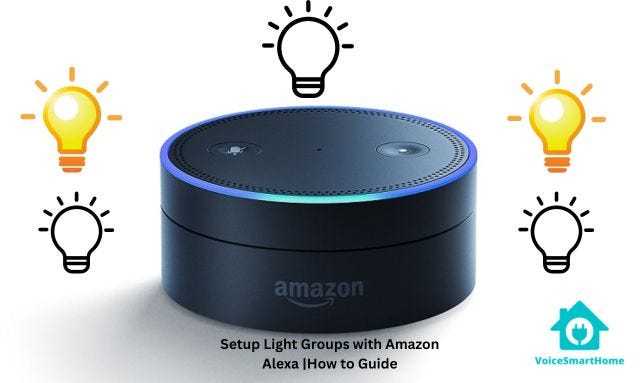
Credit: medium.com
Setting Up Your Alexa Device
Smart kitchen devices make cooking easier. Connecting them to Alexa adds convenience. Here are steps to set up your Alexa device.
This guide helps you connect your smart kitchen devices to Alexa. Follow the steps to enjoy a seamless experience.
Connecting To Wi-fi
Connect your Alexa device to Wi-Fi for it to work. Open the Alexa app on your phone.
Select your device from the app. Choose your Wi-Fi network and enter the password.
- Ensure your Wi-Fi is stable
- Keep your device close to the router
- Use a 2.4GHz network for better coverage
Updating Firmware
Firmware updates keep your device running smoothly. Check for updates in the Alexa app.
Updating firmware ensures compatibility with new features. This helps improve performance.
- Open the Alexa app
- Go to device settings
- Select “Check for updates”
Configuring Voice Profiles
Voice profiles personalize your Alexa experience. They allow Alexa to recognize different voices.
Set up voice profiles for each family member. This enables customized responses.
- Open the Alexa app
- Go to “Settings” and select “Your Voice”
- Follow the prompts to create a voice profile
Linking Smart Kitchen Devices To Alexa
Smart kitchen devices can make cooking easier and more fun. Connecting them to Alexa lets you control devices with your voice.
This guide shows simple tips to link your kitchen gadgets to Alexa quickly and easily.
Using The Alexa App
Start by opening the Alexa app on your phone or tablet. The app helps manage all your smart devices in one place.
In the app, go to the Devices section. Here you can add new kitchen devices and check their status.
- Open Alexa app
- Tap on Devices
- Select Add Device
- Choose your kitchen device type
- Follow on-screen instructions
Enabling Skills
Many smart kitchen devices need an Alexa Skill to connect. Skills are like apps that link Alexa to your device.
Find the Skill for your device in the Alexa app and enable it. You may need to log in with your device account.
- Open Alexa app
- Go to More > Skills & Games
- Search for your device’s Skill
- Tap Enable
- Sign in to your device account if asked
Device Discovery Process
After enabling the Skill, use the discovery tool to find your device. Alexa will search your network for new devices.
You can ask Alexa to find devices by voice or use the app’s Discover Devices button.
- Say “Alexa, discover devices”
- Or tap Discover Devices in the Alexa app
- Wait for Alexa to find your kitchen device
- Check the Devices section to confirm connection
Customizing Device Controls
Smart kitchen devices work well with Alexa. You can control them with your voice. Customizing controls makes using them easier.
Personal settings help you save time. They also make your kitchen smarter and more convenient.
Creating Routines
Routines let you set multiple actions with one command. You can turn on devices or change settings automatically.
For example, say “Good morning” to start your coffee maker and turn on kitchen lights.
- Open the Alexa app and go to Routines
- Tap “Create Routine” and name it
- Choose a voice command or schedule
- Add actions like turning on devices
- Save and test your routine
Setting Voice Commands
Custom voice commands make device control simple. You can use short phrases to run tasks fast.
Change the default device names to easy words. This helps Alexa understand you better.
- Open Alexa app and select your device
- Tap “Edit Name” to change it
- Use clear names like “Coffee Maker”
- Create custom commands in Routines
- Speak naturally to test commands
Managing Device Groups
Groups let you control many devices at once. Grouping kitchen gadgets saves time and effort.
You can turn on all devices in one room with a single command. This makes cooking easier.
- Open Alexa app and go to Devices
- Tap “Create Group” and pick a name
- Add all kitchen devices to the group
- Use voice to control the whole group
- Edit groups anytime to add or remove devices
Troubleshooting Connection Issues
Connecting smart kitchen devices to Alexa can sometimes be tricky. Problems like weak signals or software bugs may stop your devices from working properly.
Knowing how to fix these connection issues helps you keep your smart kitchen running smoothly. Here are some tips to help you solve common problems.
Common Connectivity Problems
Many connection problems come from weak Wi-Fi signals or incorrect setup. Devices may not respond if they lose connection to your network.
Other issues include outdated device software or Alexa app glitches. These can stop your smart kitchen gadgets from syncing properly.
- Weak or unstable Wi-Fi connection
- Incorrect device setup or pairing
- Outdated device firmware or Alexa app
- Interference from other wireless devices
- Power supply problems or device malfunctions
Resetting Devices
Resetting your smart kitchen device can often fix connection issues. It clears errors and restores default settings.
After resetting, you will need to reconnect the device to Alexa and your Wi-Fi network. This can solve most syncing problems.
- Turn off the device and unplug it from power.
- Wait 30 seconds before plugging it back in.
- Press and hold the reset button if available.
- Follow the device manual for a full reset.
- Set up the device again in the Alexa app.
Contacting Support
If problems continue, contact the device maker’s support team. They can help with advanced troubleshooting steps.
Have your device details and purchase info ready. This speeds up the help process and gets you back online faster.
- Find the support contact on the device website.
- Use chat, email, or phone options for help.
- Explain your issue clearly and mention any error messages.
- Follow the instructions given by support staff.
- Keep your device near you during the call.
Credit: www.siriusxm.ca
Maximizing Smart Kitchen Automation
Smart kitchen devices make cooking and cleaning easier. Connecting them to Alexa adds voice control and automation.
Using Alexa with your smart kitchen helps save time and energy. You can control many devices from one place.
Integrating Multiple Devices
Connect all your smart kitchen gadgets to Alexa for smooth control. This lets you manage lights, ovens, and fridges easily.
Grouping devices helps you control many items with one command. It makes your kitchen work better together.
- Use the Alexa app to add each device
- Create groups like “Kitchen Lights” or “Cooking Devices”
- Check device compatibility before connecting
- Use routines to control multiple devices at once
Scheduling Tasks
Set schedules for your smart kitchen tools. Alexa can turn devices on or off at specific times.
This helps you start cooking or clean up without manual effort. You never forget to switch off devices.
- Schedule coffee makers to start brewing in the morning
- Set the oven to preheat before cooking
- Program lights to turn off after meals
- Use Alexa routines to combine tasks in one schedule
Energy Efficiency Tips
Save energy by using Alexa to control your kitchen devices wisely. Smart devices can reduce power use.
Turn off devices when not needed. Use Alexa to monitor and adjust settings for efficiency.
- Set timers to avoid leaving devices on too long
- Use energy-saving modes if available
- Turn off lights automatically when the kitchen is empty
- Check energy use reports in the Alexa app
Frequently Asked Questions
How Do I Connect Smart Kitchen Devices To Alexa?
To connect, open the Alexa app, select “Devices,” then “Add Device. ” Choose your kitchen device type and follow on-screen instructions. Ensure the device is compatible and connected to the same Wi-Fi network as Alexa.
What Smart Kitchen Devices Work Best With Alexa?
Popular devices include smart ovens, refrigerators, coffee makers, and dishwashers. Choose those with Alexa compatibility for seamless voice control and automation in your kitchen.
How Can I Troubleshoot Alexa Connection Issues?
Restart your Alexa device and smart kitchen gadget. Check Wi-Fi stability and device compatibility. Update firmware and Alexa app. Re-link devices if necessary to restore connection.
Can I Control Multiple Kitchen Devices With Alexa?
Yes, Alexa supports multiple smart kitchen devices. Group them in the Alexa app for easy simultaneous control using voice commands or routines.
Conclusion
Connecting smart kitchen devices to Alexa makes life easier. Follow simple steps to link your gadgets quickly. Check device compatibility before starting to avoid issues. Use the Alexa app to manage and control devices. Voice commands save time and keep your hands free.
Enjoy cooking with smart help always ready to assist. Keep devices updated for the best performance. Small efforts bring big convenience to your kitchen routine. Start today and see how smart your kitchen can be.