
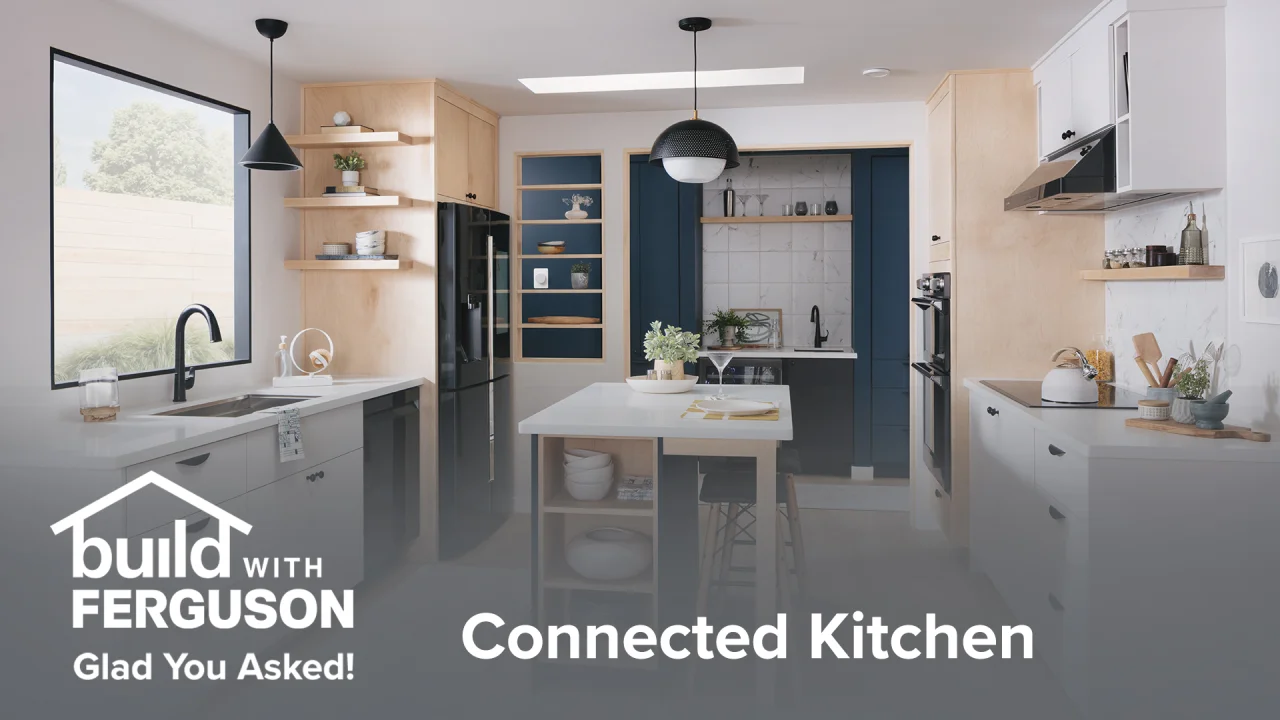
Imagine walking into your kitchen and having all your appliances work together seamlessly, making cooking easier and more enjoyable. Connecting your smart kitchen appliances can transform your daily routine, saving you time and effort.
But where do you start? This guide is packed with simple, practical tips to help you link your devices quickly and without stress. Keep reading, and you’ll discover how to unlock the full potential of your smart kitchen—making every meal a breeze.
Choosing Compatible Devices
Connecting smart kitchen appliances needs careful device choices. Not all smart devices work well together.
Choosing the right devices helps your kitchen run smoothly and saves time.
Check Your Home Network
Smart appliances need Wi-Fi or Bluetooth to connect. Make sure your home network supports these.
Some devices work only on 2.4 GHz Wi-Fi. Others need 5 GHz. Know your router’s capabilities.
- Check if device supports your Wi-Fi frequency
- Ensure strong Wi-Fi signal in the kitchen
- Use a Wi-Fi extender if needed
Match Device Ecosystems
Smart appliances connect better if they use the same ecosystem or app. This makes control easier.
Look for devices compatible with popular platforms like Google Home, Amazon Alexa, or Apple HomeKit.
- Choose devices that work with your preferred app
- Check if devices support voice control
- Use one app to manage multiple appliances
Verify Device Compatibility
Some smart appliances need a hub or bridge to connect. Check if your devices require one.
Read product details to ensure appliances can link with each other or your existing devices.
- Look for “works with” labels on packaging
- Confirm if devices support the same communication protocol
- Use hubs if needed to connect different brands
Consider Power And Placement
Smart appliances need power and good placement for signals. Make sure outlets are near.
Place devices where Wi-Fi or Bluetooth signals reach easily for better connection.
- Check power source requirements
- Avoid placing devices behind metal objects
- Keep devices within range of your router
Setting Up A Smart Hub
A smart hub connects all your smart kitchen appliances in one place. It helps them talk to each other smoothly.
Setting up the hub correctly ensures your kitchen works efficiently and saves time.
Choose The Right Smart Hub
Select a hub that supports your appliances and fits your home network. Not all hubs work with every device.
Look for hubs compatible with popular brands and easy to control through apps or voice commands.
Connect The Hub To Your Home Network
Plug your smart hub into a power source and connect it to your Wi-Fi. A stable network is important for smooth operation.
- Use a strong Wi-Fi signal near the kitchen
- Avoid placing the hub near metal objects or thick walls
- Restart your router if connection issues occur
Add Appliances To The Hub
Follow the hub’s app instructions to add each smart appliance. This links the devices to the hub’s network.
Make sure each device is powered on and in pairing mode during setup for easier connection.
Organize Devices For Easy Control
Name each appliance clearly in the hub’s app. This helps you find and control devices fast.
- Use simple names like “Oven” or “Fridge”
- Group devices by function or location
- Set up scenes to control multiple devices at once
Keep The Hub Software Updated
Regularly check for updates in the hub’s app. Updates improve security and add new features.
Enable automatic updates if the hub supports them. This keeps your system current without extra effort.
Ensuring Strong Wi-fi Connectivity
Smart kitchen appliances rely on Wi-Fi to work well. Strong Wi-Fi makes these devices faster and more reliable.
Weak Wi-Fi can cause delays or stop your appliances from connecting. This guide helps you keep your Wi-Fi strong.
Place Your Router Near The Kitchen
Wi-Fi signals get weaker over distance and through walls. Keep your router close to your kitchen appliances.
This reduces signal loss and improves connection speed. Avoid placing the router in a far room or behind thick walls.
Use A Wi-fi Extender Or Mesh Network
If your kitchen is far from the router, use a Wi-Fi extender. It boosts signal strength in weak areas.
Mesh networks use multiple devices to cover large homes. They provide steady Wi-Fi in every room, including the kitchen.
- Wi-Fi extender repeats signals to weak spots
- Mesh network uses several access points
- Both options improve coverage and speed
Choose The Right Wi-fi Band
Wi-Fi works on 2.4 GHz and 5 GHz bands. The 2.4 GHz band covers longer distances but is slower.
The 5 GHz band is faster but covers less area. Use 2.4 GHz if your kitchen is far from the router.
Limit Other Devices On Your Network
Many devices using Wi-Fi at once can slow down your network. Limit devices when using smart kitchen appliances.
Turn off or disconnect devices not in use. This frees up bandwidth for your kitchen appliances.
Keep Your Router Updated
Router updates fix bugs and improve performance. Check for updates often to keep Wi-Fi working well.
Use the router’s app or website to update its software. Updated routers help keep your smart appliances connected.

Credit: www.searshomeservices.com
Using Voice Assistants
Voice assistants make it easier to control smart kitchen appliances. You can use simple voice commands to operate devices.
They help save time and keep your hands free while cooking or cleaning.
Integrating With Google Assistant
Google Assistant works with many smart kitchen devices. You start by linking your appliance app to the Google Home app.
After linking, you can use commands like “Hey Google, preheat the oven” or “Set the coffee maker timer.”
- Open Google Home app
- Go to “Add” and select “Set up device”
- Choose “Works with Google” and find your appliance brand
- Sign in to connect your account
- Use voice commands to control devices
Integrating With Amazon Alexa
Alexa lets you control kitchen appliances with your voice. First, enable the appliance’s skill in the Alexa app.
Once enabled, use commands like “Alexa, turn on the dishwasher” or “Set the fridge temperature to 4 degrees.”
- Open Alexa app
- Tap “More” and select “Skills & Games”
- Search for your appliance skill
- Enable the skill and link your account
- Talk to Alexa to control your appliances
Managing Devices Via Mobile Apps
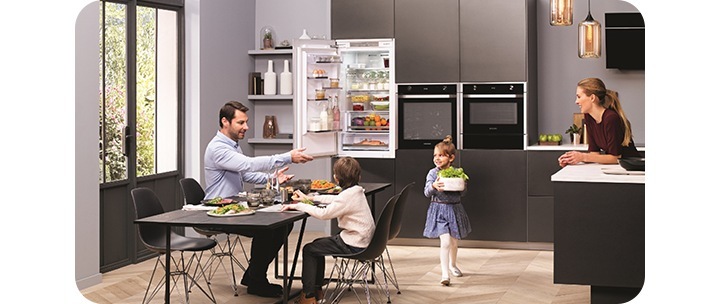
Smart kitchen appliances connect to your phone through apps. These apps help you control devices from anywhere.
You can monitor, adjust, and set schedules for your appliances easily using mobile apps.
Download The Official App
Always use the app made by the appliance brand. It ensures the best compatibility and support.
Official apps offer full control and access to all features of your appliance.
Create User Accounts
Set up user accounts within the app to save your settings. This lets you control devices securely.
Accounts help keep your appliance data safe and allow personalized preferences.
Connect To Wi-fi Properly
Make sure your phone and appliance are on the same Wi-Fi network when setting up. This helps the app find your device.
Use a stable Wi-Fi connection to avoid interruptions when controlling devices remotely.
Use Notifications For Updates
Enable notifications in the app to get alerts about your appliances. This can include maintenance reminders or cooking status.
Notifications help you stay informed without checking the app constantly.
Explore Automation Features
Many apps let you set schedules or automate tasks. Use these to save time and energy in the kitchen.
- Schedule oven preheating before meal time
- Set coffee maker to brew at a fixed time
- Control lighting or ventilation automatically
Keep Apps And Devices Updated
Regularly update your mobile app and appliance firmware. Updates fix bugs and add new features.
Updated apps run smoother and improve your control over devices.
Credit: www.samsung.com
Scheduling And Automation
Scheduling and automation help your smart kitchen appliances work without you. They save time and energy by running tasks on their own.
Using these features, you can set appliances to start or stop at certain times. This makes cooking and cleaning easier and more efficient.
Set Daily Routines
Schedule your appliances to run at the same time every day. This keeps your kitchen ready and saves effort.
For example, program the coffee maker to start before you wake up. Or set the oven to preheat before dinner time.
- Set coffee maker to brew at 7 AM
- Preheat oven at 5 PM daily
- Run dishwasher after dinner at 9 PM
Use Automation Triggers
Automation triggers start appliances based on actions or conditions. This makes your kitchen more responsive and smart.
For example, lights can turn on when you enter the kitchen. Or the exhaust fan can start when the stove heats up.
- Turn on lights when motion is detected
- Start fan when oven reaches 350°F
- Activate coffee maker when alarm sounds
Combine Appliances For Tasks
Link appliances to work together automatically. This helps complete kitchen tasks with less effort.
For example, start the oven and set a timer on your smart speaker together. Or have the fridge send a reminder when food runs low.
- Sync oven start with timer alert
- Get fridge notifications for groceries
- Link dishwasher with water heater timing
Adjust Settings Remotely
Use your phone or voice assistant to change schedules anytime. This keeps your kitchen flexible and convenient.
You can delay or speed up cooking by changing appliance settings from anywhere. This saves time and avoids wasted food.
- Start oven while returning home
- Pause dishwasher if needed
- Change coffee brew time remotely
Energy Efficiency Tips
Smart kitchen appliances can save energy if you use them correctly. Connecting them smartly helps cut down electricity use.
These tips will help you use your smart kitchen devices in an energy-friendly way.
Use Smart Scheduling
Set your appliances to run during off-peak hours. This lowers energy costs and eases the power load.
Smart ovens and dishwashers can start automatically when energy is cheaper.
Monitor Energy Consumption
Check your appliances’ energy use with their apps. This helps you find which devices use the most power.
Turn off or unplug devices that waste energy when not in use.
Optimize Appliance Settings
Use energy-saving modes on your smart appliances. These modes reduce power without losing performance.
Adjust temperature and timer settings to avoid unnecessary energy use.
Connect Appliances To Smart Plugs
Smart plugs let you control devices remotely. You can turn them off when you forget to do so.
- Schedule automatic power off
- Track energy consumption per device
- Reduce phantom energy use
Keep Appliances Well Maintained
Clean and maintain your appliances regularly. Well-kept devices work better and use less energy.
Follow manufacturer guidelines to keep smart features running smoothly.
Troubleshooting Common Issues
Smart kitchen appliances help make cooking easier and faster. Sometimes, these devices may not work as expected.
Here are tips to fix common problems when connecting smart kitchen appliances.
Check Your Wi-fi Connection
Smart appliances need a strong Wi-Fi signal to work well. A weak signal can cause connection problems.
Move your router closer to the appliance or remove obstacles that block the signal.
- Restart your router to refresh the connection
- Use a Wi-Fi extender for better coverage
- Make sure the appliance is within range
Update Appliance Software
Manufacturers release updates to fix bugs and improve performance. Old software can cause issues.
Check the app or appliance settings to find and install updates regularly.
- Open the appliance’s app on your phone
- Look for software or firmware updates
- Follow instructions to complete the update
Reset The Appliance
Sometimes a simple reset can fix many connection problems. It clears temporary errors.
Use the appliance manual to find the reset button or option. Restart the device after resetting.
- Turn off the appliance
- Press and hold the reset button for a few seconds
- Turn the appliance back on and reconnect
Verify App Permissions
Apps need permissions to control smart appliances. Missing permissions may stop the app from working.
Check your phone settings to give the app access to Wi-Fi, Bluetooth, and location if needed.
- Open phone settings
- Find the appliance control app
- Enable all necessary permissions
Confirm Appliance Compatibility
Not all smart appliances work with every phone or home system. Compatibility issues cause connection problems.
Check the appliance’s manual or website to confirm it supports your devices and network.
- Look for supported operating systems
- Check required Wi-Fi bands (2.4 GHz or 5 GHz)
- Verify app availability for your phone
Keeping Software Updated
Smart kitchen appliances need regular software updates. These updates fix bugs and add new features.
Keeping your devices updated helps them work better and stay secure from threats.
Set Automatic Updates
Turn on automatic updates on your smart appliances. This way, they update without your help.
Automatic updates ensure your devices always have the latest software and security patches.
Check For Updates Regularly
If your device does not update automatically, check for updates yourself every few weeks.
Regular checks help you avoid missing important updates that improve device performance.
Use A Strong Wi-fi Connection
Software updates need a stable internet connection. Use strong Wi-Fi for smooth updates.
Weak Wi-Fi can cause update failures or slow downloads, affecting your smart appliance’s function.
Backup Important Settings
Before updating, save your appliance settings if possible. Some updates may reset preferences.
Backing up settings helps you restore your device quickly after an update.
Read Update Notes Carefully
Read update notes to understand what changes are included. This helps you prepare for updates.
Notes tell you if new features are added or if any functions might be affected.
Security And Privacy Measures
Smart kitchen appliances make cooking easier and more fun. They connect to the internet and share data.
It is important to keep these devices safe to protect your privacy and personal information.
Use Strong, Unique Passwords
Always create strong passwords for your smart kitchen devices. Avoid using simple or common passwords.
Use different passwords for each device to stop hackers from accessing multiple devices.
- Include letters, numbers, and symbols
- Make passwords at least 8 characters long
- Change passwords regularly
Keep Device Software Updated
Smart appliances need software updates to fix security problems. Always install updates when available.
Outdated software can let hackers enter your network and steal data.
- Turn on automatic updates if possible
- Check update notifications often
- Restart devices after updates
Secure Your Home Wi-fi Network
Your Wi-Fi network links all smart appliances. Protect it with a strong password and encryption.
Use WPA3 or WPA2 security types and avoid public or open networks for your kitchen devices.
- Change default router passwords
- Disable guest networks for smart devices
- Hide your network name (SSID)
Limit Data Sharing Settings
Smart appliances often collect data to work better. Check privacy settings to control what data is shared.
Turn off features that send data you do not want to share with manufacturers or third parties.
- Review app permissions regularly
- Disable voice recordings if unused
- Opt out of data collection if possible
Use Two-factor Authentication
Two-factor authentication adds an extra layer of security. It asks for a second code when logging in.
Enable this feature on your smart appliance accounts to stop unauthorized access.
- Use apps or SMS for verification codes
- Do not share your verification codes
- Set up two-factor on all smart device accounts
Disconnect Devices When Not In Use
Turn off or unplug smart appliances if you do not use them for long times. This reduces risk of hacking.
Disconnecting devices stops them from sending or receiving data until you are ready to use them again.

Credit: www.thenaptimereviewer.com
Frequently Asked Questions
How Do I Connect Smart Kitchen Appliances To Wi-fi?
To connect smart kitchen appliances, access their settings menu and select Wi-Fi setup. Enter your home network name and password. Ensure your router is nearby and supports the appliance’s network frequency for a stable connection. Follow the manufacturer’s app instructions for seamless integration.
What Apps Are Best For Controlling Smart Kitchen Devices?
Manufacturer-specific apps are best for smart kitchen devices. They offer full control and updates. Popular options include Samsung SmartThings, Google Home, and Amazon Alexa. These apps enable remote monitoring, voice commands, and automation, enhancing your kitchen’s convenience and efficiency.
Can Smart Kitchen Appliances Improve Energy Efficiency?
Yes, smart kitchen appliances optimize energy use by scheduling and monitoring consumption. They alert users about maintenance and inefficiencies. Many have eco-modes to reduce power usage. This leads to lower utility bills and a smaller carbon footprint, making your kitchen more eco-friendly.
Are Smart Kitchen Appliances Compatible With Voice Assistants?
Most smart kitchen appliances support voice assistants like Amazon Alexa, Google Assistant, and Apple Siri. Voice control allows hands-free operation for convenience and safety. Check compatibility before purchasing to ensure seamless integration with your preferred smart home ecosystem.
Conclusion
Connecting smart kitchen appliances can make cooking easier and more fun. Start with a strong Wi-Fi signal to avoid interruptions. Use apps designed for your devices to control them smoothly. Keep your devices updated to improve performance and security. Remember to read the manuals carefully for better setup.
Small steps lead to a smarter kitchen. Enjoy the convenience and save time every day. Smart kitchens are not just for experts—they are for everyone. Try these tips and see the difference yourself.