
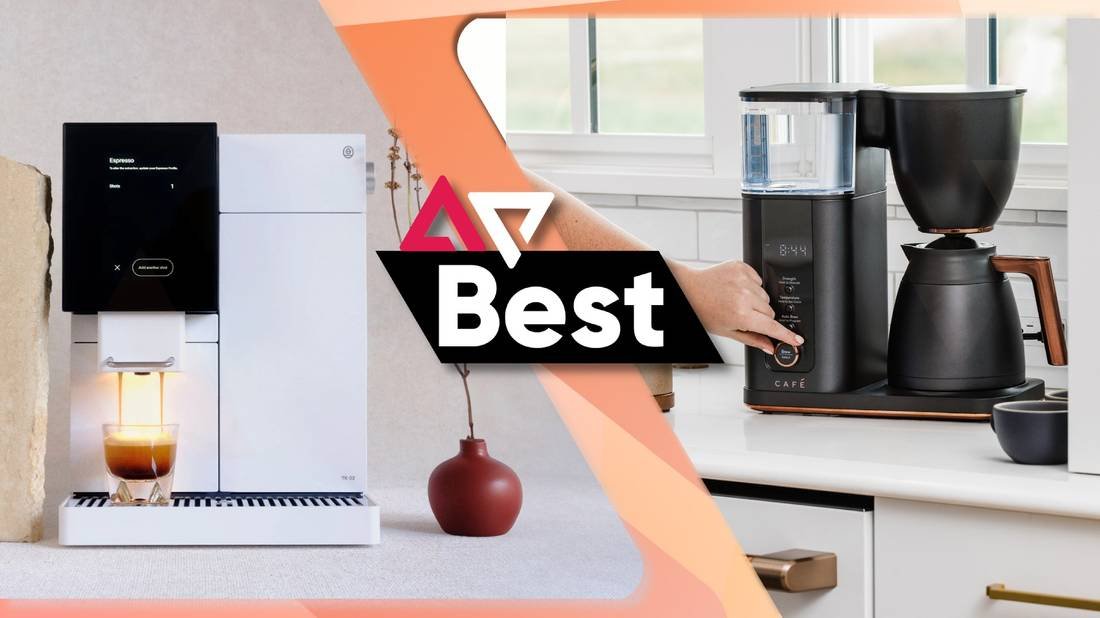
Are you ready to make your mornings smoother with a smart coffee maker? Connecting your device to Wi-Fi can unlock features that save you time and give you the perfect cup every day.
But sometimes, setting up that connection feels tricky or frustrating. Don’t worry—you’re not alone, and this guide is here to help. Keep reading, and you’ll discover simple, practical tips that make connecting your smart coffee maker to Wi-Fi quick and hassle-free.
Your perfect brew is just a few easy steps away.
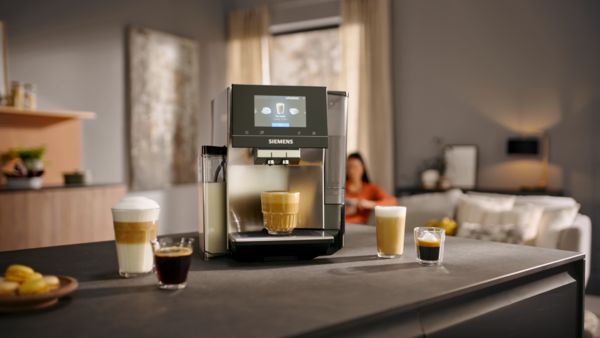
Credit: www.siemens-home.bsh-group.com
Choosing The Right Smart Coffee Maker
Smart coffee makers connect to Wi-Fi, allowing remote control. Choosing the right one ensures smooth setup and operation.
Consider features like Wi-Fi compatibility, app requirements, and security. These factors will help you make an informed choice.
Wi-fi Compatibility
Check if the coffee maker supports your home Wi-Fi band. Most devices work with 2.4 GHz networks, but some newer models support 5 GHz too.
Ensure that your router and the coffee maker are compatible. This avoids connection issues and allows for smooth operation.
App Requirements
Smart coffee makers use apps for control. Check the app’s compatibility with your smartphone’s operating system.
Ensure the app is available in your region. Look for user-friendly interfaces and features that suit your needs.
- Check app store ratings
- Read user reviews
- Look for regular updates
Security Features
Security is important for any smart device. Look for coffee makers with strong encryption methods to protect your data.
Ensure the device supports firmware updates. This keeps your coffee maker secure against new threats.
- Check for password protection
- Ensure data encryption
- Look for regular security patches
Preparing Your Wi-fi Network
Connecting a smart coffee maker to Wi-Fi needs a good network setup. A stable and fast Wi-Fi helps the device work smoothly.
Before connecting, check your Wi-Fi settings. This saves time and avoids connection problems.
Network Speed And Stability
Smart coffee makers need steady Wi-Fi to work well. Slow or unstable networks cause connection drops.
Check your internet speed. At least 1 Mbps upload and download speed is good for most smart devices.
- Keep your router near the coffee maker for strong signal.
- Limit the number of devices using Wi-Fi at the same time.
- Restart your router if connection slows down.
2.4 Ghz Vs 5 Ghz Bands
Wi-Fi uses two main frequency bands: 2.4 GHz and 5 GHz. Each has pros and cons for smart devices.
Most smart coffee makers work better on 2.4 GHz. It covers larger areas and passes through walls easily.
- 2.4 GHz: Longer range, slower speed, better device compatibility.
- 5 GHz: Faster speed, shorter range, less interference.
- Choose 2.4 GHz for reliable coffee maker connection.
Router Settings To Check
Some router settings affect how your coffee maker connects to Wi-Fi. Check these before setup.
- Ensure SSID (network name) is visible, not hidden.
- Use WPA2 security for safe and compatible connection.
- Disable MAC address filtering or add your device’s MAC address.
- Check if DHCP is enabled to assign IP addresses automatically.
- Update router firmware to fix bugs and improve performance.
Setting Up The Coffee Maker
Connecting your smart coffee maker to Wi-Fi lets you control it from your phone. This guide helps you set it up easily.
Follow simple steps to power on, link with the app, and solve common connection issues.
Powering On And Initial Setup
First, plug your coffee maker into a power source. Press the power button to turn it on.
The device may ask you to select language and time. Use the buttons on the display to set these.
Connecting Via The Mobile App
Download the coffee maker’s app on your phone. Open it and create an account if needed.
Follow the app instructions to add your coffee maker. Usually, you select your Wi-Fi network and enter the password.
- Keep your phone close to the coffee maker
- Use a 2.4 GHz Wi-Fi network for better compatibility
- Make sure Wi-Fi password is correct
Troubleshooting Connection Issues
If your coffee maker does not connect, restart the device and your router. This often solves simple issues.
Check if your Wi-Fi signal is strong near the coffee maker. Move the device closer to the router if needed.
- Verify Wi-Fi password is entered correctly
- Ensure the coffee maker firmware is updated
- Restart the mobile app and try connecting again
- Reset the coffee maker’s network settings if problems persist
Optimizing Connection Performance
Connecting a smart coffee maker to Wi-Fi makes brewing easier. A strong connection helps the device work well every time.
Small changes can improve connection speed and reduce errors. Use these tips to get the best Wi-Fi link.
Positioning The Coffee Maker
Place the coffee maker close to your Wi-Fi router for a strong signal. Thick walls or metal objects can block the connection.
Keep the coffee maker away from microwaves or cordless phones. These devices can cause signal problems.
- Use an open spot on your kitchen counter
- Avoid spots behind appliances or inside cabinets
- Keep at least 3 feet from other electronics
Updating Firmware
Firmware updates fix bugs and improve Wi-Fi performance. Check for updates regularly on your coffee maker’s app or settings menu.
Install updates as soon as they are available. Updated firmware helps your device stay compatible with your router.
- Open the coffee maker app or device menu
- Look for “Firmware Update” or “Software Update”
- Follow the instructions to download and install
Managing Network Interference
Other Wi-Fi networks and devices can cause interference. This can slow down or drop your coffee maker’s connection.
Use these tips to reduce interference and keep a steady link.
- Choose a less crowded Wi-Fi channel on your router
- Use 5 GHz Wi-Fi if your coffee maker supports it
- Turn off unused devices that use Wi-Fi
- Keep the router firmware up to date
Securing Your Smart Coffee Maker
Smart coffee makers connect to your home Wi-Fi to brew coffee on command. They make life easier but need protection. Securing your device keeps your network safe.
Follow simple steps to protect your smart coffee maker from hackers. This guide helps you keep your coffee maker and Wi-Fi secure.
Changing Default Passwords
Smart coffee makers often come with default passwords. These passwords are easy to guess and can put your device at risk.
Change the default password to a strong, unique one. Use a mix of letters, numbers, and symbols to make it hard to crack.
- Do not use simple passwords like “1234” or “password”
- Create a password with at least 8 characters
- Use different passwords for different devices
- Store your new password safely
Enabling Network Encryption
Network encryption protects your Wi-Fi and devices from unauthorized access. It scrambles your data so others cannot read it.
Make sure your home Wi-Fi uses strong encryption like WPA3 or WPA2. Check your router settings to enable it if needed.
- Use WPA3 if available for the best security
- WPA2 is a good alternative if WPA3 is not supported
- Avoid using WEP as it is outdated and insecure
- Keep your router firmware up to date
Regular Security Checks
Check your smart coffee maker and network regularly for security issues. This helps find problems early and fix them fast.
Look for software updates and install them. Updates fix bugs and improve security. Also, review connected devices often.
- Check for coffee maker firmware updates monthly
- Update your router software regularly
- Review devices connected to your Wi-Fi
- Change passwords if you suspect a breach
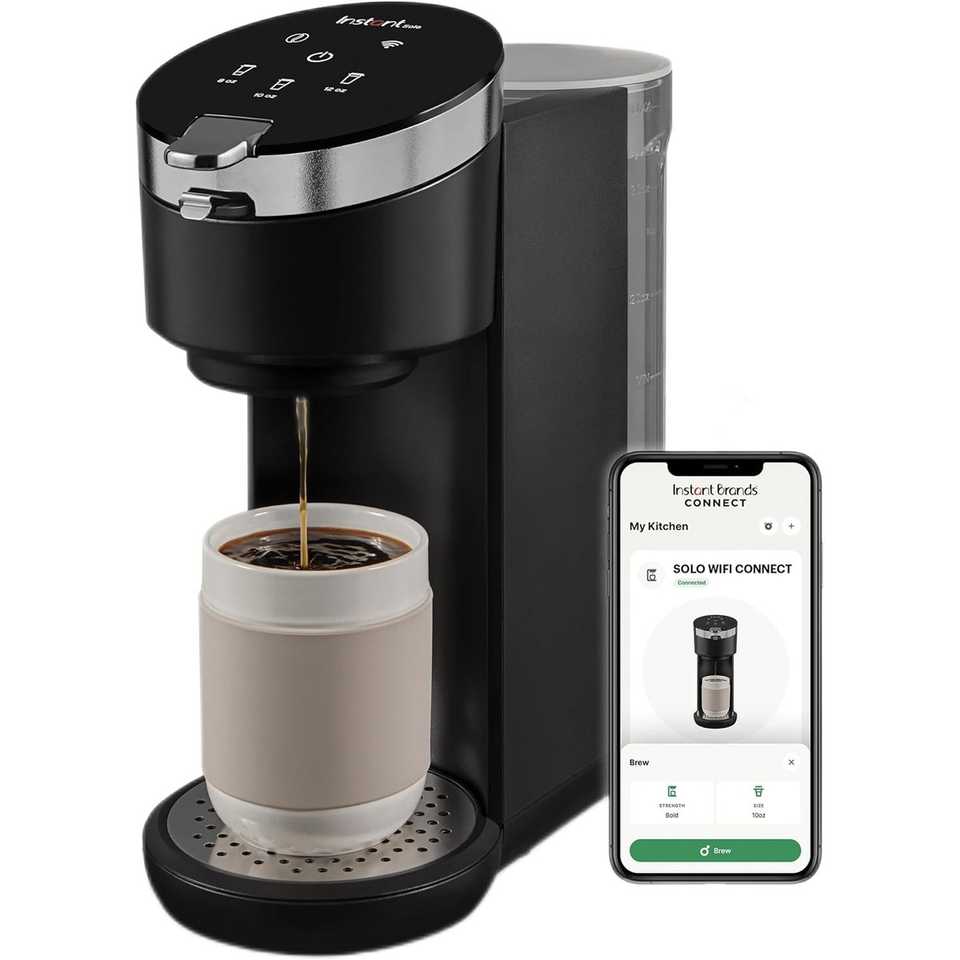
Credit: www.androidpolice.com
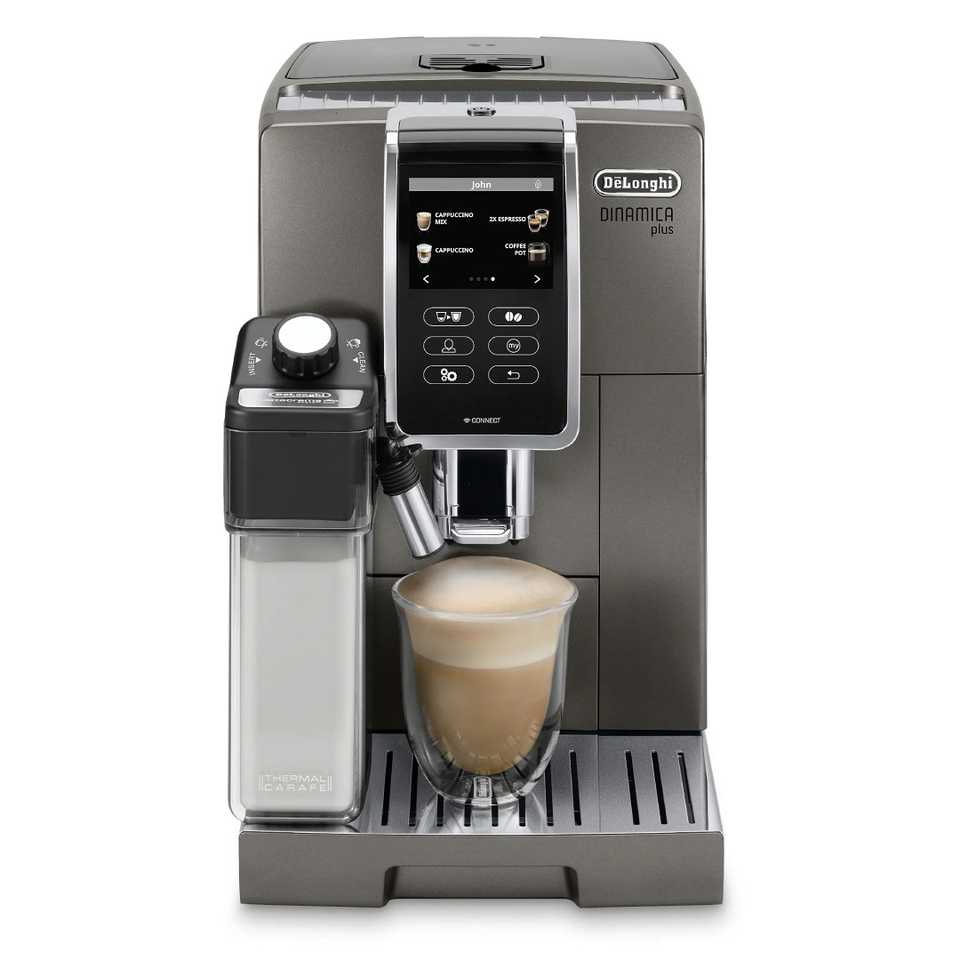
Credit: www.androidpolice.com
Frequently Asked Questions
How Do I Connect My Smart Coffee Maker To Wi-fi?
To connect, turn on your coffee maker and open its app. Follow the in-app instructions to select your Wi-Fi network and enter the password. Ensure your phone is on the same network for smooth setup.
Why Won’t My Smart Coffee Maker Connect To Wi-fi?
Check your Wi-Fi signal strength and password accuracy. Restart both the coffee maker and your router. Ensure your router supports 2. 4 GHz, as many smart devices don’t connect to 5 GHz bands.
Can I Use Any Wi-fi Network With My Coffee Maker?
Most smart coffee makers require a 2. 4 GHz Wi-Fi network. Public or restricted networks may block device connections. Always use a secure, home Wi-Fi network for reliable performance.
What Should I Do If My Coffee Maker Loses Wi-fi Connection?
Restart your coffee maker and router. Check for firmware updates in the app. If problems persist, reset the coffee maker’s network settings and reconnect it to Wi-Fi.
Conclusion
Connecting your smart coffee maker to Wi-Fi is easier than it seems. Follow the steps carefully for a smooth setup. Check your Wi-Fi signal and password before starting. Keep your device close to the router during connection. Restart your coffee maker or router if problems occur.
Enjoy fresh coffee made with smart convenience every day. Small efforts bring great benefits to your morning routine. Stay patient and try again if needed. Smart coffee makers save time and add comfort to life.