
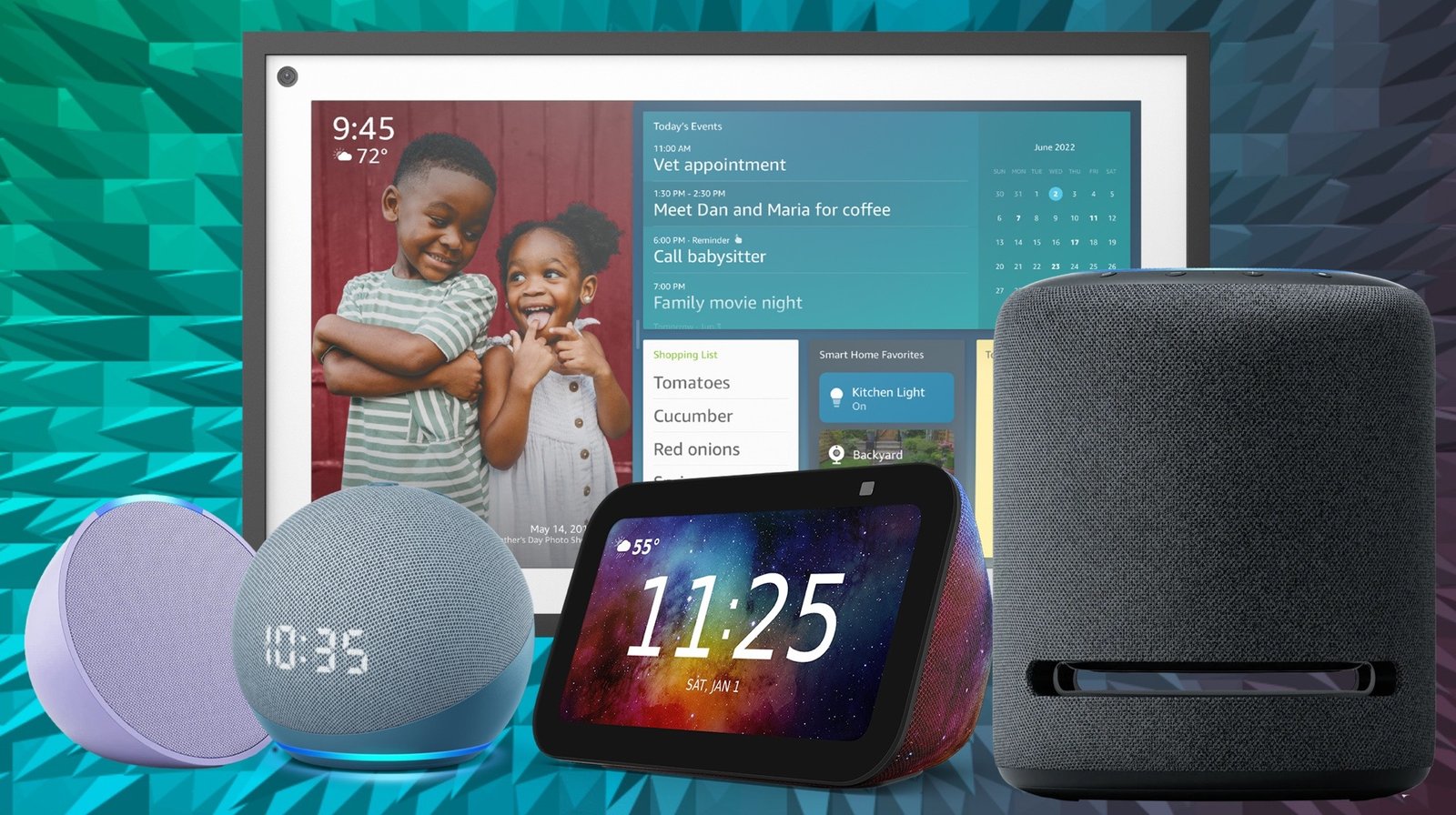
Imagine controlling your home with just your voice—turning on lights, adjusting the thermostat, or even starting the coffee maker without lifting a finger. If you’ve ever wondered how to connect your smart appliances to Alexa or Google Assistant, you’re in the right place.
This guide will walk you through simple, effective tips to make your devices work seamlessly together. By the end, you’ll feel confident setting up your smart home and enjoying the convenience you deserve. Ready to take control? Let’s dive in!
Choosing The Right Smart Appliances
Smart appliances make your home more convenient and efficient. Picking the right ones helps you connect them easily to Alexa or Google Assistant.
Focus on appliances that fit your needs and work well with your smart home system. This ensures smooth control and better performance.
Compatibility With Alexa And Google Assistant
Check if the appliance supports Alexa and Google Assistant. Not all smart devices work with both platforms.
Look for labels or product details that mention voice assistant compatibility. This helps avoid connection problems later.
- Choose appliances with official Alexa or Google Assistant support
- Confirm the appliance can connect via Wi-Fi or Bluetooth
- Check if the device needs a separate hub or app
- Read reviews to see if users had issues connecting
Features And Functions
Smart appliances offer different features depending on the brand and model. Choose ones that match your lifestyle and needs.
Consider what you want to control with voice commands, such as temperature, timers, or modes.
- Look for easy voice command options
- Check if the appliance supports routines or schedules
- See if it offers remote control via smartphone apps
- Choose appliances with clear feedback sounds or lights

Credit: www.the-ambient.com
Setting Up Your Smart Home Hub
Connecting smart appliances to Alexa or Google Assistant starts with setting up a smart home hub. This hub acts as a central point to control all your devices. It makes your smart home work smoothly.
A good setup helps avoid connection issues. It also makes it easy to add new devices later. Let’s look at how to install the app and configure your Wi-Fi settings.
Installing Alexa Or Google Home App
First, download the Alexa or Google Home app on your phone or tablet. These apps help you control your smart devices. They guide you through the setup process step-by-step.
Make sure to use the latest version of the app. This ensures you get all the newest features and bug fixes. Open the app and sign in with your Amazon or Google account.
- Go to the App Store or Google Play Store
- Search for “Amazon Alexa” or “Google Home”
- Download and install the app
- Open the app and log in with your account
- Follow the on-screen setup instructions
Configuring Wi-fi Settings
Your smart home hub needs a strong Wi-Fi connection. Connect it to the same Wi-Fi network as your phone or tablet. This helps devices communicate with each other easily.
Choose a 2.4 GHz Wi-Fi network if possible. Many smart devices work better on this frequency. Enter your Wi-Fi name and password carefully to avoid errors.
- Open the Alexa or Google Home app
- Go to device settings and select Wi-Fi
- Choose your Wi-Fi network from the list
- Type your Wi-Fi password correctly
- Wait for the hub to connect
Connecting Smart Lights
Smart lights add convenience to your home. You can control them using voice assistants like Alexa or Google Assistant.
Connecting your smart bulbs to these assistants lets you turn lights on or off with simple voice commands.
Setting Up Smart Bulbs
Start by installing your smart bulbs in the fixtures. Make sure they are powered on before setup.
Use the bulb’s app to connect it to your Wi-Fi. Then link the app to Alexa or Google Assistant.
- Turn on the smart bulb and open its app
- Connect the bulb to your home Wi-Fi network
- Open Alexa or Google Assistant app
- Link the smart bulb’s app account to the voice assistant
- Discover devices in the voice assistant app
- Test the bulb using voice commands
Grouping Lights For Voice Control
Grouping lights helps you control several bulbs with one command. It is useful in rooms with many lights.
Create groups in your voice assistant app. Give the group a simple name to use in commands.
- Open Alexa or Google Assistant app
- Find the option to create a new group or room
- Select the smart lights to add to the group
- Name the group clearly, like “Living Room Lights”
- Save the group and test voice commands
Integrating Smart Thermostats
Smart thermostats let you control your home’s temperature with voice commands. They work well with Alexa or Google Assistant.
Connecting these devices helps you save energy and stay comfortable all day long.
Creating Temperature Routines
Set temperature routines to adjust your home’s climate automatically. Use voice commands or apps to schedule changes.
Routines can warm or cool your home at specific times. This keeps your space comfortable without manual control.
- Schedule warmer temperatures in the morning
- Lower temperatures during work hours
- Set cozy warmth for evenings and nights
- Adjust settings based on your daily activities
Energy Efficiency Tips
Use smart thermostats to reduce energy use and save money. Smart controls help avoid heating or cooling when not needed.
Follow simple tips to get the most from your device and lower energy waste.
- Set temperature a few degrees lower in winter and higher in summer
- Use away mode when no one is home
- Check and update thermostat software regularly
- Keep vents and filters clean for better airflow
Syncing Smart Plugs
Smart plugs let you control devices with your voice using Alexa or Google Assistant. You can turn appliances on or off without touching a switch.
To sync a smart plug, connect it to your Wi-Fi and link it to your voice assistant app. This setup helps you manage devices easily.
Controlling Devices Remotely
After syncing, you can control smart plugs from anywhere using your phone. This lets you switch devices on or off even if you are not home.
Use the Alexa or Google Home app to manage your smart plugs. You can check their status and control them anytime.
- Turn lights on before you arrive
- Switch off appliances left on by mistake
- Control devices while on vacation
Scheduling On/off Times
Set schedules for your smart plugs to turn devices on or off automatically. This saves energy and adds convenience.
You can create daily or weekly schedules through the voice assistant app. This keeps your home running smoothly without manual control.
- Turn lamps on at sunset
- Switch coffee makers off after use
- Schedule fans to run during hot hours
Linking Smart Speakers
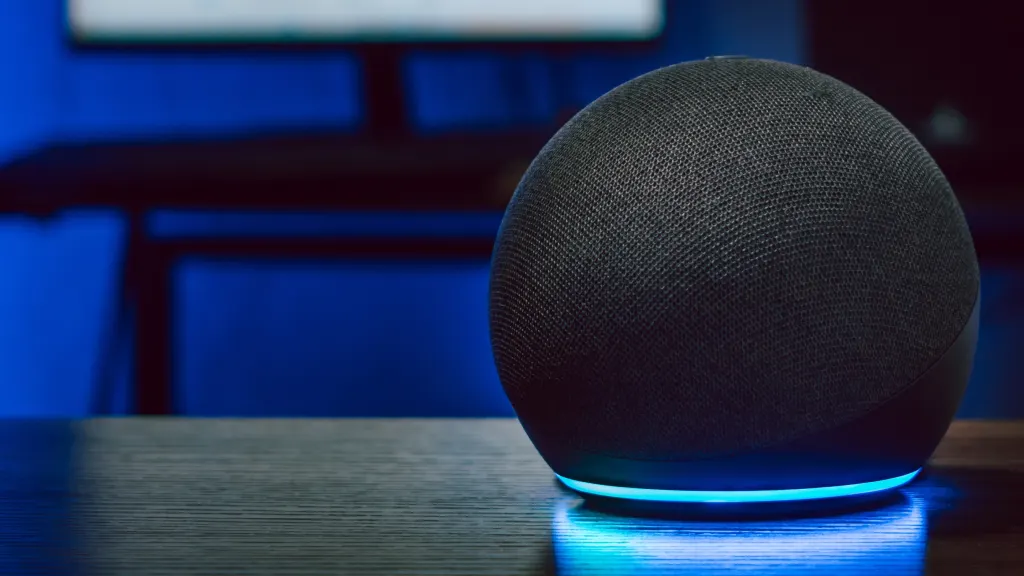
Connecting your smart appliances to Alexa or Google Assistant starts with linking your smart speakers. This allows you to control devices using voice commands.
Both Alexa and Google Assistant support many smart speakers. Linking them helps create a smooth smart home experience.
Enhancing Audio Experience
Linking smart speakers improves your audio experience. You get clearer sound and better voice recognition.
Use the app for Alexa or Google Home to adjust speaker settings. This can balance sound and reduce noise.
- Place speakers in open areas for better sound
- Adjust volume and equalizer settings in the app
- Keep speakers away from walls and corners
Multi-room Audio Setup
Multi-room audio lets you play music on several speakers at once. It creates a connected sound system in your home.
Set this up through your smart assistant app. Group speakers by room or zone to control them easily.
- Open the Alexa or Google Home app
- Create speaker groups for each room
- Choose speakers to add to each group
- Play music or commands to all speakers in a group
Connecting Smart Cameras
Smart cameras help you watch your home from anywhere. You can control them with Alexa or Google Assistant.
Connecting smart cameras lets you check live video and get alerts on your phone or speaker.
Setting Up Security Alerts
Security alerts notify you if the camera detects motion or sound. This keeps you aware of any unusual activity.
To set alerts, link your smart camera to Alexa or Google Assistant apps. Then turn on motion or sound detection.
- Open your smart home app on your phone
- Find camera settings and enable alerts
- Choose alert types like motion or sound
- Set alert times to avoid false alarms
- Save settings and test alerts
Live Video Streaming
Live video streaming lets you view your camera feed anytime. Use voice commands with Alexa or Google Assistant.
Start streaming by asking your smart speaker or phone to show the camera view. This helps you check your home quickly.
- Say “Alexa, show the front door camera”
- Say “Hey Google, show the living room camera”
- Use your smart home app to watch live video
- Pause or stop the video with voice commands
Credit: www.asurion.com
Troubleshooting Common Issues
Connecting smart appliances to Alexa or Google Assistant can sometimes cause issues. These problems often stop your device from working properly.
Knowing how to fix these common problems helps you use your smart appliances without delays or frustration.
Connectivity Problems
Many connection issues happen because of Wi-Fi problems or device settings. Check your Wi-Fi signal and make sure your smart appliance is close enough to the router.
Restart your router and smart appliance if they do not connect. Also, confirm that your device is on the same Wi-Fi network as Alexa or Google Assistant.
- Check Wi-Fi strength near your device
- Restart router and smart appliance
- Confirm all devices use the same Wi-Fi network
- Update device and app software
- Remove and re-add the device in the app
Voice Command Recognition
Voice commands may not work if the assistant cannot understand you. Speak clearly and use simple commands that your device recognizes.
Make sure your smart assistant’s microphone is not blocked or muted. If needed, retrain the voice model or update the device software.
- Speak slowly and clearly
- Use supported command phrases
- Keep microphone clean and unblocked
- Retrain voice recognition if available
- Update smart assistant software regularly
Enhancing Security And Privacy
Connecting smart appliances to Alexa or Google Assistant makes life easier. It also raises concerns about security and privacy.
Keeping your devices safe helps protect your personal data and home network from threats.
Managing Permissions
Only give your smart devices the permissions they need. Too many permissions increase security risks.
Review app permissions regularly to make sure nothing is allowed without your approval.
- Limit access to personal information
- Disable unused features or services
- Control which apps can connect to your devices
- Check permissions after software updates
Updating Device Firmware
Keep your smart appliances updated with the latest firmware. Updates fix security issues and bugs.
Set devices to update automatically or check for updates often. This helps block new threats.
- Enable automatic updates if possible
- Check manufacturer websites for manual updates
- Install updates promptly after release
- Restart devices after updates to apply changes
Credit: www.yahoo.com
Exploring Advanced Features
Smart appliances work well with Alexa and Google Assistant. You can do more than just voice commands.
Advanced features help you control devices in smart ways. These features save time and add comfort.
Creating Automation Routines
Automation routines let you link many actions together. You can trigger them with one command or event.
For example, a routine can turn off lights and lock doors when you say “Good night.” You can customize routines for your needs.
- Set schedules to run appliances at certain times
- Combine multiple devices in one routine
- Use voice commands to start routines
- Trigger routines by location or device status
Integrating With Ifttt
IFTTT (If This Then That) connects your smart appliances with many apps. It adds more ways to control devices.
You can create custom applets to link Alexa or Google Assistant with other services. This brings new functions to your smart home.
- Link smart appliances with weather updates
- Turn on devices when you arrive home
- Receive alerts if a device needs attention
- Connect with social media or calendars
Frequently Asked Questions
How Do I Connect Smart Appliances To Alexa?
To connect smart appliances to Alexa, enable the appliance’s skill in the Alexa app. Then, link your account and discover devices. Ensure your appliance is compatible and connected to the same Wi-Fi network for smooth integration.
Can Google Assistant Control All Smart Appliances?
Google Assistant supports many smart appliances, but compatibility varies by brand. Check your appliance’s specifications for Google Assistant support. Use the Google Home app to link and control compatible devices easily through voice commands.
What Are Common Issues When Connecting Smart Devices?
Common issues include Wi-Fi connectivity problems, incompatible devices, and outdated apps. Ensure your appliance firmware is updated and on the same network as Alexa or Google Assistant. Restart devices or re-link accounts to resolve most connection problems.
Is A Hub Necessary For Smart Appliance Connection?
A hub isn’t always required but can improve device compatibility and control. Many smart appliances connect directly via Wi-Fi or Bluetooth. Check your device’s instructions to know if a hub is recommended for optimal performance.
Conclusion
Connecting smart appliances to Alexa or Google Assistant is simple with these tips. Start by checking device compatibility and ensuring a strong Wi-Fi connection. Use the app to link your appliances step by step. Voice commands make daily tasks easier and save time.
Keep your devices updated for better performance and security. Enjoy the convenience of a smarter home with just a few easy steps. Smart living is closer than you think.