
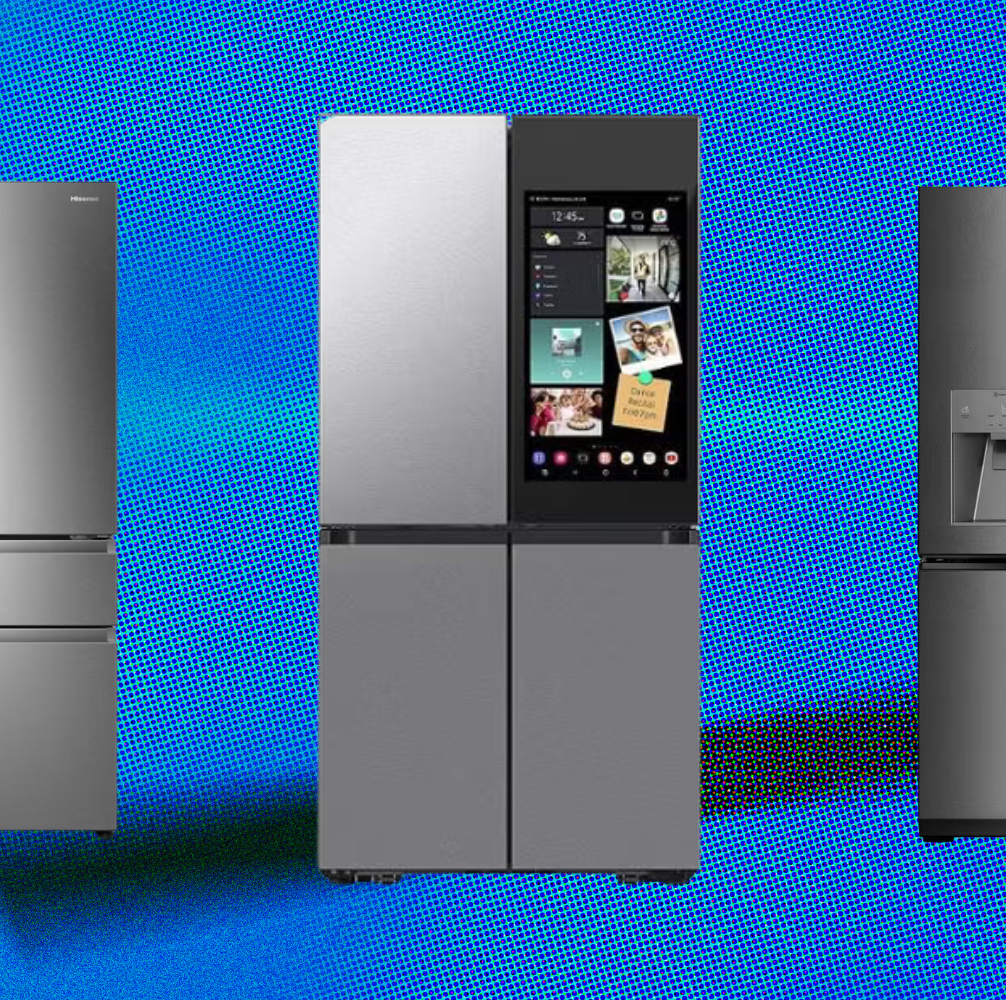
Imagine never running out of milk or forgetting to close your fridge door again. Setting up a smart refrigerator with app notifications can make your kitchen life easier and stress-free.
You’ll get instant alerts right on your phone, helping you keep track of your groceries and save energy. If you want to know how to set this up step-by-step and start enjoying these benefits today, keep reading. Your fridge is about to get a whole lot smarter!
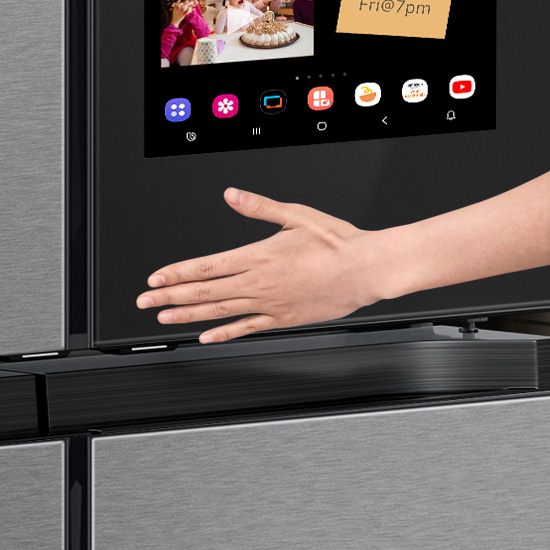
Credit: www.samsung.com
Choosing The Right Smart Refrigerator
Smart refrigerators offer convenience and efficiency. They connect to apps and send notifications to your phone.
It’s important to pick a model that fits your needs. Consider key features, app compatibility, and energy efficiency.
Key Features To Look For
Smart refrigerators come with various features. Some enhance convenience, while others improve storage.
- Touchscreen display for easy control
- Internal cameras to see inside without opening
- Adjustable shelves for flexible storage
- Voice control with smart assistants
Compatibility With Mobile Apps
Smart fridges work with apps on your phone. Check if the fridge supports your device.
Make sure the app is easy to use. It should offer features like grocery lists and temperature control.
- iOS and Android compatibility
- User-friendly interface
- Remote monitoring and alerts
Energy Efficiency Ratings
Energy-efficient models save money on bills. Look for refrigerators with high energy ratings.
These models are better for the environment. They also tend to be quieter and last longer.
- Energy Star certification
- Low kWh consumption
- Eco-friendly cooling technology
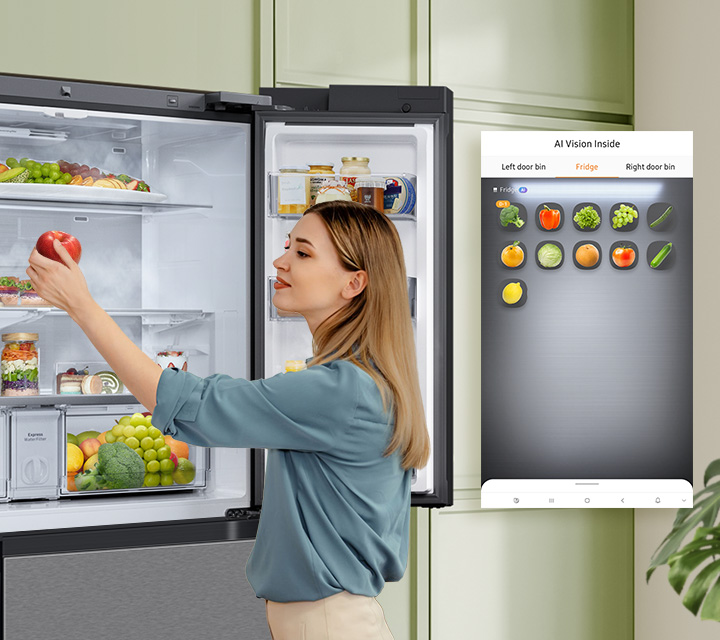
Credit: www.samsung.com
Preparing For Installation
Setting up a smart refrigerator with app notifications needs some planning. Preparing well makes the process smooth and fast.
This guide explains what to check before installing your smart fridge. It helps avoid common problems.
Checking Wi-fi Connectivity
Your smart refrigerator needs a strong Wi-Fi signal to send notifications. Check the Wi-Fi speed and strength in the kitchen.
Make sure your router is nearby or use a Wi-Fi extender if the signal is weak.
- Test Wi-Fi speed with an app or website
- Check for Wi-Fi dead zones in the fridge area
- Consider upgrading your router if needed
Space And Power Requirements
Measure the space where you want to place the fridge. It must fit well with enough room to open doors easily.
Check the power outlet near the spot. The fridge needs a dedicated outlet with the right voltage and current.
- Allow extra space for ventilation around the fridge
- Use a grounded power outlet to avoid electrical issues
- Avoid extension cords or power strips
Gathering Necessary Tools
Collect all tools before starting the installation. This saves time and stops interruptions.
Basic tools include a screwdriver, level, and measuring tape. You might also need your smartphone for app setup.
- Screwdriver set for adjustments
- Measuring tape for space checking
- Level to keep the fridge balanced
- Smartphone with the fridge app installed
- Wi-Fi password handy for connection
Connecting The Refrigerator To Wi-fi
Smart refrigerators need a Wi-Fi connection to send app alerts. Connecting to Wi-Fi lets you check your fridge from anywhere.
This guide shows how to connect your smart fridge to your home Wi-Fi network.
Accessing The Settings Menu
First, you must open the settings menu on your fridge’s screen. This menu lets you control all the smart features.
Look for a gear icon or a menu button on the touchscreen. Tap it to open the settings.
Entering Network Credentials
In the settings menu, find the Wi-Fi or network section. Select your home Wi-Fi network from the list.
Enter your Wi-Fi password carefully. Make sure to type it exactly to avoid errors.
- Choose the correct Wi-Fi name (SSID)
- Use uppercase and lowercase letters as needed
- Check for extra spaces or typos
Troubleshooting Connection Issues
If the fridge does not connect, check your Wi-Fi signal strength near the fridge. Weak signals cause problems.
Try these tips if connection fails:
- Restart the refrigerator and your Wi-Fi router
- Make sure the password is correct
- Move the router closer to the fridge if possible
- Check if the fridge firmware is up to date
- Reset network settings on the fridge and try again
Installing And Setting Up The App
Smart refrigerators send alerts to your phone. You need to install the right app to get notifications.
This guide shows how to download, create an account, and connect the fridge to the app.
Downloading The Manufacturer’s App
Find the app made by your refrigerator’s brand. It works best with your model.
Use your phone’s app store to download the app. It is usually free and safe.
- Open Google Play Store or Apple App Store
- Search for your fridge brand’s app
- Check app ratings and reviews
- Tap “Install” or “Get” to download
Creating An Account
Open the app after installation. You will need an account to use its features.
Follow the app’s instructions to sign up. You must enter your email and make a password.
- Launch the app on your phone
- Select “Sign Up” or “Create Account”
- Enter your email address
- Create a strong password
- Agree to terms and privacy policy
- Verify your email if needed
Pairing The Refrigerator With The App
Connect the app with your smart fridge. This lets the app send alerts and control the fridge.
Make sure your phone and fridge use the same Wi-Fi network for easy pairing.
- Open the app and log in
- Choose “Add Device” or “Pair Fridge”
- Follow app instructions to find your fridge
- Enter any needed codes from the fridge screen
- Confirm the connection in the app
- Test notifications and controls
Configuring App Notifications
Smart refrigerators send app notifications to keep you informed. These alerts help you track your fridge’s status and food freshness.
Setting up notifications properly makes sure you get useful updates without too many alerts.
Types Of Notifications Available
Smart fridge apps offer several notification types. They tell you about temperature changes, door status, and food expiry.
- Temperature alerts warn if the fridge is too hot or cold
- Door open alerts notify if the door stays open too long
- Food expiration alerts remind you to use items before they spoil
- Maintenance alerts suggest when to clean or service the fridge
Customizing Alert Preferences
You can change which notifications you receive. Set your preferences in the app settings to match your needs.
Adjust the alert sounds and vibration to avoid disturbance or missing important updates.
- Turn on or off specific alerts
- Choose alert tone or silent mode
- Set quiet hours to pause notifications
- Enable or disable push notifications
Managing Notification Permissions
Your phone needs permission to show app notifications. Check your device settings to allow alerts from your fridge app.
Manage permissions to keep your privacy safe and control how the app notifies you.
- Allow notifications in your phone’s app settings
- Control lock screen notification visibility
- Decide if notifications show banners or alerts
- Review app permissions regularly for security
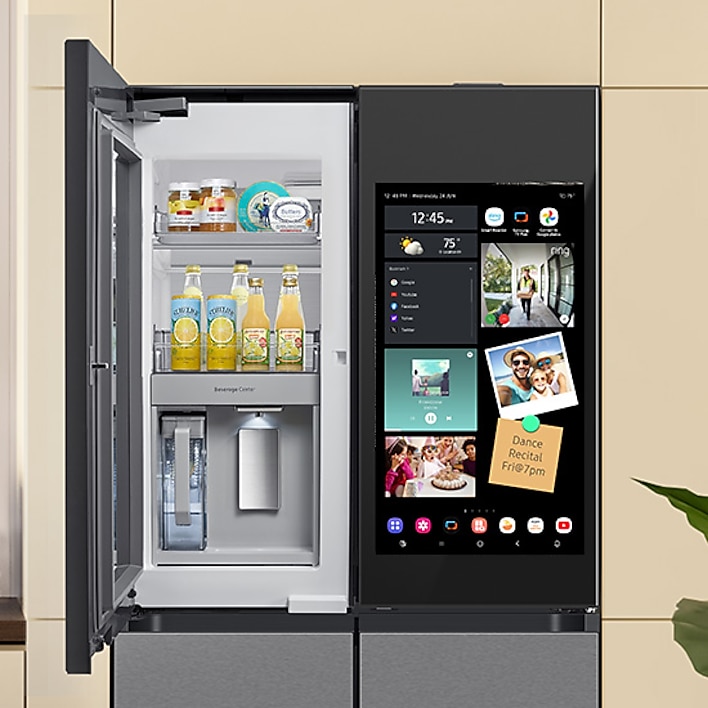
Credit: www.samsung.com
Using Smart Features Effectively
Smart refrigerators bring many useful features to your kitchen. They help you keep food fresh and save energy.
Using the app notifications can make managing your fridge easier. You get alerts and control your fridge from anywhere.
Monitoring Temperature And Humidity
Smart refrigerators track the temperature and humidity inside. This helps keep food fresh for longer.
The app sends notifications if the temperature changes too much. You can fix the problem quickly to avoid spoilage.
- Check real-time temperature on the app
- Receive alerts if temperature is too high or low
- Adjust settings remotely to keep food safe
Managing Inventory And Expiry Dates
The app helps you keep track of the food inside your fridge. You can add items and their expiry dates easily.
You get reminders when food is about to expire. This helps reduce waste and saves money.
- Add new groceries to the app inventory list
- Set expiry dates for each item
- Receive notifications for soon-to-expire food
- Plan meals based on what is inside your fridge
Remote Control And Diagnostics
You can control your smart fridge from your phone. Change settings or check status even when you are not home.
The app also runs diagnostics to find issues early. You get alerts if something needs attention or repair.
- Adjust temperature and modes remotely
- Check door status and alerts
- Run diagnostic tests via the app
- Get notifications about needed maintenance
Maintaining Security And Privacy
Smart refrigerators connect to the internet to send app notifications. This makes life easier but can risk your privacy.
Keeping your device secure stops others from accessing your data or control.
Updating Firmware Regularly
Firmware updates fix bugs and close security holes. They keep your smart fridge safe from hackers.
Check for updates often and install them right away. Most smart refrigerators let you update using the app.
- Open the fridge app on your phone
- Go to settings or device info
- Look for firmware updates
- Download and install updates
Securing Your Wi-fi Network
Your Wi-Fi network is the main way hackers try to access your smart fridge. Secure your network to keep it safe.
Use a strong password and the latest encryption type on your router. Avoid using public or open Wi-Fi for your fridge.
- Choose a password with letters, numbers, and symbols
- Use WPA3 or WPA2 encryption on your router
- Change the default router login details
- Turn off Wi-Fi when not needed
Managing Data Sharing Settings
Smart refrigerators collect data to improve services. You control what data is shared and with whom.
Review the app’s privacy settings to limit data sharing. Turn off features that you do not use or trust.
- Open the fridge app and find privacy settings
- Choose what information the app can access
- Disable data sharing with third parties
- Review permissions regularly
Frequently Asked Questions
How Do I Connect My Smart Fridge To The App?
Download the manufacturer’s app, create an account, and enable Bluetooth or Wi-Fi. Follow in-app prompts to pair your fridge. This ensures seamless communication for notifications and remote control.
What Types Of Notifications Can Smart Fridges Send?
Smart fridges notify you about temperature changes, door left open, filter status, and food expiry. These alerts help maintain freshness and prevent energy waste.
Can I Control My Smart Fridge Remotely?
Yes, using the app, you can adjust temperature, check inventory, and receive alerts. Remote control enhances convenience and energy efficiency.
Is Setting Up App Notifications On Smart Fridges Difficult?
No, setup is user-friendly with step-by-step instructions in the app. Most smart fridges guide you through easy pairing and notification customization.
Conclusion
Setting up smart refrigerators with app notifications is simple and helpful. You can check your fridge anytime from your phone. Alerts remind you when food is running low or expired. This saves time and reduces waste. Follow the steps carefully, and your fridge will work smarter for you.
Enjoy the convenience of knowing your fridge’s status without opening it. Smart tech makes daily life easier and more organized. Try it today and see the difference it brings to your kitchen.