
Imagine controlling your kitchen appliances with just a tap on your phone. Setting up a Wi-Fi kitchen appliance might sound tricky, but it’s easier than you think.
You’ll save time, add convenience, and make cooking more fun. In this guide, you’ll learn simple steps to get your smart appliance connected and ready to use. Ready to turn your kitchen into a high-tech hub? Let’s dive in and make it happen!
Choosing The Right Wi-fi Kitchen Appliance
Wi-Fi kitchen appliances make cooking easier by connecting to your phone. Choosing the right one helps you save time and effort.
Look for features that fit your cooking style and kitchen needs. This guide helps you pick the best Wi-Fi appliance.
Check Compatibility With Your Wi-fi Network
Make sure the appliance works with your home Wi-Fi. Some devices only support 2.4 GHz networks, not 5 GHz.
Check your router’s frequency and choose an appliance that matches it. This avoids connection problems.
Consider The Appliance’s Features
Look for smart features like remote control and scheduling. These help you cook and manage your kitchen better.
- Remote start and stop
- Recipe guidance
- Status alerts on your phone
- Energy usage monitoring
Check App Support And Ease Of Use
Most Wi-Fi appliances need an app to control them. Pick one with an easy-to-use app for smooth operation.
Read reviews to see if the app works well. A good app makes your cooking experience better.
Look For Security Features
Wi-Fi devices can be targets for hackers. Choose appliances with strong security like encryption and regular updates.
Secure devices keep your personal data safe and protect your home network.
Match The Appliance Size And Style
Check if the appliance fits your kitchen space. Also, consider the design to match your kitchen decor.
Proper size and style help keep your kitchen organized and pleasant.
Preparing Your Kitchen For Installation
Setting up a Wi-Fi kitchen appliance needs some planning. Preparing your kitchen helps the device work well.
Check your space and tools before starting the installation. This saves time and avoids problems.
Ensuring Sufficient Wi-fi Coverage
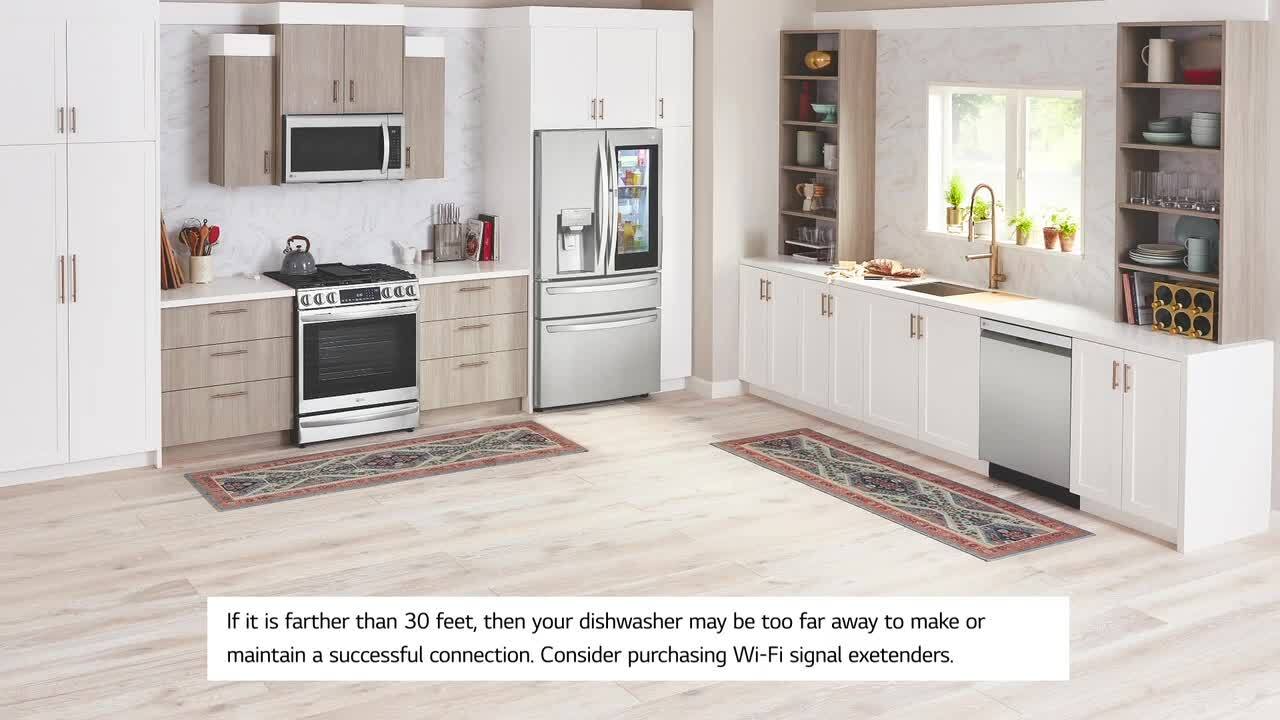
Strong Wi-Fi is key for smart kitchen appliances. Check if your kitchen gets good Wi-Fi signals.
Place your router near the kitchen or use a Wi-Fi extender. Walls and appliances can block signals.
- Test Wi-Fi speed in the kitchen using a phone or laptop
- Move the router closer if the signal is weak
- Use a Wi-Fi extender for better coverage if needed
- Avoid metal objects between the router and appliance
Checking Power Supply And Outlets
Your kitchen appliance needs a safe power source. Check if outlets are near the installation spot.
Ensure outlets work and handle the appliance’s power needs. Avoid using overloaded power strips.
- Locate outlets close to your appliance’s spot
- Test outlets with other devices to confirm they work
- Check if the outlet voltage matches appliance requirements
- Use a dedicated outlet for high-power appliances
Unboxing And Initial Setup
Setting up your new Wi-Fi kitchen appliance is easy if you follow some simple steps. Start by carefully unpacking the box and checking all parts.
Next, read the instructions to prepare the appliance for connection to your home network. This guide helps you get started quickly.
Inspecting The Appliance Components
After opening the box, check each component to make sure nothing is missing or damaged. Look for the main appliance, power cord, and any accessories.
Keep the packaging until you confirm all parts are in good condition. This helps if you need to return or replace anything.
- Main kitchen appliance unit
- Power adapter and cable
- Wi-Fi setup guide or quick start card
- Accessories like filters or trays
- Warranty and safety documents
Reading The User Manual
Before using the appliance, read the user manual carefully. It shows how to connect the device to Wi-Fi and operate it safely.
The manual explains important details like button functions, error messages, and cleaning instructions. Follow these steps to avoid problems.
- Locate the Wi-Fi setup section
- Note the app or software needed
- Check safety warnings
- Understand basic troubleshooting tips
- Learn how to use special features
Credit: www.lg.com
Connecting To Wi-fi Network
Setting up your kitchen appliance to connect to Wi-Fi lets you control it remotely. This guide helps you connect the appliance to your home network.
Follow simple steps to find the Wi-Fi settings and enter your network details. This ensures the appliance works smoothly with your internet.
Accessing Wi-fi Settings On The Appliance
Turn on your kitchen appliance. Look for the settings or network option on the screen or control panel.
Use buttons or touch screen to open the Wi-Fi or wireless settings menu. This menu lets you see available networks.
- Power on the appliance
- Navigate to Settings or Network menu
- Select Wi-Fi or Wireless settings
- Scan for available Wi-Fi networks
Entering Network Credentials
Choose your home Wi-Fi network from the list shown. Then enter the password using the appliance’s keypad or touchscreen.
Double-check the password for accuracy. After entering, select connect or save to join the network.
- Select your Wi-Fi network
- Enter the Wi-Fi password
- Verify the password is correct
- Tap Connect or Save
- Wait for the appliance to connect
Installing The Companion App
To control your Wi-Fi kitchen appliance, you need its companion app. This app connects your phone to the appliance.
Installing the app is simple. It lets you manage settings and monitor your appliance remotely.
Downloading The App From App Store
Find the app in your device’s app store. Search by the appliance brand or model name.
Make sure to download the official app. Check the developer’s name to confirm.
- Open App Store on iPhone or Google Play on Android
- Type the appliance brand or model in the search bar
- Select the official app from the list
- Tap “Install” or “Get” to download
- Wait for the app to install before opening it
Creating An Account
Open the app and choose to create a new account. This keeps your appliance settings safe.
You will need to provide an email and create a password. Follow the on-screen steps carefully.
- Enter your email address
- Create a strong password
- Confirm the password by typing it again
- Accept terms and conditions if asked
- Tap “Sign Up” or “Create Account”
- Check your email for a confirmation link
Credit: www.safewise.com
Syncing Appliance With The App
Setting up your Wi-Fi kitchen appliance starts with syncing it to the app. This connection lets you control the appliance from your phone.
Follow simple steps to pair the appliance and test the connection. This ensures smooth operation and remote access.
Pairing The Appliance
First, download the app for your appliance from your device’s app store. Open the app and create an account if needed.
Turn on the appliance and put it in pairing mode. Usually, this involves pressing and holding a button until a light blinks.
- Open the app and select “Add New Device.”
- Choose your appliance model from the list.
- Follow on-screen instructions to connect to Wi-Fi.
- Enter your Wi-Fi password carefully.
- Wait for confirmation that the device is connected.
Testing The Connection
After pairing, test the connection to confirm the appliance responds to the app commands.
Try turning the appliance on or off using the app. You can also check if settings update correctly.
- Open the app and select your appliance.
- Use controls to start or stop the appliance.
- Check if the appliance reacts immediately.
- If there is a delay, move closer to the Wi-Fi router.
- Restart the appliance and app if problems occur.
Exploring Control Features
Wi-Fi kitchen appliances allow you to control them remotely. You can use apps on your phone or tablet to manage settings easily.
These devices offer features that help save time and improve cooking results. Understanding these control options helps you use your appliance better.
Scheduling And Automation
You can set schedules to turn your appliance on or off at specific times. This makes meal preparation more convenient and helps save energy.
Automation features let your appliance follow preset cooking modes. It adjusts temperature and timing without needing your input.
- Set cooking start and stop times
- Use preset cooking programs
- Automate cleaning cycles
- Link appliance with smart home systems
Monitoring Usage And Performance
Wi-Fi appliances send data about their use and performance to your device. You can check this data anytime to understand how your appliance works.
Monitoring helps you spot issues early and keep your appliance in good condition. Some apps also suggest maintenance tips based on usage.
- View cooking time and temperature history
- Receive alerts for errors or maintenance
- Track energy consumption
- Get reminders for cleaning or part replacement
Troubleshooting Common Issues
Setting up a Wi-Fi kitchen appliance can be simple, but sometimes problems happen. This guide helps fix common troubles you might face.
Knowing how to solve these issues saves time and makes your appliance work as it should.
Wi-fi Connectivity Problems
One common issue is the appliance not connecting to your Wi-Fi network. This can stop it from working properly.
Check if your Wi-Fi signal is strong near the appliance. Walls and distance can weaken the signal.
- Move the appliance closer to the router.
- Restart your Wi-Fi router to refresh the connection.
- Make sure you enter the correct Wi-Fi password.
- Check if the appliance supports your Wi-Fi type (2.4GHz or 5GHz).
- Update the appliance firmware if updates are available.
App Syncing Errors
Your appliance may not sync well with the control app. This can stop you from controlling it remotely.
Make sure the app is updated to the latest version. Old app versions can cause syncing issues.
- Close and reopen the app to reset the connection.
- Log out and log back in to your app account.
- Check that your phone and appliance use the same Wi-Fi network.
- Restart your smartphone or tablet.
- Clear the app cache in your device settings.
Maintaining Your Wi-fi Kitchen Appliance
Keeping your Wi-Fi kitchen appliance in good shape helps it work well. Regular care can prevent problems and extend its life.
Simple steps like updating software and cleaning the device keep it safe and efficient. These tasks are easy to do and very important.
Regular Software Updates
Software updates fix bugs and improve your appliance’s features. Installing updates keeps your device secure and running smoothly.
Check for updates often through the appliance app or settings. Some devices update automatically, but you may need to start updates yourself.
- Connect the appliance to Wi-Fi before updating
- Read update notes to know what changes
- Do not turn off the device during updates
- Restart the appliance if needed after updating
Cleaning And Care Tips
Keep your kitchen appliance clean to avoid damage and ensure it works well. Dirt and food can block sensors or buttons.
Use soft cloths and gentle cleaners. Avoid water inside the device and unplug it before cleaning.
- Wipe the outside with a damp cloth
- Clean removable parts with warm, soapy water
- Do not use harsh chemicals or abrasive pads
- Dry parts completely before reassembling
- Check vents and sensors for dust or debris

Credit: www.amazon.com
Frequently Asked Questions
How Do I Connect My Kitchen Appliance To Wi-fi?
First, power on your appliance and access its settings menu. Select Wi-Fi setup and choose your network. Enter your Wi-Fi password carefully. Confirm the connection and wait for the appliance to connect. Check the app or device to ensure successful setup.
What Are Common Wi-fi Setup Issues With Appliances?
Common issues include weak signal, incorrect password, or outdated firmware. Ensure your router is close and working. Restart both appliance and router if needed. Update the appliance’s software to the latest version for better compatibility.
Can I Control My Kitchen Appliance Remotely?
Yes, most Wi-Fi kitchen appliances allow remote control via their app. You can start, stop, or monitor cooking from anywhere. Make sure your phone and appliance are connected to the internet for seamless remote access.
Is My Wi-fi Network Compatible With Kitchen Appliances?
Most modern appliances support 2. 4 GHz Wi-Fi networks. Some may not work with 5 GHz or enterprise networks. Check your appliance manual for specific network requirements to ensure compatibility before setup.
Conclusion
Setting up a Wi-Fi kitchen appliance is simple and fast. Follow the steps carefully for a smooth connection. Make sure your home Wi-Fi is strong and stable. Check the appliance’s instructions for specific details. Test the device after setup to confirm it works well.
Smart kitchen tools save time and add convenience. Enjoy cooking with your connected appliance every day. Stay patient and troubleshoot small issues if needed. This setup can improve your daily kitchen routine.