
Imagine having a smart blender that not only mixes your favorite smoothies but also connects seamlessly with your smartphone. You can control settings, track recipes, and even get personalized tips—all from an app.
Sounds exciting, right? If you want to unlock the full potential of your smart blender and make your kitchen smarter, this guide is for you. Keep reading to discover simple steps that will help you integrate your smart blender with apps effortlessly and transform the way you cook and blend.
Choosing The Right Smart Blender
Smart blenders make kitchen tasks easier by connecting with apps. They offer convenience and control with a few taps on your device.
Choosing the right smart blender is important for a seamless experience. Consider features, compatibility, and brands when making your decision.
Key Features To Look For
A smart blender should have features that match your needs. Look for easy-to-use controls and durable materials.
- Multiple speed settings
- Dishwasher-safe parts
- Pre-programmed settings for common recipes
- Bluetooth or Wi-Fi connectivity
Compatibility With Devices
Check if the smart blender works with your phone or tablet. Compatibility ensures you can fully utilize the app’s features.
Some smart blenders are designed for specific operating systems. Verify if it supports iOS, Android, or both.
Popular Smart Blender Brands
Several brands offer smart blenders with unique features. Researching brands can help you find reliable options.
- Ninja
- Vitamix
- NutriBullet
- Blendtec

Credit: www.menshealth.com
Setting Up Your Smart Blender
Setting up your smart blender lets you control it with your phone. This guide helps you connect your device and app easily.
Follow the simple steps below to get started with your smart blender and its app.
Unboxing And Initial Setup
Take the blender out of the box carefully. Check all parts to make sure nothing is missing.
Place the blender on a flat, stable surface. Plug it into a power outlet before turning it on.
- Blender base
- Blender jar with lid
- Power cord
- User manual
Connecting To Wi-fi
Turn on the blender and open its settings menu. Select your home Wi-Fi network from the list.
Enter your Wi-Fi password carefully. Wait for the blender to confirm it is connected.
- Make sure your Wi-Fi is 2.4 GHz if required
- Keep the blender close to your router during setup
- Restart the blender if connection fails
Installing Required Apps
Find the official app for your smart blender in your phone’s app store. Download and install it.
Open the app and create an account if needed. Follow the app’s instructions to link your blender.
- Use Bluetooth or Wi-Fi to connect the app to the blender
- Check for app updates regularly
- Allow necessary permissions for full app function
Pairing The Blender With Mobile Apps
Smart blenders connect to mobile apps for better control and features. Pairing lets you start, stop, and customize blending with your phone.
This guide explains how to pair your smart blender with apps easily. Follow the steps to connect your blender and app smoothly.
Bluetooth Vs. Wi-fi Pairing
Smart blenders use Bluetooth or Wi-Fi to connect with apps. Bluetooth links devices nearby. Wi-Fi connects over a home network.
Bluetooth is simple and quick for short distances. Wi-Fi works from anywhere inside your home and offers stronger signals.
- Bluetooth:Easy to pair, works within 30 feet
- Wi-Fi:Connects through your router, longer range
- Bluetooth:Limited by phone and blender proximity
- Wi-Fi:Needs home internet and router setup
Step-by-step Pairing Process
Start by turning on your smart blender and opening its app. Make sure your phone’s Bluetooth or Wi-Fi is active.
Follow these steps to connect your blender to the app:
- Open the blender app on your phone
- Turn on the blender and put it in pairing mode
- Select the blender from the app’s device list
- Confirm connection by following app prompts
- Test the connection by starting a simple blend
Troubleshooting Connection Issues
If the blender does not connect, check your phone’s Bluetooth or Wi-Fi settings. Restart the app and the blender.
Try these tips to fix common problems:
- Move closer to the blender to improve signal
- Turn off other Bluetooth or Wi-Fi devices
- Make sure the blender has enough battery or power
- Restart your phone and the blender
- Update the blender app to the latest version
Using App Features For Better Blending
Smart blenders connect to apps that make blending easier and more precise. These apps let you control your blender and get the best results.
Using the app features helps you customize blends, find recipes, and control the blender remotely. This improves your blending experience every time.
Customizing Blend Settings
The app lets you adjust speed, time, and blending modes. You can create settings that fit your ingredients and desired texture.
Save your favorite settings to use them again. This saves time and ensures consistent results.
- Change blending speed in real time
- Set blending time for each recipe
- Choose specific modes like pulse or crush
- Save custom settings for quick use
Accessing Recipes And Programs
The app provides many recipes and pre-set programs. You can try new blends or follow guided steps for popular drinks.
Programs automatically adjust the blender for each recipe. This makes blending easy, even if you are new.
- Browse recipes by type or ingredient
- Follow step-by-step blending instructions
- Select automatic programs for smoothies or soups
- Save favorite recipes for quick access
Scheduling And Remote Control
Use the app to start blending from anywhere. Schedule blending times so your drink is ready when you want it.
Remote control lets you pause or stop the blender without being near it. This adds convenience and safety.
- Set blending to start at a specific time
- Control blender from your phone or tablet
- Pause or stop blending remotely
- Check blender status without being near it
Integrating With Smart Home Systems
Smart blenders can connect with your smart home devices. This lets you control the blender using apps or voice commands.
Integration makes blending easier and fits into your daily routines. You can start blending remotely or set automation with other devices.
Compatibility With Voice Assistants
Many smart blenders work with voice assistants like Alexa, Google Assistant, or Siri. This lets you use simple voice commands to start or stop blending.
Check if your blender supports the voice assistant you use. You may need to link the blender app with your voice assistant app.
- Use commands like “Start the blender”
- Adjust speed or blending time by voice
- Ask for blender status updates
Automation And Routines
Smart home systems let you create routines that include your blender. You can automate blending at set times or with other devices.
For example, start blending when your morning lights turn on. Or pause the blender if a door opens.
- Set blending time with smart timers
- Trigger blender with motion sensors
- Link blender with smart kitchen appliances
Security And Privacy Considerations
Smart blenders connect to your home Wi-Fi. This creates risks for data and device security.
Use strong passwords and update software often. Check what data the blender app collects and how it uses it.
- Enable two-factor authentication if available
- Limit app permissions to needed features
- Use secure Wi-Fi networks for smart devices
.jpg)
Credit: www.wired.com
Maintaining Your Smart Blender
Keeping your smart blender in good shape helps it last longer. Proper care also keeps it working well with its app.
Smart blenders need regular attention to stay clean and updated. This makes blending easier and safer.
Regular Cleaning Tips
Clean your smart blender after each use to avoid buildup. Remove the jar and blades for thorough washing.
Use warm water and mild soap. Avoid harsh cleaners that can damage the blender parts.
- Rinse the jar and blade assembly immediately after use
- Use a soft brush to clean hard-to-reach areas
- Dry all parts completely before reassembling
- Wipe the base with a damp cloth only
App Updates And Firmware Upgrades
Keep the blender’s app updated to access new features and fixes. Updates improve the connection between the blender and phone.
Firmware upgrades inside the blender fix bugs and improve performance. Check the app regularly for update alerts.
- Enable automatic updates in the app settings
- Check for firmware updates monthly
- Follow on-screen instructions to install upgrades safely
- Restart the blender after updates
Monitoring Performance Via Apps
The app shows how well your smart blender is working. It tracks usage and alerts you to any problems.
Use the app to see cleaning reminders and performance reports. This helps you keep the blender in top shape.
- View real-time blending speed and power data
- Receive notifications for maintenance needs
- Track blending history and patterns
- Contact support through the app if issues arise
Troubleshooting Common Issues
Smart blenders connect with apps to make blending easier. Sometimes, users face problems using these apps or the blender itself.
Knowing how to fix common issues helps you use your smart blender smoothly every time.
App Crashes And Freezes
Apps may crash or freeze due to bugs or lack of memory. This stops you from controlling the blender.
Close the app and reopen it. If the problem continues, restart your phone or tablet.
- Clear app cache to free up space
- Update the app to the latest version
- Check if your device has enough memory
- Reinstall the app if crashes keep happening
Connection Drops
Connection drops stop the app from linking to the blender. This can happen due to weak Wi-Fi or Bluetooth issues.
Move closer to the router or blender. Turn off other devices that use the same network.
- Restart your Wi-Fi or Bluetooth on your device
- Turn the blender off and on to reset connection
- Make sure the blender is in pairing mode
- Forget and reconnect to the blender in app settings
Blender Malfunctions
Sometimes, the blender may not work even if the app is fine. This can be due to power or hardware issues.
Check if the blender is plugged in or charged. Clean the blades and remove any stuck food pieces.
- Reset the blender by turning it off for 30 seconds
- Check if all parts are locked in place properly
- Look for error messages in the app or on the blender
- Contact customer support if the blender still malfunctions
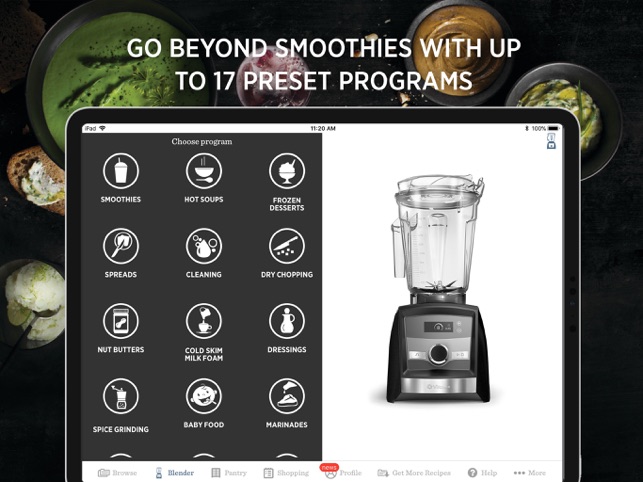
Credit: apps.apple.com
Frequently Asked Questions
How Do Smart Blenders Connect To Mobile Apps?
Smart blenders connect via Wi-Fi or Bluetooth. Users pair their blender with the app for remote control. This enables recipe access, blending settings, and monitoring blending progress conveniently.
Which Apps Work Best With Smart Blenders?
Most smart blenders use proprietary apps designed by the manufacturer. Popular apps offer features like personalized recipes, blending programs, and nutritional tracking. Always check app compatibility before purchasing a smart blender.
Can I Customize Blending Settings Through The App?
Yes, apps allow users to adjust speed, time, and blending modes. Custom settings help achieve desired texture and consistency for different recipes. This feature enhances user control and blending precision.
Is App Integration Secure For Smart Blenders?
App integration uses encrypted connections to protect user data. Manufacturers implement security protocols to prevent unauthorized access. Always update apps regularly to maintain optimal security and performance.
Conclusion
Smart blenders and apps work well together. They make blending simple and fun. Connecting the blender to an app helps control speed and time. It also offers new recipes to try. Always follow the app’s steps carefully. Keep your blender updated for best results.
Enjoy making healthy drinks with less effort. Start blending smarter and enjoy every sip.