
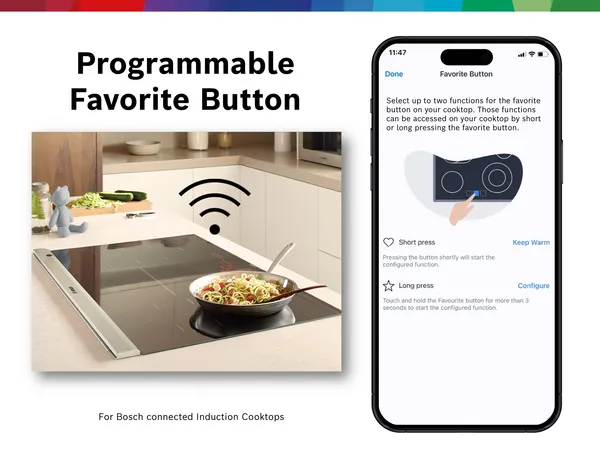
Imagine your kitchen running smoothly with just a tap on your phone. Your smart fridge keeps track of groceries, your oven preheats before you step in, and your coffee maker starts brewing as you wake up—all connected seamlessly through Wi-Fi.
But how do you make this happen? If you’ve ever felt stuck trying to link your smart kitchen gadgets to your home network, you’re not alone. This guide will walk you through simple steps to get your devices online quickly and effortlessly.
Keep reading to unlock the full potential of your smart kitchen and make your daily routine easier than ever.
Credit: www.monogram.com
Importance Of Wi-fi In Smart Kitchens
Wi-Fi allows smart kitchen gadgets to work together. It connects devices to the internet and each other.
With Wi-Fi, you can control kitchen tools remotely. This makes cooking easier and more fun.
Remote Control And Monitoring
Wi-Fi lets you control kitchen gadgets from anywhere. You can start the oven or check the fridge while away.
This remote control helps save time and prevents mistakes.
Automation And Scheduling
Wi-Fi connects gadgets for automatic tasks. You can schedule coffee makers or slow cookers to start on time.
Automation makes cooking more efficient and reduces daily chores.
Access To Recipes And Updates
Smart gadgets use Wi-Fi to download recipes. They can also get software updates for better performance.
This keeps your kitchen tools current and adds new cooking ideas.
Energy Efficiency
Wi-Fi helps monitor energy use of kitchen devices. You can turn off gadgets remotely to save power.
Smart energy use lowers bills and helps the environment.
Choosing Compatible Smart Gadgets
Connecting smart kitchen gadgets to Wi-Fi starts with choosing the right devices. Not all gadgets work well with every Wi-Fi setup.
Pick gadgets that match your home network and work with your smartphone or smart home system.
Check Wi-fi Frequency Bands
Smart gadgets usually connect to 2.4 GHz or 5 GHz Wi-Fi bands. Make sure your device supports the band your router uses.
Many smart kitchen gadgets only work with 2.4 GHz because it covers longer distances.
- 2.4 GHz: Wider range, slower speed
- 5 GHz: Faster speed, shorter range
Verify Device Compatibility With Your Hub
Some smart gadgets need a hub or central controller to connect to Wi-Fi. Check if your gadget requires one.
Choose gadgets that work with your existing hub or smart assistant, like Alexa or Google Home.
Look For App Support
Most smart kitchen gadgets use apps to set up and control the device. Check if the app is easy to use and available for your phone.
Read app reviews to see if it has good ratings and regular updates.
Consider Security Features
Smart gadgets connect to your Wi-Fi network, so security is important. Choose gadgets that offer strong encryption and regular software updates.
A secure device helps protect your personal data and home network from hackers.
Check Power Source And Placement
Smart kitchen gadgets may use batteries or plug into an outlet. Pick devices that fit your kitchen’s setup.
Also, think about where you will place the gadget. Good Wi-Fi signal strength is necessary for smooth operation.
- Battery-powered: Flexible placement, but needs charging
- Plug-in: Continuous power, less placement freedom
Preparing Your Wi-fi Network
Connecting smart kitchen gadgets to Wi-Fi needs a strong, ready network. Preparing your Wi-Fi helps devices work well.
Check your network to avoid connection problems with your smart gadgets. Start with basic steps before setup.
Checking Network Compatibility
Smart kitchen gadgets often need specific Wi-Fi types. Check if your network supports 2.4 GHz or 5 GHz bands.
Most smart gadgets use 2.4 GHz Wi-Fi because it covers longer distances. Some may also work with 5 GHz for faster speeds.
- Find your Wi-Fi band in your router settings
- Confirm your gadget supports the Wi-Fi band
- Use 2.4 GHz if unsure, as it is widely supported
Ensuring Strong Signal Strength
A strong Wi-Fi signal is key for smart gadgets to work without interruptions. Place your router well.
Keep the router near the kitchen but away from walls or metal objects. These can block signals and weaken connection.
- Place the router in an open area
- Reduce distance between router and gadgets
- Limit interference from other electronics
- Consider Wi-Fi extenders if needed
Setting Up Smart Gadgets For Wi-fi Connection
Connecting smart kitchen gadgets to Wi-Fi helps control them remotely. It allows better use of their features and updates.
To connect, you need to power on the device and put it in pairing mode. These steps prepare the gadget for Wi-Fi setup.
Powering On The Device
First, plug in your smart kitchen gadget to a power source. Some devices use batteries, so insert fresh ones if needed.
Press the power button or switch to turn on the device. Wait for lights or sounds that show it is active.
- Connect to a wall outlet or insert batteries
- Press the power button until the device turns on
- Look for a light or sound that confirms power
Activating Pairing Mode
Pairing mode lets your device search for Wi-Fi networks. Usually, you press and hold a button to activate it.
The device’s light may blink or change color during pairing mode. This shows it is ready to connect to your network.
- Find the pairing or Wi-Fi button on the gadget
- Press and hold the button for a few seconds
- Watch for flashing lights that signal pairing mode
Connecting Through Mobile Apps
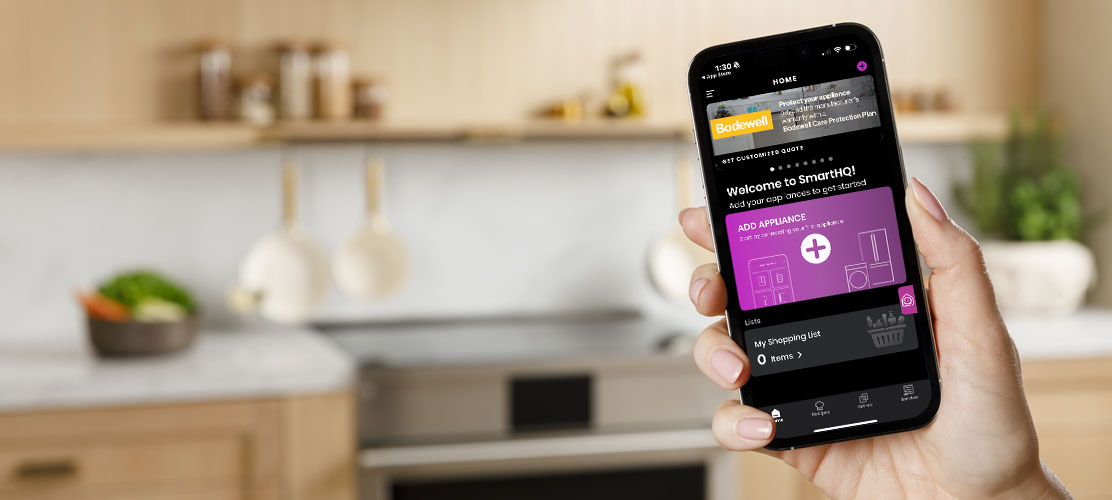
Many smart kitchen gadgets connect to Wi-Fi using mobile apps. These apps help you control devices from your phone.
Using the app, you can set up the gadget and connect it to your home Wi-Fi network easily.
Downloading The Required App
Start by finding the app that works with your kitchen gadget. Check the gadget’s manual or box for the app name.
Go to your phone’s app store and search for the app. Download and install it before you start setup.
- Open App Store on iPhone or Google Play on Android
- Type the gadget’s app name in the search bar
- Select the correct app from the results
- Tap “Install” or “Get” to download the app
Creating Or Logging Into An Account
Most apps require you to create an account to use all features. You can also log in if you already have one.
Follow the app’s instructions to set up your account or log in. This step helps keep your device settings saved.
- Open the app after installation
- Choose “Sign Up” to create a new account
- Enter your email and create a password
- Or tap “Log In” if you have an account
- Verify your email if asked by the app
:max_bytes(150000):strip_icc()/GettyImages-1306248993-4abd8f23918745b0b8062da6dfe18db0.jpg)
Credit: www.thespruce.com
Troubleshooting Common Connection Issues
Smart kitchen gadgets need a strong Wi-Fi connection to work well. Sometimes, connection problems can stop them from working.
Knowing how to fix these problems helps you use your gadgets without trouble.
Dealing With Connectivity Failures
Check if your Wi-Fi is working by trying other devices. If they do not connect, restart your router.
Make sure your kitchen gadget is close to the Wi-Fi router. Walls and appliances can block signals.
- Restart your smart gadget and router
- Move the gadget closer to the router
- Check if Wi-Fi password is correct
- Update the gadget’s software if possible
- Use a 2.4 GHz Wi-Fi network if supported
Resolving App Malfunctions
The app that controls your smart gadget may not work well sometimes. Restart the app to fix small bugs.
Make sure your app is updated to the latest version. Updates often fix bugs and improve connection.
- Close and reopen the app
- Check for app updates in your app store
- Restart your phone or tablet
- Clear app cache if the option is available
- Reinstall the app if problems continue
Ensuring Secure Connections
Connecting smart kitchen gadgets to Wi-Fi makes life easier. It also opens devices to security risks.
Securing your connection helps protect your home network and personal data.
Updating Device Firmware
Firmware is the software inside your gadget. Updates fix bugs and improve security.
Keep your device firmware updated to avoid security problems.
- Check for updates regularly in the device settings
- Enable automatic updates if available
- Download updates only from official sources
- Restart the device after updating to apply changes
Changing Default Passwords
Default passwords are easy to guess. Change them to keep your gadget safe.
Create strong passwords with numbers and letters. Avoid simple or common words.
- Find the password settings in your device’s app or web portal
- Use a unique password for each device
- Do not share your passwords with others
- Update passwords regularly for extra security
Credit: www.safewise.com
Maximizing Efficiency With Connected Gadgets
Smart kitchen gadgets make cooking easier and faster. Connecting them to Wi-Fi helps you control devices remotely.
With Wi-Fi connection, gadgets work together to save time and energy in your kitchen.
Utilizing Automation Features
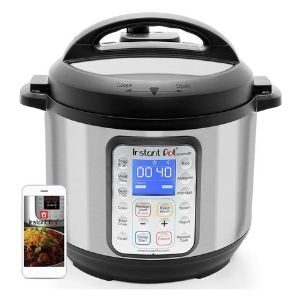
Automation lets your kitchen gadgets run tasks by themselves. You can set timers and schedules for appliances.
For example, your coffee maker can start brewing before you wake up. This saves you time and effort every day.
- Set cooking times on smart ovens
- Schedule slow cookers to start or stop
- Use sensors to adjust cooking based on food
- Receive alerts when food is ready or needs attention
Integrating With Voice Assistants
Voice assistants let you control kitchen gadgets hands-free. You can ask them to start, stop, or check appliances.
Connecting your gadgets to Alexa, Google Assistant, or Siri makes cooking more convenient and safer.
- Turn on the oven by voice command
- Adjust the fridge temperature without touching controls
- Ask for recipes and cooking tips aloud
- Control multiple devices with one voice command
Frequently Asked Questions
How Do I Connect Smart Kitchen Gadgets To Wi-fi?
To connect smart kitchen gadgets, power them on and open their app. Select your Wi-Fi network and enter the password. Follow the in-app instructions to complete the setup. Ensure your router supports 2. 4 GHz for better compatibility with most devices.
Why Is My Smart Kitchen Gadget Not Connecting To Wi-fi?
Connection issues often arise from weak signals or incorrect passwords. Restart your router and gadget. Check if your device supports your Wi-Fi frequency band. Also, ensure the gadget firmware and app are updated for smooth connectivity.
Can I Connect Multiple Smart Kitchen Gadgets To One Wi-fi?
Yes, you can connect multiple smart kitchen gadgets to a single Wi-Fi network. Just ensure your router can handle the number of devices. A strong signal and good bandwidth will maintain stable connections for all gadgets simultaneously.
What Wi-fi Frequency Is Best For Smart Kitchen Devices?
Most smart kitchen gadgets work best with a 2. 4 GHz Wi-Fi frequency. This band offers better range and compatibility. However, newer devices might support 5 GHz for faster speeds. Check your gadget’s specifications for the recommended frequency band.
Conclusion
Connecting smart kitchen gadgets to Wi-Fi is easier than it seems. Follow simple steps to get your devices online quickly. Ensure your Wi-Fi signal is strong and stable for best results. Keep your passwords safe and enter them carefully. Restart devices if connections fail, and try again calmly.
With patience, your smart kitchen will work smoothly and save time. Enjoy the convenience of connected gadgets every day.