
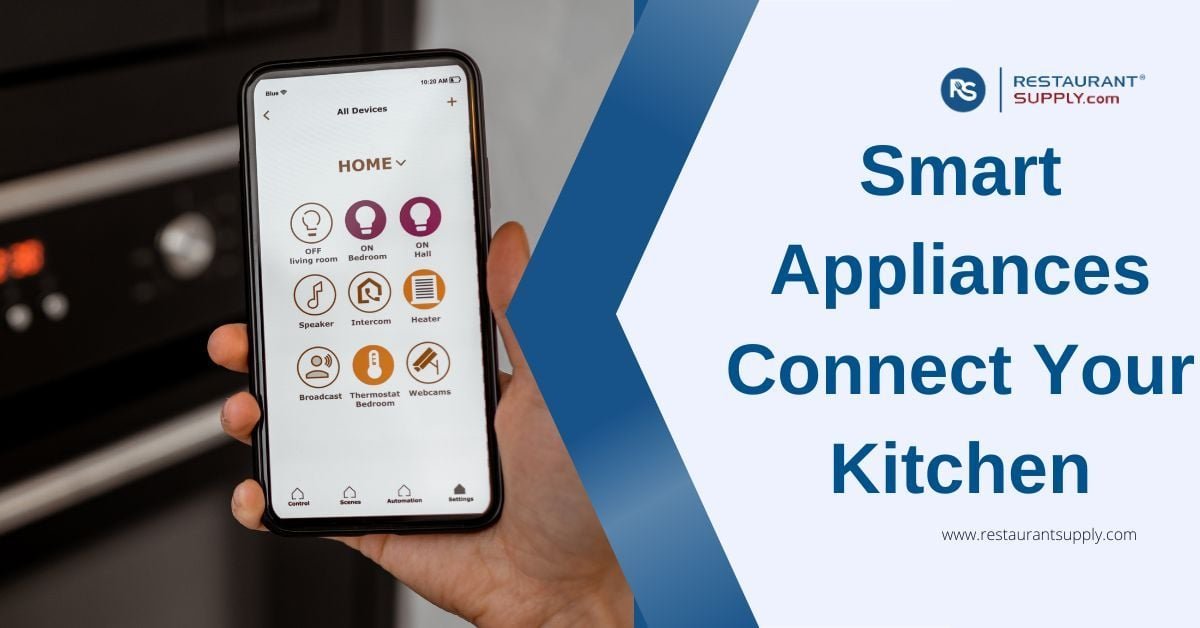
Imagine controlling your kitchen gadgets right from your smartphone—turning on the oven before you step inside, checking your fridge inventory while grocery shopping, or even getting recipe suggestions tailored just for you. Connecting your smart kitchen devices to your phone can make all this possible, saving you time and effort every day.
If you’ve ever wondered how to link these gadgets seamlessly, this guide is exactly what you need. Keep reading, and you’ll discover simple, step-by-step tips to get your kitchen working smarter, not harder.
Choosing Compatible Gadgets
Connecting smart kitchen gadgets to smartphones can make cooking easier. It is important to choose gadgets that work well with your phone.
This guide will help you find gadgets that are compatible with your smartphone. Follow these steps to connect your kitchen devices smoothly.
Check Device Compatibility
Before buying, check if the gadget works with your phone. Look for compatibility details on the box or product page.
Some gadgets only work with certain phone models or operating systems. Make sure your phone is listed as compatible.
- Check the operating system requirements
- Look for brand-specific compatibility
- Read user reviews for feedback
Explore Connectivity Options
Smart gadgets connect using Wi-Fi, Bluetooth, or other methods. Choose a connection type that is easy for you to set up.
Wi-Fi connections often offer more features. Bluetooth is easier for small gadgets and requires less power.
- Wi-Fi for feature-rich devices
- Bluetooth for simple gadgets
- Check for app control options
Select User-friendly Models
Choose gadgets that are easy to use. Look for models with clear instructions and a simple interface.
Some gadgets offer voice control or app integration. These features can make using your smart kitchen devices more convenient.
- Look for easy setup instructions
- Choose models with app support
- Consider voice control features
Preparing Your Smartphone
Connecting smart kitchen gadgets to your smartphone makes cooking easier. Your phone must be ready to link with these devices.
Preparing your smartphone helps avoid connection problems. Follow simple steps before pairing your gadgets.
Update Operating System
Keep your phone’s operating system up to date. Updates fix bugs and add support for new devices.
Go to your phone’s settings to check for updates. Install the latest version before connecting gadgets.
Enable Bluetooth And Wi-fi
Smart kitchen gadgets often use Bluetooth or Wi-Fi to connect. Turn these features on to allow pairing.
Open your phone’s settings and enable Bluetooth and Wi-Fi. Keep them active during the connection process.
- Swipe down and tap Bluetooth icon to enable it
- Tap Wi-Fi icon to connect to your home network
- Make sure your phone is discoverable for devices
Install Required Apps
Many smart kitchen gadgets need special apps to work with your phone. Find and install these apps first.
Check the gadget’s manual or box for app names. Download them from the App Store or Google Play Store.
- Search app name exactly as shown in instructions
- Install and open the app before connecting
- Allow necessary permissions for proper function
Connecting Via Bluetooth
Connecting smart kitchen gadgets to your smartphone makes cooking easier. Bluetooth is a common way to link these devices.
This guide explains how to connect your smart kitchen gadgets using Bluetooth. Follow simple steps to pair your devices.
Turn On Device Pairing Mode
First, turn on the pairing mode on your smart kitchen gadget. This lets your smartphone find the device.
Look for a button or setting on your gadget to activate pairing. Some devices flash a light to show they are ready.
Search For Devices On Phone
Open Bluetooth settings on your smartphone. Make sure Bluetooth is on so your phone can search for devices nearby.
In the list of available devices, find the name of your kitchen gadget. It may take a few seconds to appear.
Complete Pairing Process
Select your gadget’s name on the phone to start pairing. You may be asked to enter a code or confirm a number.
Once confirmed, your phone and gadget connect. The device is now ready to use with your smartphone apps.

Credit: pcgeek.info
Connecting Via Wi-fi
Smart kitchen gadgets often connect to smartphones using Wi-Fi. This allows you to control devices from anywhere in your home.
Using Wi-Fi is simple and fast when you follow the right steps. Let’s look at how to connect your gadgets to Wi-Fi.
Connect Gadgets To Home Network
First, turn on your smart kitchen gadget. Most devices have a Wi-Fi setup mode to join your home network.
Use the device’s screen or app instructions to select your home Wi-Fi network. Enter the Wi-Fi password carefully.
- Make sure your phone is on the same Wi-Fi network
- Check the gadget’s manual for setup mode details
- Keep the gadget near your router during setup
Link Apps To Wi-fi Devices
Download the app for your smart kitchen gadget on your smartphone. The app controls the device over Wi-Fi.
Open the app and follow its setup steps. It will find your gadget on the Wi-Fi network and connect to it.
- Allow the app to access your Wi-Fi network
- Sign in or create an account if needed
- Look for device discovery or add device options
Troubleshoot Connection Issues
If the gadget does not connect, check your Wi-Fi signal strength. Weak signals cause connection problems.
Restart your router and smart device to reset the connection. Confirm the Wi-Fi password is correct.
- Move the gadget closer to the router
- Check if your router blocks new devices
- Update the app and device firmware
- Reset the gadget to factory settings if needed
Using Smart Home Hubs
Smart kitchen gadgets work best when connected to smartphones. Using a smart home hub makes this connection easy and reliable.
A hub acts as a bridge between your gadgets and phone. It helps control many devices from one app.
Choose Compatible Hub
Pick a hub that works with your kitchen gadgets. Not all hubs support every device brand or type.
Check the hub’s specifications and supported devices list before buying. Compatibility is key for smooth control.
- Look for hubs that support popular smart kitchen brands
- Choose hubs with common connection types like Wi-Fi or Zigbee
- Read user reviews about device compatibility
Integrate Gadgets With Hub
Connect your kitchen gadgets to the hub using the hub app. The process usually starts by putting gadgets in pairing mode.
Follow app instructions to add each device. The hub will then link the gadgets and allow communication with your phone.
- Open the hub app on your smartphone
- Activate pairing mode on the smart gadget
- Use the app to search and add the device
- Confirm the connection and test the gadget
Control Devices Through Hub Apps
Use the hub app to control your kitchen gadgets. You can turn devices on or off, adjust settings, and monitor status.
The app can also group devices and set schedules. This makes managing several gadgets easier and saves time.
- Use app dashboard to see all connected devices
- Adjust device settings like temperature or timers
- Create schedules for automatic device operation
- Receive alerts and status updates from gadgets

Credit: www.reddit.com
Optimizing Gadget Performance
Connecting smart kitchen gadgets to smartphones allows easy control and monitoring. To get the best results, you must optimize their performance.
Good performance means faster response, longer battery life, and fewer problems. Follow simple tips to keep your gadgets working well.
Regular Firmware Updates
Firmware updates improve gadget features and fix bugs. They make sure your device stays compatible with your smartphone.
Check for updates often in the gadget’s app. Install updates as soon as they become available to avoid problems.
- Improves security
- Adds new functions
- Fixes known errors
- Enhances speed and stability
Manage Notifications
Notifications keep you informed about your gadget’s status. They alert you to problems or updates.
Adjust notification settings in the app to avoid too many alerts. Focus on important messages to stay aware without distraction.
- Enable alerts for errors and updates
- Disable non-essential notifications
- Set quiet hours if needed
Monitor Battery Levels
Low battery can cause your gadget to stop working or lose connection. Check battery levels regularly in the app.
Charge your gadget before it runs out of power. Replace batteries if they no longer hold charge well.
- Check battery percentage often
- Charge devices fully before use
- Use original chargers for best results
- Replace old batteries on time
Troubleshooting Common Problems
Connecting smart kitchen gadgets to smartphones can sometimes cause problems. These issues can stop devices from working properly.
Knowing how to fix common problems helps you use your gadgets without stress. Here are simple tips to solve connection troubles.
Resetting Devices
Resetting your smart gadget often solves many connection problems. It clears errors and restores the device to its original state.
To reset, find the reset button or option in the device’s settings. Hold or select it until the device restarts.
- Check the gadget’s manual for reset instructions
- Unplug the device, wait 10 seconds, then plug it back in
- Use the phone app to reset if available
Reconnecting Lost Connections
Sometimes the connection between your smartphone and gadget drops. Reconnecting is quick and easy.
Turn off Bluetooth or Wi-Fi on your phone, then turn it back on. Open the gadget app and try to pair again.
- Make sure the gadget is powered on and in range
- Restart your smartphone if the connection fails repeatedly
- Forget the device in your phone’s Bluetooth settings and pair again
Contacting Support Services
If problems persist, contact the gadget’s support team. They can offer expert help and repair options.
Have your device model and purchase details ready. Explain the problem clearly for faster assistance.
- Use the official website or app to find support contacts
- Check if there is a live chat or phone number available
- Look for FAQs or troubleshooting guides before calling
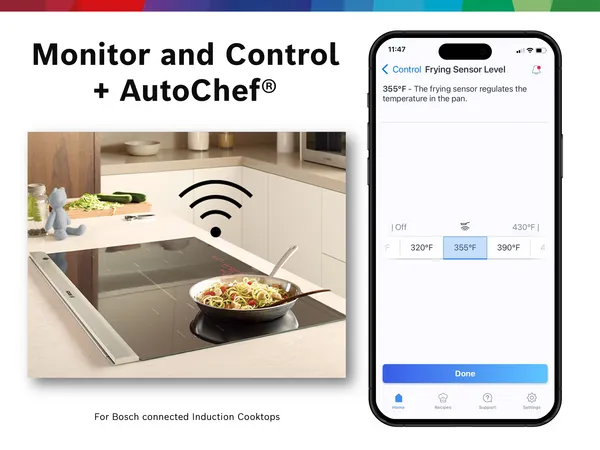
Credit: www.bosch-home.com
Frequently Asked Questions
How Do I Connect Smart Kitchen Gadgets To My Phone?
To connect, download the gadget’s app from your app store. Enable Bluetooth or Wi-Fi on your phone. Follow the in-app pairing instructions to link your device securely.
Which Smartphones Work Best With Smart Kitchen Gadgets?
Most smart kitchen gadgets support both iOS and Android phones. Ensure your phone’s OS is up to date for compatibility and smooth connection.
Can I Control Kitchen Gadgets Remotely Using My Smartphone?
Yes, you can control many smart kitchen gadgets remotely via their apps. This allows you to monitor cooking or adjust settings from anywhere.
What If My Smart Gadget Won’t Connect To My Phone?
Check Bluetooth/Wi-Fi settings and ensure the gadget is powered on. Restart both devices and retry pairing. Consult the gadget’s manual for troubleshooting.
Conclusion
Connecting smart kitchen gadgets to smartphones is simple and useful. Follow the steps carefully for smooth setup. Keep your devices updated to avoid problems. Use apps that match your gadgets for best results. Enjoy cooking with more control and ease.
Smart kitchens save time and make tasks fun. Stay patient and try again if connection fails. Technology can improve daily routines in small ways. Start with one gadget and explore more later. Your kitchen becomes smarter, and cooking feels easier.