
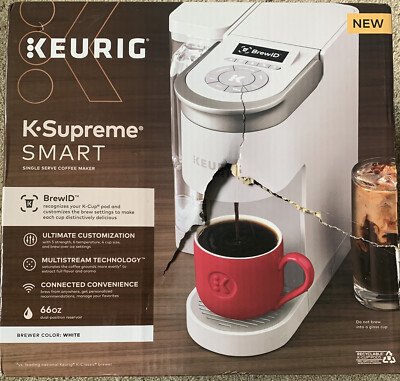
Imagine waking up to the perfect cup of coffee, ready the moment you step into your kitchen. Connecting your smart coffee maker to Wi-Fi makes this possible—and it’s easier than you think.
If you’ve ever felt stuck setting up your device or worried about complicated steps, this guide is made just for you. Keep reading to discover simple, clear instructions that will have your smart coffee maker working seamlessly with your home network in no time.
Your mornings are about to get a whole lot better.
Choose The Right Smart Coffee Maker
Smart coffee makers are convenient and easy to use. They connect to Wi-Fi and allow remote control with your phone.
Choosing the right one ensures you get the best features and compatibility. Here’s how to connect them to Wi-Fi.
Check Wi-fi Compatibility
Wi-Fi compatibility is crucial for smart coffee makers. Make sure your coffee maker supports your home Wi-Fi network.
Most modern devices support 2.4 GHz networks. Verify this before buying.
- Check if it works with dual-band routers
- Ensure firmware updates are available
- Look for WPA/WPA2 security support
Consider App Features
Apps control smart coffee makers and add extra functions. Explore the app’s features before making a choice.
Some apps offer scheduling, while others provide recipe suggestions. Choose based on your needs.
- Check for easy user interface
- Look for remote access capabilities
- Explore integration with smart home systems
Review Device Requirements
Understanding device requirements helps in seamless installation. Check the power source and space needed for your coffee maker.
Ensure you have the right adapters and enough counter space. This prevents setup issues later.
- Check dimensions and weight
- Verify voltage compatibility
- Look for necessary adapters and plugs

Credit: www.jessupsappliances.com
Prepare Your Wi-fi Network
Before connecting your smart coffee maker to Wi-Fi, get your network ready. A strong and stable connection helps your device work well.
Check your Wi-Fi settings and signal strength to avoid connection problems. This guide shows key steps to prepare your network.
Ensure Strong Signal
A strong Wi-Fi signal lets your coffee maker connect without issues. Place your router close to the kitchen or where the device is.
Walls and appliances can block signals. Keep the path clear for better connection.
- Move router near your coffee maker
- Avoid thick walls and metal objects
- Reduce interference from other electronics
Check Network Frequency
Smart coffee makers usually work with 2.4 GHz Wi-Fi. Check your router’s network settings to find this frequency.
Using the right frequency helps your device connect smoothly and stay online.
- Access router settings via a browser
- Look for 2.4 GHz Wi-Fi network name
- Connect your device to 2.4 GHz, not 5 GHz
Reset Your Router If Needed
If your Wi-Fi has trouble connecting, restart your router. A reset can fix network problems.
Turn off the router, wait 30 seconds, then turn it back on. Wait until it fully restarts before trying again.
- Unplug router power cable
- Wait at least 30 seconds
- Plug it back in and wait for lights
- Try connecting your coffee maker again
Set Up The Coffee Maker
Connecting your smart coffee maker to Wi-Fi lets you control it from your phone. This guide helps you set up the device easily.
Follow these steps to power on, activate Wi-Fi mode, and connect the coffee maker to its app.
Power On The Device
First, plug in your coffee maker to a power outlet. Make sure it is switched on using the power button.
The device usually shows a light or screen to confirm it is on and ready.
Activate Wi-fi Mode
Find the Wi-Fi or connectivity button on the coffee maker’s control panel. Press and hold it to turn on Wi-Fi mode.
You will see a blinking light or a message on the screen that shows Wi-Fi is active and waiting to connect.
- Press and hold Wi-Fi button for 3 seconds
- Wait for blinking light or Wi-Fi icon
- Keep device near your router
Connect To The App
Download the coffee maker’s app on your smartphone. Open the app and create an account if needed.
Follow the app instructions to add a new device. Select your coffee maker model and connect it to your Wi-Fi network.
- Open app and log in
- Tap “Add Device” or “Connect”
- Select coffee maker model
- Enter Wi-Fi network name and password
- Wait for confirmation message
Connect To Wi-fi
Smart coffee makers use Wi-Fi to let you control them from your phone. Connecting to Wi-Fi helps you start brewing anytime.
Follow these steps to connect your smart coffee maker to your home Wi-Fi network.
Open The Coffee Maker App
First, download and open the coffee maker’s app on your smartphone. This app controls the coffee maker remotely.
Make sure your phone is connected to the Wi-Fi network you want the coffee maker to use.
Select Your Network
Inside the app, find the Wi-Fi settings section. The app will show a list of nearby Wi-Fi networks.
Choose your home Wi-Fi network from the list to connect the coffee maker.
- Check that the network name is correct
- Ensure the network is 2.4 GHz if required
- Confirm the network is stable and working
Enter Password Securely
Type your Wi-Fi password carefully into the app. The app will send this password to the coffee maker.
Keep your password private. The app uses encryption to protect your data during setup.
Troubleshoot Common Issues
Smart coffee makers need a stable Wi-Fi connection to work well. Sometimes, you might face problems connecting to Wi-Fi or syncing with the app.
This guide will help you fix common problems with your smart coffee maker. Follow these tips to get your coffee maker working smoothly again.
Wi-fi Connection Failures
Your coffee maker may not connect to Wi-Fi if the signal is weak or the password is wrong. Check your router and make sure your network is working.
Keep the coffee maker close to the router during setup. Avoid using public or guest networks that need extra login steps.
- Check if Wi-Fi is on and working on other devices
- Make sure you enter the correct Wi-Fi password
- Move the coffee maker closer to the router
- Restart your router and coffee maker
- Use a 2.4 GHz network if your coffee maker does not support 5 GHz
App Sync Problems
Sometimes the coffee maker may not sync with the app. This can happen if the app is outdated or your phone has connection issues.
Close the app and open it again. Restart your phone and make sure the app has permission to use Wi-Fi and Bluetooth.
- Update the coffee maker app to the latest version
- Restart your smartphone or tablet
- Check app permissions for network access
- Log out and log back into the app
- Ensure the coffee maker is powered on and connected to Wi-Fi
Resetting The Coffee Maker
If problems continue, you can reset the coffee maker. Resetting clears old settings and lets you start fresh.
Look for a reset button or check the user manual for reset instructions. After resetting, reconnect the coffee maker to Wi-Fi and the app.
- Turn off the coffee maker
- Press and hold the reset button for 5-10 seconds
- Wait for the lights to flash or the display to change
- Release the button and turn the coffee maker back on
- Set up the Wi-Fi connection again using the app
Credit: francisurology.com
Optimize Your Smart Coffee Maker
Connecting your smart coffee maker to Wi-Fi lets you control it from anywhere. You can adjust settings and schedule brews easily.
To get the best experience, optimize your smart coffee maker. This helps you enjoy fresh coffee at the right time and taste.
Update Firmware Regularly
Keep your smart coffee maker’s firmware up to date. Updates fix bugs and add new features to improve performance.
Check the app or device settings to see if an update is available. Install updates as soon as you get a notification.
Customize Brewing Settings
Adjust the brewing settings to fit your taste. Change the strength, temperature, and cup size using the app or the machine.
Experiment with different settings until you find the perfect brew. This makes your coffee taste just how you like it.
- Set coffee strength: mild, medium, strong
- Adjust water temperature for flavor
- Choose cup size from small to large
Set Scheduled Brewing Times
Use the scheduling feature to have coffee ready when you want. Set times to start brewing in the morning or any time of day.
Scheduling helps save time and ensures fresh coffee is always available. You can change or cancel schedules easily in the app.
- Schedule brewing for specific days
- Choose multiple brew times per day
- Pause or cancel schedules anytime

Credit: www.freepik.com
Frequently Asked Questions
How Do I Connect My Smart Coffee Maker To Wi-fi?
To connect, turn on your coffee maker’s Wi-Fi mode. Open the companion app, select your device, and follow setup prompts. Enter your home Wi-Fi password to link. Ensure your phone is on the same network for smooth connection.
Why Won’t My Smart Coffee Maker Connect To Wi-fi?
Check if your Wi-Fi password is correct and your signal is strong. Restart the coffee maker and router. Ensure your device supports 2. 4 GHz networks, as many smart coffee makers don’t connect to 5 GHz bands.
Can I Use Public Wi-fi To Connect My Coffee Maker?
It’s not recommended to use public Wi-Fi for security reasons. Smart coffee makers work best on private, secure home networks to prevent unauthorized access and ensure reliable connectivity.
What Should I Do If The App Won’t Detect My Coffee Maker?
Make sure Bluetooth or Wi-Fi is enabled on your phone. Restart both the coffee maker and the app. Update the app to the latest version. Try reconnecting after these steps to improve detection.
Conclusion
Connecting your smart coffee maker to Wi-Fi is simple and useful. It lets you control your coffee from anywhere. Follow the steps carefully to avoid common errors. Ensure your Wi-Fi signal is strong for the best results. Once connected, enjoy fresh coffee with just a tap.
This small setup saves time and adds convenience to your day. Keep your device updated for smooth operation. Enjoy easy mornings with your smart coffee maker online.