
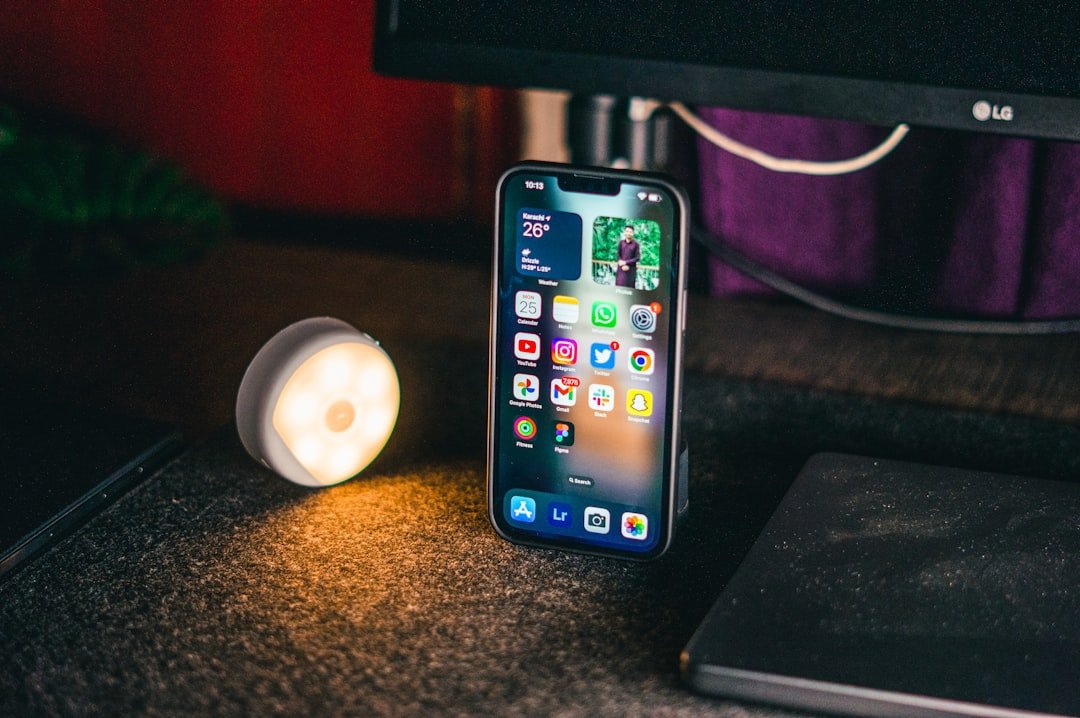
Imagine controlling your home appliances right from your smartphone, no matter where you are. Sounds convenient, doesn’t it?
Connecting your smart appliances to smartphone apps can make your daily life easier, save time, and even help you save energy. If you’ve ever wondered how to set this up but felt overwhelmed by the tech, you’re in the right place.
In this guide, you’ll learn simple, step-by-step ways to link your smart devices with apps on your phone. By the end, you’ll have the confidence to turn your house into a truly smart home. Let’s get started!
Credit: medium.com
Choosing Compatible Smart Appliances
Smart appliances make life easier. They connect to your smartphone through apps. It’s important to choose appliances that are compatible with your phone.
Check if the appliance supports your phone’s operating system. Consider the features you need for a smooth experience.
Key Features To Look For
Smart appliances offer many features. Some are more important than others. Focus on what will improve your daily tasks.
- Wi-Fi connectivity for remote control
- Energy efficiency to save power
- App notifications for updates
- Integration with other smart devices
Popular Smart Appliance Brands
Several brands are known for their smart appliances. These brands provide reliable and user-friendly products.
- Samsung offers a wide range of smart fridges and washers
- LG is known for their smart ovens and air conditioners
- Philips provides smart lighting and kitchen gadgets
- GE Appliances integrates with popular home systems
Preparing Your Smartphone
Connecting smart appliances to your smartphone makes life easier. Your phone acts as a remote control for many devices.
Before connecting, you need to prepare your smartphone. This ensures a smooth setup and use.
Checking App Compatibility
Smart appliances need specific apps to work with your phone. Check if your phone supports the app before downloading.
Look for the app in your phone’s app store. Read the app description for device and system requirements.
- Check if the app is available for your phone’s operating system (iOS or Android)
- Verify the app version matches your phone’s software version
- Read user reviews for compatibility issues
Ensuring Proper Connectivity
Your smartphone must connect well to the internet or the appliance. Good connectivity helps the app work smoothly.
Use Wi-Fi or Bluetooth depending on the appliance needs. Check your phone’s connection settings before starting.
- Turn on Wi-Fi and connect to a stable network
- Enable Bluetooth if the appliance uses it
- Check that airplane mode is off
- Keep your phone close to the appliance during setup
Setting Up The Smart Appliance
Setting up a smart appliance is easy and quick. You need to power it on and connect it to your smartphone app.
Follow simple steps to get your appliance ready for use. The setup helps your appliance work with your phone.
Powering On And Initial Configuration
First, plug in your smart appliance to a power source. Press the power button to turn it on.
After powering on, the appliance may show a welcome screen or light. Follow the on-screen instructions to start setup.
- Make sure the appliance is near your Wi-Fi router
- Check the user manual for specific power and setup instructions
- Some appliances require pressing and holding buttons to enter setup mode
Connecting To Wi-fi Network
Connecting your appliance to Wi-Fi lets you control it from your smartphone app. Open the app on your phone.
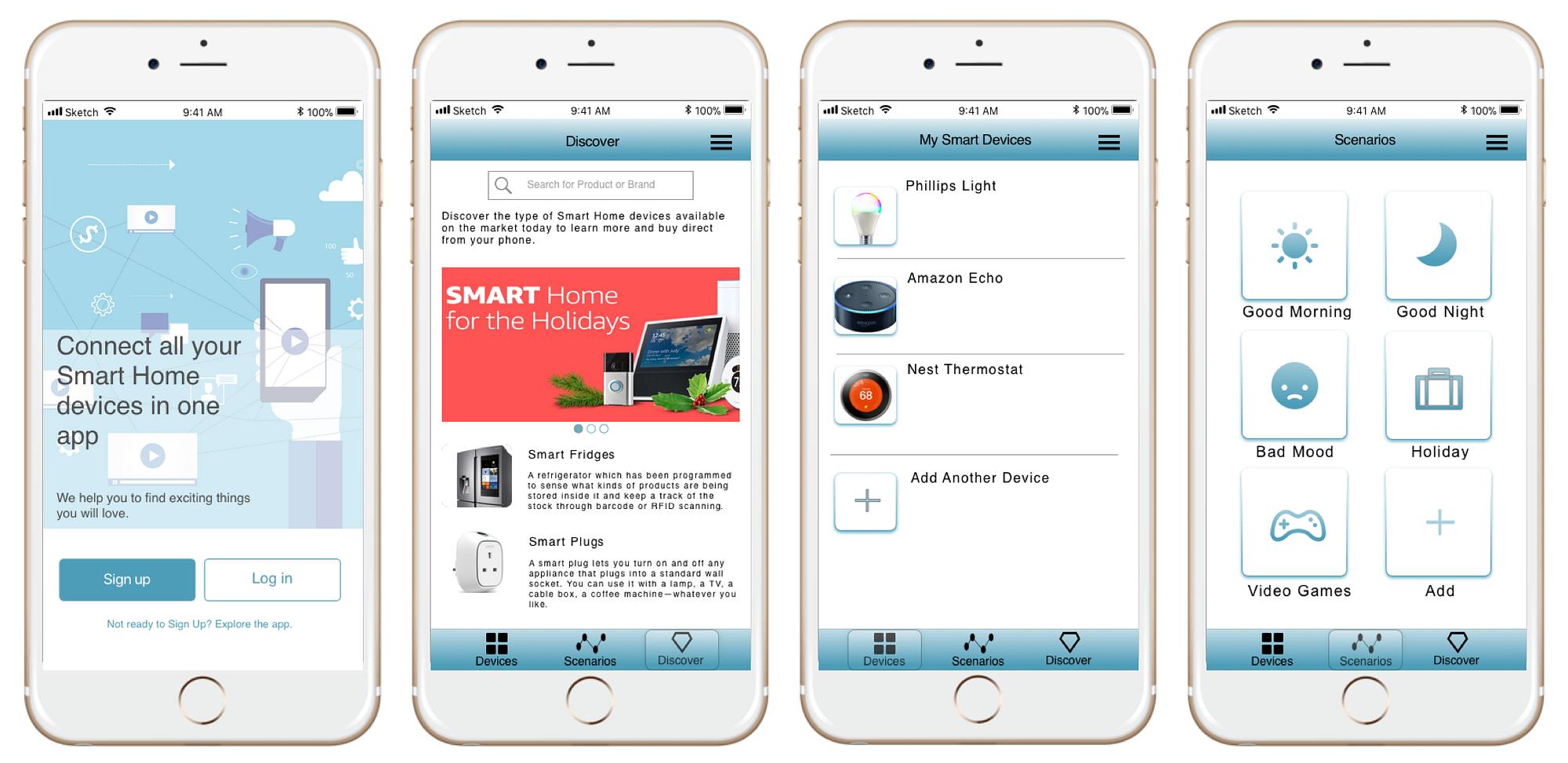
Look for the option to add or connect a new device. The app will guide you to select your home Wi-Fi network.
- Enter your Wi-Fi password carefully
- Wait for the appliance to connect to the network
- Once connected, the app will confirm the setup
Downloading And Installing Apps
Smart appliances work with smartphone apps. These apps help you control your devices from anywhere.
To use your appliance well, you need to download and install its official app on your phone.
Finding The Official App
Find the official app from the appliance brand. This ensures the app is safe and works properly.
Look for the app in your phone’s app store. Use the exact name of your appliance or brand to search.
- Check the developer’s name matches the appliance brand
- Read app descriptions to confirm it fits your device
- Look at user ratings and reviews for trustworthiness
Installing And Granting Permissions
After finding the app, tap the install button. Wait for the download and installation to finish.
Open the app and allow the permissions it asks for. These let the app connect to your appliance and phone features.
- Allow location access if the app needs it for device setup
- Give permission to send notifications for alerts
- Allow Bluetooth or Wi-Fi access to connect with the appliance
Pairing Appliances With Smartphone Apps
Smart appliances connect to your smartphone apps to make life easier. Pairing lets you control appliances remotely.
Connecting is simple but needs the right steps. This guide helps you pair appliances using Bluetooth or Wi-Fi.
Using Bluetooth Or Wi-fi
Most smart appliances pair with apps via Bluetooth or Wi-Fi. Bluetooth works for close range. Wi-Fi works over longer distances.
To pair with Bluetooth, turn on Bluetooth on your phone and appliance. Search for the device in the app and select it.
- Enable Bluetooth on phone and appliance
- Open the appliance app
- Search for nearby devices
- Select your appliance from the list
- Confirm pairing if prompted
For Wi-Fi, connect the appliance to your home network first. Then open the app and follow the setup steps to add the appliance.
- Connect appliance to Wi-Fi network
- Open appliance app on smartphone
- Choose to add new device
- Enter Wi-Fi details if needed
- Complete setup to pair
Troubleshooting Pairing Issues
Sometimes pairing fails. Check if your phone and appliance are close. Make sure Bluetooth or Wi-Fi is on.
Restarting the appliance and phone often helps. Also, check if the app and device software are up to date.
- Keep devices close during pairing
- Turn Bluetooth or Wi-Fi off and on
- Restart your phone and appliance
- Update app and appliance firmware
- Remove and re-add the device in the app

Credit: wasserstein-home.com
Customizing Appliance Settings Via App
Smart appliances connect to smartphone apps for easy control. You can change settings anytime from your phone.
These apps let you adjust appliance functions without touching the device. This saves time and adds convenience.
Scheduling And Automation
Use the app to set schedules for your appliances. This helps run them at the best times for you.
You can automate tasks like turning on the oven or starting the washing machine. Automation makes daily chores easier.
- Set start and stop times for appliances
- Create routines for multiple devices
- Save energy by running appliances off-peak
Notifications And Alerts
Smart appliance apps send notifications to your phone. These alerts keep you updated on appliance status.
You can get alerts for finished cycles, errors, or needed maintenance. This helps you act quickly and keep appliances working well.
- Receive alerts when a task is complete
- Get warnings about appliance issues
- Monitor energy usage with app updates
Maintaining Security And Privacy
Connecting smart appliances to smartphone apps makes life easier. It also creates risks for your privacy and security.
Protect your devices by following simple safety steps. This keeps your data safe and your home secure.
Setting Strong Passwords
Use strong passwords to prevent unauthorized access. Avoid easy words or common phrases.
Make passwords long and include letters, numbers, and symbols. Change passwords regularly for better security.
- Use at least 12 characters
- Mix uppercase and lowercase letters
- Add numbers and special symbols
- Do not reuse passwords from other accounts
- Change passwords every few months
Keeping Software Updated
Keep your smart appliance and app software updated. Updates fix security weaknesses and bugs.
Turn on automatic updates if possible. This ensures your devices have the latest protections.
- Check for app updates in your phone’s store
- Update appliance firmware regularly
- Enable automatic updates if available
- Restart devices after updates to apply changes
Integrating With Smart Home Systems
Connecting smart appliances to smartphone apps lets you control devices easily. Integration with smart home systems makes your home more efficient.
Smart home systems link devices like lights, thermostats, and appliances. This connection allows centralized control from your phone or voice assistants.
Voice Assistant Compatibility
Many smart appliances work with voice assistants like Alexa, Google Assistant, or Siri. This feature lets you control devices using simple voice commands.
Check if your appliance app supports popular voice assistants. Enable the skill or integration in the voice assistant app to link devices.
- Use voice commands to turn devices on or off
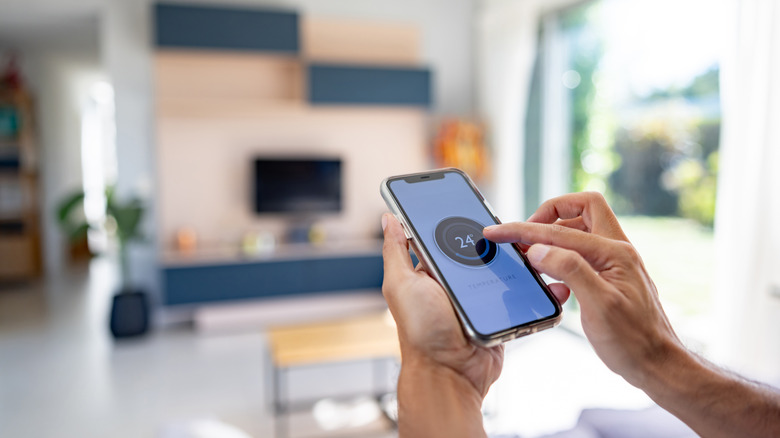
- Adjust settings such as temperature or brightness
- Ask for status updates from appliances
- Combine voice control with smartphone app features
Creating Routines And Scenes
Routines and scenes let you automate multiple smart devices at once. You can set actions to happen at certain times or by triggers.
Use your smartphone app or smart home system to create these. For example, a “Good Morning” routine could turn on lights and start the coffee maker.
- Set schedules to automate tasks
- Combine devices for one command
- Use sensors or location to trigger actions
- Save energy by automating appliance use
Credit: www.slashgear.com
Frequently Asked Questions
How Do I Connect Smart Appliances To Smartphone Apps?
To connect smart appliances, download the manufacturer’s app. Enable Bluetooth or Wi-Fi on your phone. Follow in-app instructions to pair devices quickly and securely.
Which Smartphones Are Compatible With Smart Appliance Apps?
Most smart appliance apps support iOS and Android devices. Check the app store description for specific OS versions and device requirements before downloading.
Can I Control Multiple Smart Appliances With One App?
Yes, many apps allow you to manage multiple devices. Simply add each appliance within the app’s interface for seamless control from one platform.
Is Wi-fi Necessary For Smart Appliance Connectivity?
Wi-Fi is usually required for remote control features. Some devices support Bluetooth for local connections but Wi-Fi enables full functionality and updates.
Conclusion
Connecting smart appliances to smartphone apps is simple with clear steps. Start by checking your appliance’s compatibility and downloading the right app. Follow instructions carefully to link devices without trouble. Once connected, control your appliances easily from anywhere. This saves time and adds comfort to daily life.
Keep your app updated for the best experience. Enjoy the convenience smart technology brings to your home.