
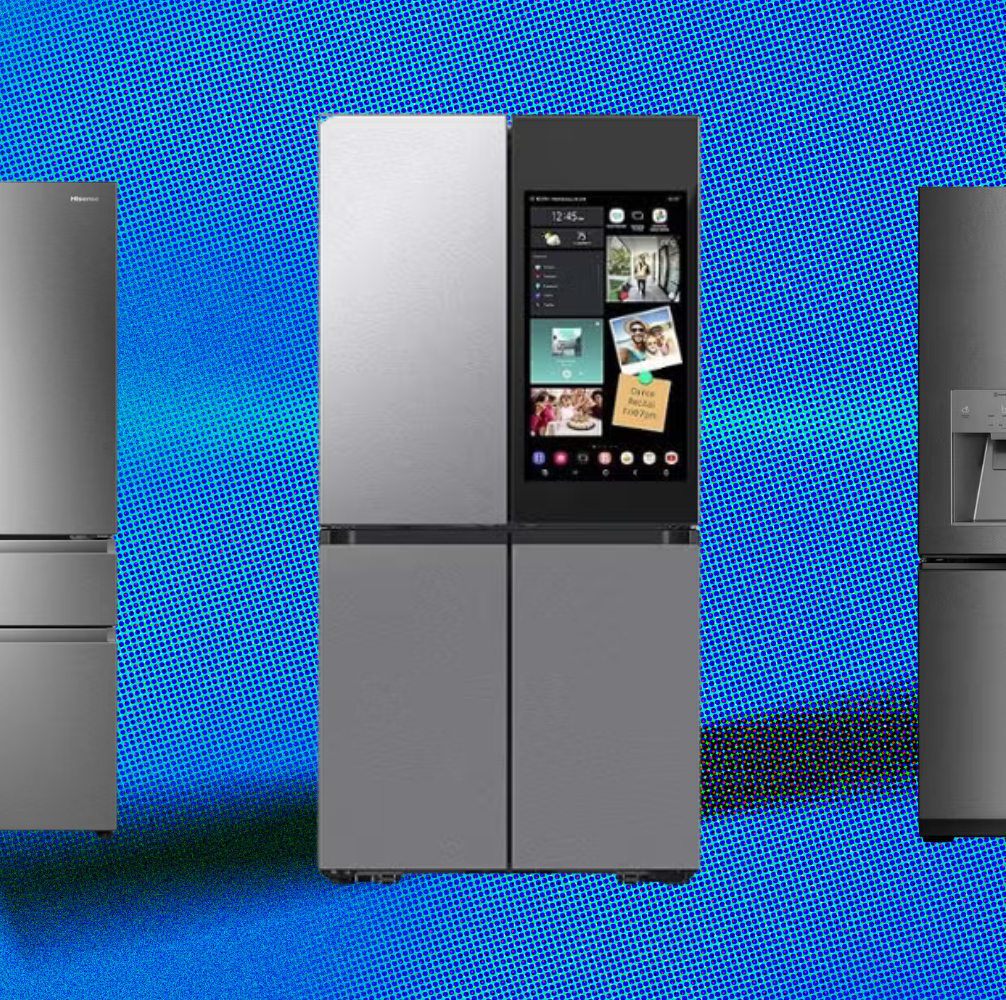
Imagine opening your fridge and instantly knowing what’s inside without even stepping closer. Setting up a smart refrigerator with cameras can make this a reality for you.
It’s not just about convenience—it’s about saving time, reducing food waste, and keeping your kitchen organized effortlessly. If you’ve ever wondered how to get started with this tech upgrade, you’re in the right place. Keep reading, and you’ll discover simple steps to transform your fridge into a smart assistant that works for you every day.
Choosing The Right Smart Refrigerator
Smart refrigerators with cameras can make your kitchen more efficient. Choosing the right one is important for your home.
Consider features, camera quality, and smart home system compatibility before buying.
Features To Look For
Smart refrigerators offer many features. Some are essential for the best experience.
- Energy efficiency for lower power bills
- Adjustable shelving for flexible storage
- Touchscreen controls for easy access
Camera Specifications
Cameras in smart refrigerators help you see inside without opening the door. Check the specifications for clear images.
- High resolution for detailed views
- Wide-angle lens for more coverage
- Night vision to see in low light
Compatibility With Smart Home Systems
Smart refrigerators should work well with your home’s smart systems. This ensures seamless integration.
- Check if it supports voice assistants like Alexa or Google Assistant
- Look for compatibility with smart home apps
- Ensure it connects to your Wi-Fi network

Credit: www.youtube.com
Preparing For Installation
Setting up a smart refrigerator with cameras needs some planning. You must get the area and tools ready first.
This guide helps you prepare the space and check the fridge before installation.
Unboxing And Placement
Open the box carefully and check all parts inside. Look for the refrigerator, camera, power cords, and manuals.
Choose a spot that is flat and near a power source. Make sure there is enough space for the fridge door to open fully.
- Keep the fridge away from direct sunlight
- Leave at least 2 inches of space on the sides
- Avoid placing near heat sources like ovens
Power And Connectivity Requirements
Smart refrigerators need a steady power supply. Check your outlet matches the fridge’s plug type and voltage.
Connect the fridge to your home Wi-Fi for camera functions. A strong and stable internet connection is important.
- Use a dedicated power outlet to avoid overload
- Ensure Wi-Fi signal is strong near the fridge
- Have your Wi-Fi password ready for setup
Safety Precautions
Always follow safety rules when installing your smart fridge. Unplug the fridge before starting any work.
Handle the glass camera parts with care to avoid damage. Keep children away during setup to prevent accidents.
- Do not use damaged power cords or plugs
- Keep liquids away from electrical parts
- Use gloves if needed when handling sharp edges
Setting Up The Camera
Smart refrigerators with cameras help you see inside without opening the door. Setting up the camera is easy and quick.
This guide covers activating the camera, adjusting angles, and connecting to Wi-Fi for smooth use.
Activating The Camera
First, turn on the refrigerator and find the camera settings on the screen. Usually, it is in the main menu under “Camera” or “Smart Features.”
Tap the camera option and switch it on. You might need to accept privacy terms before the camera works.
Adjusting Camera Angles
Check if the camera view shows the whole fridge interior. Adjust the angle if some parts are hidden.
Use the touchscreen or physical buttons to move the camera up, down, left, or right. Make sure the lens is clean for a clear view.
- Use the fridge screen controls to move the camera
- Clean the camera lens gently with a soft cloth
- Check the view after each adjustment
Connecting To Wi-fi
To use the camera remotely, connect your fridge to Wi-Fi. Open the settings menu and select “Wi-Fi” or “Network.”
Choose your home network and enter the password. Wait for the connection to complete before checking the camera feed on your phone.
- Open fridge settings and select Wi-Fi
- Pick your network from the list
- Type your Wi-Fi password carefully
- Wait for connection confirmation

Credit: www.youtube.com
Configuring The Smart Features
Smart refrigerators with cameras offer many useful features. Setting up these features helps you use the fridge easily.
Follow simple steps to connect your fridge to your mobile device. This lets you control and monitor your refrigerator remotely.
Installing The Mobile App
Start by downloading the official app for your smart refrigerator. The app works on both Android and iOS devices.
Once downloaded, open the app and create an account or log in. The app guides you through connecting to your fridge.
- Search for the app in Google Play or Apple App Store
- Download and install the app on your phone
- Open the app and follow the setup instructions
Linking The Refrigerator To Your Account
After installing the app, link your refrigerator to your account. This allows you to access smart features remotely.
The fridge will show a QR code or a setup key. Use the app to scan or enter this code to connect your device.
- Turn on your smart refrigerator and open its settings menu
- Find the connection or pairing option
- Use the app to scan the QR code or enter the setup key
- Confirm the connection in the app and on the fridge screen
Setting Notifications And Alerts
Notifications help you stay informed about your refrigerator’s status. Set alerts for door open, temperature changes, or camera activity.
Use the app to choose which alerts you want. You can get notifications on your phone or by email.
- Open the app and go to notification settings
- Choose the types of alerts you want to receive
- Enable or disable alerts for door, temperature, or camera motion
- Save your settings to start getting notifications
Using The Camera For Daily Convenience
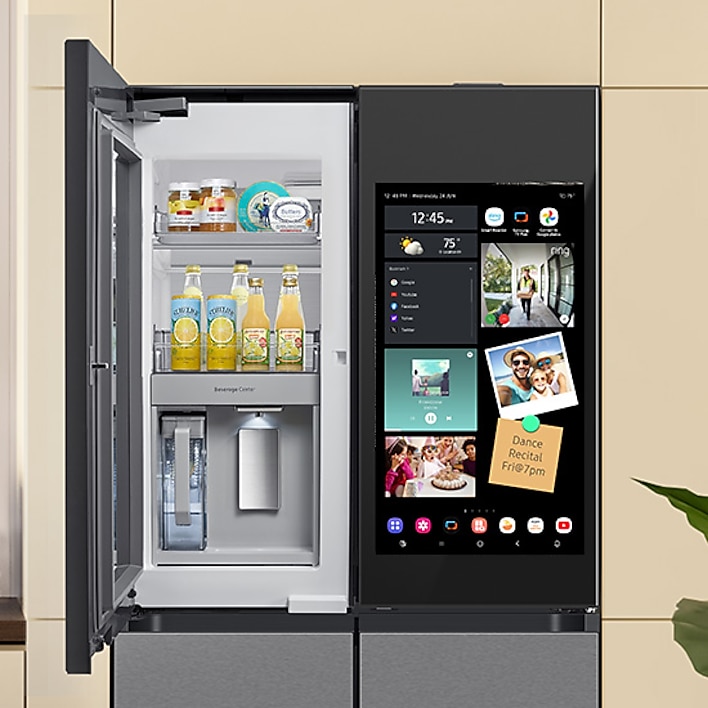
Smart refrigerators with built-in cameras help you see inside without opening the door. This feature saves energy and time.
You can check what items are inside anytime from your phone. The camera makes managing food easier and smarter.
Checking Contents Remotely
The camera lets you look inside your fridge from anywhere. Use your smartphone app to view fresh produce or leftovers.
This helps you decide what to buy when you are at the store. You will avoid buying duplicates or forgetting important items.
Managing Grocery Lists
The camera can connect with your grocery list app. It tracks what you have and what you need to buy.
You can add missing items to your list quickly by looking at the fridge images. This keeps your shopping organized and easy.
- Scan fridge contents with the camera
- Add items that are running low
- Update your grocery list automatically
- Check the list before shopping
Sharing Access With Family Members
You can share the camera feed with family members. Everyone can see what is inside the fridge and update the grocery list.
This keeps the whole family informed. It helps avoid food waste and makes meal planning easier for everyone.
- Give family access to the fridge camera app
- Allow everyone to add or check grocery items
- Coordinate shopping and meal prep
- Reduce food waste by sharing updates
Credit: www.samsung.com
Troubleshooting Common Issues
Smart refrigerators with cameras offer many benefits, but they can have issues. Fixing these problems quickly helps keep your fridge working well.
This guide covers common troubles like camera connectivity, app syncing, and firmware updates. Follow the tips to solve these problems easily.
Camera Connectivity Problems
Camera connection issues often happen due to weak Wi-Fi or interference. The camera might not show images if it loses signal.
Check the Wi-Fi strength near your fridge. Move the router closer or remove obstacles blocking the signal.
- Restart your router and refrigerator
- Ensure the camera firmware is up to date
- Check for network interruptions or outages
- Try reconnecting the camera to your Wi-Fi
App Syncing Errors
App syncing errors happen when the app cannot update or connect to your fridge. This stops you from seeing live images or alerts.
Make sure your phone’s app is the latest version. Restart the app and log out, then log back in to refresh the connection.
- Check your phone’s internet connection
- Update the app to the newest version
- Clear the app cache in phone settings
- Reinstall the app if syncing fails
Firmware Updates
Firmware updates fix bugs and add features. If your fridge or camera has old firmware, it may not work correctly.
Check for firmware updates regularly using the app or fridge menu. Follow instructions to download and install updates safely.
- Connect your fridge to a stable Wi-Fi
- Open the app or fridge settings
- Look for firmware update notifications
- Do not turn off the fridge during update
Maintaining Privacy And Security
Smart refrigerators with cameras offer great convenience. They help you see inside without opening the door.
It is important to keep your privacy and data safe. Protect your device from unauthorized access.
Securing Your Network
Connect your smart fridge to a secure Wi-Fi network. Use a strong password that is hard to guess.
Enable encryption on your router to protect data. Avoid public or open Wi-Fi networks for your fridge.
- Use WPA3 or WPA2 encryption on your router
- Change default router passwords regularly
- Keep your router firmware updated
- Set up a separate network for smart devices
Managing Permissions
Control who can access your refrigerator’s camera and data. Only allow trusted users to view the footage.
Check app permissions on your phone or tablet. Limit access to only what is necessary.
- Set strong passwords for user accounts
- Disable guest or public access features
- Review and update permissions regularly
- Use two-factor authentication if available
Regular Security Checks
Perform routine checks on your smart fridge and network. Look for unusual activity or unknown devices.
Keep your refrigerator’s software and apps up to date. Updates fix security weaknesses and bugs.
- Check for firmware updates monthly
- Scan your network for unknown devices
- Review camera logs for unusual access
- Reset passwords periodically
Frequently Asked Questions
How Do I Install Cameras In Smart Refrigerators?
To install cameras, follow the manufacturer’s guide carefully. Usually, you connect the camera inside the fridge and link it to the app. Ensure power supply and Wi-Fi connectivity are stable for proper functionality and remote access.
Can Smart Fridge Cameras Improve Food Management?
Yes, smart fridge cameras help track food inventory in real-time. They allow you to see inside your fridge remotely, reducing food waste and aiding in timely grocery shopping.
Are Smart Refrigerator Cameras Secure And Private?
Most smart fridge cameras use encryption and secure connections. However, always update firmware and use strong passwords to protect your privacy and prevent unauthorized access.
What Features Do Cameras In Smart Refrigerators Offer?
Smart fridge cameras provide live streaming, motion detection, and inventory tracking. They often integrate with apps to send notifications and help manage food efficiently.
Conclusion
Setting up a smart refrigerator with cameras is simple and helpful. It lets you see inside without opening the door. You can check your food anytime, even when away from home. Just follow the steps carefully for a smooth setup.
Enjoy the convenience and save energy by using this technology. Smart fridges with cameras make kitchen life easier and smarter. Try it today and feel the difference yourself.