
Imagine controlling your rice cooker right from your phone, setting the perfect cooking time without leaving your seat. Connecting your smart rice cooker to an app can make this a reality, turning a simple kitchen appliance into a powerful tool that fits your lifestyle.
If you’ve ever wondered how to get started or felt overwhelmed by the tech, this guide is for you. By the end, you’ll know exactly how to link your device and unlock features that save you time and improve your meals.
Ready to make your cooking smarter and easier? Let’s dive in.

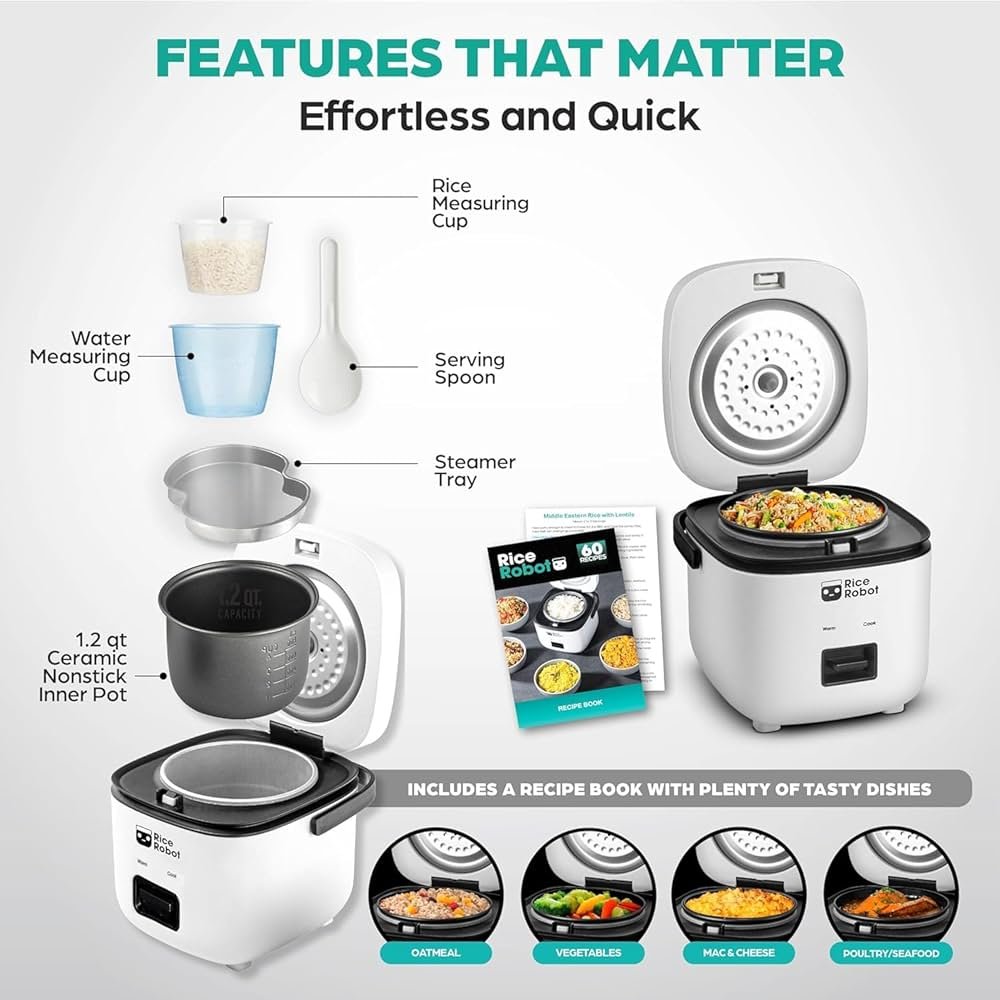
Credit: us.amazon.com
Benefits Of Smart Rice Cookers
Smart rice cookers make cooking easier. They connect to apps on your phone.
You can control them from anywhere. They offer many useful features for cooking rice.
Convenience And Automation
Smart rice cookers automate the cooking process. You just add rice and water.
The cooker does the rest. It adjusts settings for perfect rice every time.
- Set timers for cooking
- Automatic shut-off when done
- Different modes for different types of rice
Remote Cooking Control
You can control your rice cooker from your phone. This means you can start cooking even if you are not at home.
Check cooking progress using the app. Receive alerts when the rice is ready.
- Start cooking remotely
- Monitor progress from anywhere
- Receive notifications on your phone
Customization And Presets
Smart rice cookers have preset options. These presets help you cook different types of rice perfectly.
You can also save your own settings. This lets you customize your cooking experience.
- Presets for white, brown, and sushi rice
- Save custom settings for personal recipes
- Adjust settings for texture and flavor
Requirements For App Connection
Smart rice cookers connect to apps to give you more control. To connect, you need certain tools and settings ready.
This guide explains what devices, networks, and apps you need to connect your cooker.
Compatible Devices And Operating Systems
Check if your phone or tablet works with the rice cooker app. Not all devices support these apps.
Most apps work on newer phones with common operating systems.
- iOS devices running iOS 12 or later
- Android devices running Android 7.0 or later
- Tablets with iOS or Android operating systems
- Devices with Bluetooth and Wi-Fi capabilities
Wi-fi Network Setup
Your smart rice cooker connects through Wi-Fi. Use a stable 2.4 GHz Wi-Fi network.
Make sure your router is on and working. The cooker may not connect to 5 GHz networks.
- Use a 2.4 GHz Wi-Fi band
- Keep the cooker near the router during setup
- Ensure the Wi-Fi password is correct
- Disable guest networks or firewalls if needed
App Installation
Download the official rice cooker app from your device’s app store. Use the right app for your cooker model.
After installing, open the app and follow the instructions to add your rice cooker.
- Search for the rice cooker brand in the app store
- Download and install the app
- Allow app permissions for Bluetooth and Wi-Fi
- Create an account if required
- Follow in-app steps to connect the cooker
Preparing Your Rice Cooker
Connecting your smart rice cooker to its app requires some preparation. Getting the cooker ready ensures a smooth setup process.
This guide covers powering on, enabling connectivity, and checking for updates. These steps help your cooker link properly to the app.
Powering On And Resetting
First, plug in your rice cooker and press the power button. This starts the device and prepares it for connection.
If the cooker does not respond or connect, try resetting it. Use the reset button or unplug it for a few seconds.
- Plug in the rice cooker securely
- Press the power button to turn it on
- Locate the reset button if needed
- Press reset or unplug and replug the device
Enabling Connectivity Mode
To connect to the app, activate the connectivity mode on your rice cooker. This allows it to pair with your phone or tablet.
Usually, pressing and holding a button enables this mode. Check your cooker’s manual if you are unsure which button to use.
- Press and hold the connectivity button
- Wait for the indicator light to blink
- Open the app and start the pairing process
- Follow app instructions to complete connection
Checking Firmware Updates
Keep your rice cooker updated by checking its firmware. Updates improve performance and fix bugs.
The app usually notifies you of updates. You can also check manually in the app’s settings section.
- Open the rice cooker app
- Go to settings or device info
- Select “Check for updates”
- Download and install if an update is available

Credit: www.amazon.com
Step-by-step App Connection
Connecting your smart rice cooker to its app helps you control cooking easily. Follow these steps to link your device and app.
Each step guides you through the process clearly. Make sure you have your phone and rice cooker ready.
Launching The App
First, open the rice cooker app on your smartphone. If you do not have it, download it from the app store.
Make sure your phone’s Bluetooth and location services are turned on for better connection.
Adding A New Device
In the app, find the option to add a new device. This is usually shown as a plus (+) sign or “Add Device” button.
Select your rice cooker model from the list or scan the QR code on the cooker to identify it.
Connecting To Wi-fi
Choose your home Wi-Fi network from the list in the app. Enter your Wi-Fi password carefully to avoid errors.
Your rice cooker needs Wi-Fi to communicate with the app and receive commands remotely.
Pairing The Rice Cooker
Follow the app instructions to put your rice cooker in pairing mode. This usually involves pressing a button on the cooker.
The app will search for the cooker and connect once it appears. Keep your phone close to the cooker during this step.
Confirming Successful Connection
After pairing, the app will show a confirmation message. Test the connection by sending a command to the rice cooker.
If the cooker responds, you have connected it successfully. You can now control your rice cooker from the app.
Troubleshooting Connection Issues
Smart rice cookers connect to apps for easy control and monitoring. Sometimes, connection problems can stop the app from working properly.
This guide helps you fix common connection issues with your smart rice cooker and app.
Common Connectivity Problems
Many connection issues happen because of Wi-Fi or Bluetooth problems. The app might not find the rice cooker or lose connection after a while.
Sometimes, the rice cooker is too far from the router or smartphone. Other times, the app or device settings block the connection.
- Weak Wi-Fi signal or Bluetooth range
- App not detecting the rice cooker
- Incorrect Wi-Fi password or settings
- Phone or router blocking the connection
- Multiple devices causing interference
Resetting The Connection
Resetting the connection can clear errors and help the app find the rice cooker again. You can reset both the cooker and the app settings.
- Turn off the rice cooker and wait 10 seconds
- Turn it back on and open the app
- Forget the device in your phone’s Bluetooth settings
- Reconnect to the rice cooker from the app
- Restart your Wi-Fi router if needed
If the problem stays, try resetting the rice cooker to factory settings. Check the manual for how to do this safely.
Updating The App And Firmware
Old app versions or outdated rice cooker firmware can cause connection issues. Updates fix bugs and improve performance.
Check for updates regularly and install them as soon as they are available to keep everything working well.
- Open your phone’s app store
- Search for the rice cooker app
- If update is available, tap update
- Check the rice cooker app for firmware update option
- Follow instructions to update the rice cooker
Contacting Support
If you cannot fix the connection problem, contact customer support. They can help with advanced troubleshooting.
Have your rice cooker model, app version, and problem details ready before you call or message support.
- Find the support contact in the app or manual
- Describe the problem clearly and simply
- Explain what you tried to fix the issue
- Ask for step-by-step help
- Follow their advice carefully
Maximizing Your Smart Rice Cooker
Smart rice cookers connect to apps to make cooking easier. You can control your cooker from your phone.
This guide shows how to use your smart rice cooker fully. Learn to cook better and save time.
Using Advanced Cooking Modes
Smart rice cookers have many cooking modes for different rice types. Use the app to pick the right mode.
You can cook white rice, brown rice, porridge, or steam food easily. The app sets the best temperature and time.
- Select cooking mode from the app menu
- Adjust settings if needed for texture
- Save your favorite modes for quick use
Scheduling Cooking Times
The app lets you set when cooking starts. Schedule rice to be ready when you want.
This feature helps plan meals ahead. Set the cooker to start early morning or late afternoon.
- Open the app and choose scheduling option
- Set the cooking start time
- Confirm and leave rice and water inside
- The cooker will start automatically at set time
Monitoring Cooking Progress Remotely
You can check cooking status from your phone. The app shows if cooking is in progress or done.
This helps you know when your rice is ready without being near the cooker. You get alerts too.
- Open the app to see current cooking stage
- Receive notifications when cooking finishes
- Pause or stop cooking from the app if needed

Credit: shopsavvy.com
Frequently Asked Questions
How Do I Connect My Smart Rice Cooker To An App?
To connect, download the rice cooker’s official app from the app store. Enable Bluetooth or Wi-Fi on your phone. Follow the app’s pairing instructions to link your device and start controlling your rice cooker remotely.
Which Apps Are Compatible With Smart Rice Cookers?
Most smart rice cookers support their own brand’s app, like Aroma Housewares or Xiaomi Mi Home. Check your cooker’s manual for recommended apps. Popular apps allow remote control, cooking presets, and notifications for perfect rice every time.
Can I Control Cooking Settings Via The App?
Yes, apps let you adjust cooking modes, timers, and temperatures. You can customize settings for different rice types. This feature ensures your rice cooks perfectly without needing to manually operate the cooker.
Is Wi-fi Required To Use A Smart Rice Cooker App?
Not always. Some models connect via Bluetooth, while others need Wi-Fi for remote access. Wi-Fi allows control from anywhere, but Bluetooth limits control to close proximity. Check your device specifications for connectivity options.
Conclusion
Connecting your smart rice cooker to an app is simple and useful. It lets you control cooking from anywhere. Just follow the steps to pair the device and app correctly. Make sure your phone and cooker stay connected to Wi-Fi.
This helps you cook rice perfectly every time. Using the app also saves time and effort in the kitchen. Try it out and enjoy easy cooking. Smart rice cookers and apps bring convenience to daily meals. Start cooking smarter today.