
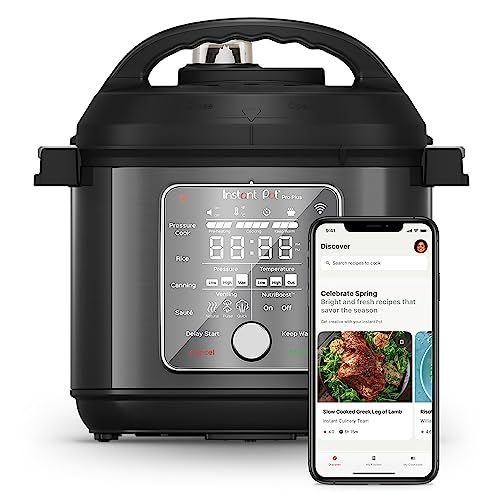
Imagine controlling your slow cooker from anywhere, so your meal is ready the moment you walk through the door. Connecting your smart slow cooker to Wi-Fi makes this possible.
But if you’ve ever felt confused by tech setups, you’re not alone. This guide will walk you through simple, step-by-step instructions to get your slow cooker online quickly and easily. By the end, you’ll have full control over your cooking with just a tap on your phone.
Ready to make cooking effortless? Let’s get started!

Credit: surfatec.org
Choosing The Right Smart Slow Cooker
Smart slow cookers connect to Wi-Fi for easy control. Choosing the right model is important for your needs.
Consider features, brands, and compatibility before purchasing. This guide will help you make the right choice.
Popular Brands And Models
Several brands offer quality smart slow cookers. Each has unique models to explore.
- Crock-Pot Smart Slow Cooker
- Instant Pot Smart WiFi
- Hamilton Beach Smart Cooker
Features To Look For
Smart slow cookers come with various features. Knowing which ones matter most can help you choose.
- Remote control via smartphone
- Programmable cooking settings
- Automatic keep-warm function
Compatibility With Wi-fi Networks
Ensure your smart slow cooker works with your Wi-Fi. Check compatibility with your home network.
Most models support standard Wi-Fi connections. Verify if special routers are needed.
Preparing Your Slow Cooker For Connection
Connecting your smart slow cooker to Wi-Fi lets you control it remotely. Before you start, prepare your device to ensure a smooth setup.
This guide helps you get your slow cooker ready for connection by covering key steps.
Unboxing And Setup
Carefully remove the slow cooker from the box. Check the package for all parts like the power cord and user manual.
Place the slow cooker on a flat, stable surface near your Wi-Fi router for a strong signal.
- Remove all packaging materials
- Inspect the device for damage
- Find the power cord and accessories
- Place the cooker close to your router
Powering On The Device
Connect the power cord to the slow cooker and plug it into an outlet. Press the power button to turn it on.
The slow cooker should display a light or screen to show it is powered up and ready for setup.
- Attach the power cord firmly
- Plug into a working outlet
- Press the power button once
- Wait for the indicator to light up
Resetting The Wi-fi Module
If the slow cooker does not connect to Wi-Fi, reset its Wi-Fi module. This clears old settings and prepares it for a new connection.
Look for a small reset button or hole on the device. Use a pin or paperclip to press and hold it for several seconds.
- Find the Wi-Fi reset button on the slow cooker
- Press and hold with a pin for about 5 seconds
- Release the button after the indicator blinks
- Device will restart and reset Wi-Fi settings
Connecting To Your Home Wi-fi Network
Smart slow cookers connect to Wi-Fi to allow remote control and monitoring. Connecting them to your home network is easy.
This guide explains how to link your cooker to Wi-Fi step-by-step for smooth operation.
Accessing The Cooker’s App
First, download the official app for your smart slow cooker from the app store. The app controls settings and connects to Wi-Fi.
Open the app and create an account if needed. Make sure your phone is connected to the same Wi-Fi you want for the cooker.
Entering Network Credentials
In the app, find the setup or device connection section. Select your slow cooker model to start Wi-Fi setup.
Enter your Wi-Fi network name (SSID) and password carefully. The cooker uses these to connect to your home network.
- Use exact network name with correct capitalization
- Check password for typos before submitting
- Ensure your Wi-Fi is 2.4 GHz, as many cookers do not support 5 GHz
Troubleshooting Connection Issues
If the cooker does not connect, check your Wi-Fi signal strength near the kitchen. Weak signals cause problems.
Restart the cooker and your router to refresh connections. Try re-entering the network details carefully.
- Confirm Wi-Fi password matches exactly
- Move cooker closer to the router during setup
- Restart app and try the connection process again
- Check the cooker’s user manual for specific error codes

Credit: www.reddit.com
Using The App To Control Your Slow Cooker
Smart slow cookers connect to Wi-Fi and let you control cooking from your phone. You can start, stop, or change settings without being near the cooker.
The app gives you easy ways to manage cooking times, adjust heat, and get alerts. This makes cooking more flexible and convenient.
Scheduling Cooking Times
The app lets you set when cooking starts and stops. You can plan meals to be ready at the right time.
Choose the exact hour and minutes for your slow cooker to begin cooking. You do not have to be home to start it.
- Set delayed start times
- Choose cooking duration
- Save favorite schedules
Adjusting Temperature Settings
The app allows you to change the slow cooker’s temperature remotely. You can switch between low, medium, or high heat.
This helps you control how fast or slow your food cooks. Adjusting heat keeps meals safe and tasty.
- Switch heat levels with a tap
- Fine-tune cooking to your recipe
- Save temperature preferences
Receiving Notifications
The app sends alerts to your phone about cooking progress. You know when food is ready or if there is a problem.
Notifications help you avoid overcooking or undercooking. They also tell you if the slow cooker lost power.
- Cooking start and stop alerts
- Temperature change warnings
- Power loss notifications
Maintaining A Stable Wi-fi Connection
Smart slow cookers need a strong Wi-Fi connection to work well. A stable connection helps you control your cooker from anywhere.
Keeping the Wi-Fi signal steady stops cooking interruptions and makes your device reliable.
Optimizing Router Placement
Place your router in a central spot in your home. This helps the Wi-Fi signal reach all rooms evenly.
Avoid placing the router near walls, metal objects, or electronics that block signals.
- Keep the router high off the floor
- Put it away from thick walls and metal
- Place it near where you use the slow cooker
Updating Cooker Firmware
Firmware is the software inside your slow cooker. Updates fix bugs and improve Wi-Fi connection.
Check the cooker’s app or website for updates. Install updates regularly to keep your device working well.
- Open the cooker’s app
- Look for firmware update options
- Follow instructions to download and install updates
Dealing With Signal Interference
Other devices can block or weaken your Wi-Fi signal. Common causes are microwaves, cordless phones, and Bluetooth devices.
Keep your slow cooker and router away from these devices to reduce interference and keep a strong connection.
- Move slow cooker away from microwaves
- Limit Bluetooth device use near the router
- Use 5 GHz Wi-Fi if possible to avoid crowded signals
Advanced Tips And Tricks
Connecting your smart slow cooker to Wi-Fi opens many useful features. You can control it from anywhere and make cooking easier.
These tips help you get the most from your device with smart home systems, voice control, and remote monitoring.
Integrating With Smart Home Systems
Link your smart slow cooker to popular smart home platforms. This makes it part of your connected devices.
Use apps like Google Home or Amazon Alexa to add your cooker. This helps automate cooking with other smart tools.
- Open your smart home app and select “Add Device”
- Choose your slow cooker brand and model
- Follow on-screen instructions to connect
- Create routines to start cooking at set times
Voice Control Setup
Voice control lets you operate the slow cooker hands-free. Speak commands to start, stop, or adjust cooking.
First, link your slow cooker to a voice assistant like Alexa or Google Assistant. Then use simple commands for control.
- Enable the slow cooker skill or action in the voice app
- Connect your account and authorize access
- Try commands like “Start slow cooker on low”
- Adjust cooking time with voice commands
Remote Monitoring And Control
Monitor your cooker from any place using its app. Check cooking status and change settings remotely.
Set alerts for cooking progress or when food is ready. This helps you manage meals without staying in the kitchen.
- Open the slow cooker app on your phone
- View current temperature and time remaining
- Adjust heat or cooking time if needed
- Receive push notifications when cooking ends

Credit: www.pcmag.com
Frequently Asked Questions
How Do I Connect My Smart Slow Cooker To Wi-fi?
To connect, first plug in your slow cooker and turn it on. Open the companion app, follow the setup instructions, and select your home Wi-Fi network. Enter the password, and the device will connect. Ensure your phone is near the cooker during setup.
Why Won’t My Smart Slow Cooker Connect To Wi-fi?
Check if your Wi-Fi is 2. 4 GHz, as many cookers don’t support 5 GHz. Ensure your password is correct. Restart your router and cooker. Also, confirm the cooker is within Wi-Fi range. Update the app and firmware if needed.
Can I Control My Slow Cooker Remotely Via Wi-fi?
Yes, once connected, you can control cooking times and temperatures remotely. Use the slow cooker’s app on your smartphone. This feature allows you to start or stop cooking from anywhere with internet access.
What Should I Do If The App Won’t Detect My Slow Cooker?
Restart your smartphone and the slow cooker. Check if Bluetooth is enabled on your phone. Ensure both devices are on the same Wi-Fi network. Update the app to the latest version. Reinstall the app if necessary.
Conclusion
Connecting your smart slow cooker to Wi-Fi is simple and helpful. It lets you control cooking from anywhere using your phone. Just follow the steps carefully and check your network. A strong Wi-Fi signal makes cooking easier and faster. Enjoy fresh meals ready when you want.
Smart slow cookers bring convenience to your kitchen. Try it today and see how easy cooking can be.