
Are you struggling to get your smart blender to work seamlessly with its app? Connecting these high-tech kitchen gadgets can seem tricky at first, but once you master it, your blender becomes a powerful tool that makes your life easier.
Imagine controlling your blender right from your phone, saving your favorite recipes, or even getting personalized blending tips. You’ll discover simple, clear tips that make connecting your smart blender to its app quick and hassle-free. Keep reading—you’re just a few steps away from unlocking the full potential of your smart blender.
Choosing The Right Smart Blender
Smart blenders connect to apps to make blending easier. Picking the right blender helps you get the best use from these features.
Consider the blender’s features and device compatibility before buying. These affect how well it works with your phone or tablet.
Key Features To Consider
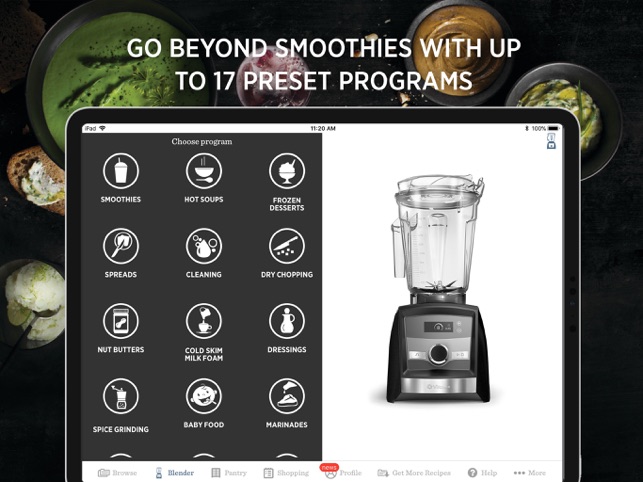
Look for features that match your blending needs. Some smart blenders offer preset programs or voice control for easy use.
- Preset blending modes for smoothies, soups, and more
- Adjustable speed and timer settings
- Voice control through smart home devices
- Easy-to-clean design
- Durable materials for long-lasting use
Compatibility With Devices
Check if the blender app works with your smartphone or tablet. Some apps only support iOS or Android devices.
Also, see if the blender connects via Bluetooth or Wi-Fi. This affects how you control it and receive updates.
- iOS and Android app support
- Bluetooth or Wi-Fi connectivity
- Works with smart home systems like Alexa or Google Assistant
- Regular app updates for new features and fixes
Preparing Your Devices
Connecting your smart blender to an app needs some preparation. You must get your devices ready for smooth setup.
Preparing your phone, blender, and Wi-Fi helps avoid connection problems. Follow simple steps before starting.
Ensuring Proper Wi-fi Setup
Your smart blender needs a strong Wi-Fi signal to connect well. Check your Wi-Fi before linking devices.
Use a 2.4 GHz network if your blender does not support 5 GHz. Avoid public Wi-Fi for security and stability.
- Check your router is on and working
- Place your blender near the router
- Use a 2.4 GHz Wi-Fi network if required
- Disconnect VPNs or firewalls on your phone
Updating Software And Firmware
Keep your phone app and blender firmware up to date. Updates fix bugs and add features for better use.
Check for updates in the app store and the blender’s settings menu. Update both before connecting devices.
- Open the app store on your phone and update the blender app
- Turn on your blender and check for firmware updates
- Follow on-screen instructions to install updates
- Restart devices after updates finish
Installing The App
Connecting your smart blender to an app helps control it easily. Installing the app is the first step.
This guide shows how to download the app and create an account quickly.
Downloading From App Store
Open your device’s app store to find the blender app. Search using the blender’s brand name.
Make sure to download the official app to avoid security risks.
- Open Google Play Store or Apple App Store
- Type the blender brand in the search bar
- Check app reviews and developer info
- Tap “Download” or “Get” to install
- Wait for the app to finish installing
Creating An Account
After installing, open the app to start creating your account. An account lets you save settings and get updates.
Use your email or phone number to sign up. Create a strong password to keep your account safe.
- Open the app and tap “Sign Up” or “Create Account”
- Enter your email address or phone number
- Create a secure password
- Verify your email or phone if asked
- Log in to access your blender controls

Credit: www.wired.com
Connecting Blender To The App
Smart blenders connect to apps to give you more control. You can start, stop, and customize blending from your phone.
Connecting your blender to the app is easy. Follow simple steps to pair and sync your device.
Pairing Via Bluetooth
Bluetooth lets your blender connect directly to your phone. It works at short distances and is simple to set up.
To pair, turn on Bluetooth on your phone and blender. Open the app and find your blender in the device list.
- Turn on the blender and activate Bluetooth mode
- Open the app on your smartphone
- Go to the device pairing section
- Select your blender from the list
- Confirm the connection if prompted
Syncing With Wi-fi Network
Wi-Fi connection allows the blender to work from anywhere in your home. It also enables app updates and remote control.
Make sure your phone and blender use the same Wi-Fi network. Then follow these steps to sync them.
- Turn on the blender and open the app
- Go to Wi-Fi setup in the app
- Select your home Wi-Fi network
- Enter the Wi-Fi password carefully
- Wait for the blender to connect and confirm
Exploring App Features
Smart blenders connect to apps to give more control. The apps make blending easier and more fun.
Many apps have features to help you use your blender better. You can find recipes and adjust settings right from your phone.
Recipe Suggestions
Apps offer many recipes for smoothies, soups, and more. You can try new ideas without searching online.
The app shows step-by-step instructions. It also suggests recipes based on what ingredients you have.
- Browse recipes by type or diet
- Save your favorite recipes
- Get tips for ingredient substitutions
- See nutrition info for each recipe
Customizing Blending Settings
You can change blending speed and time using the app. This lets you get the perfect texture every time.
Some apps let you create your own blending programs. You can save these for easy use later.
- Adjust speed for different ingredients
- Set blending time for smooth or chunky results
- Save custom settings for favorite recipes
- Use presets for quick blending
Troubleshooting Common Issues
Smart blenders connect to apps for better control and recipes. Sometimes, connection problems or app errors can stop them from working well.
This guide helps you fix common issues with smart blender apps. You will learn simple ways to solve problems and get back to blending.
Connectivity Problems
Smart blenders need a strong Wi-Fi or Bluetooth connection to link with apps. Weak signals or interference cause connection drops or failure.
Check if your phone and blender are on the same Wi-Fi network. Restart your router and move closer to the blender to improve signal.
- Turn off other Bluetooth devices to avoid interference
- Restart the blender and the app to reset connection
- Update the app and blender firmware to latest versions
- Ensure your phone’s Bluetooth and Wi-Fi are turned on
App Crashes And Glitches
Apps can crash or freeze due to bugs or phone memory issues. This stops you from controlling the blender or accessing recipes.
Clear the app cache or reinstall the app to fix glitches. Make sure your phone has enough storage and is updated with the latest software.
- Close other apps running in the background
- Check for app updates in your app store
- Restart your phone to free up memory
- Contact app support if problems continue
Maximizing The Smart Blender Experience
Smart blenders connect to apps to make blending easier and more fun. Using the app lets you control the blender from your phone.
Learning how to use voice commands and keep your blender clean helps you get the best results every time.
Utilizing Voice Commands
Voice commands let you operate the blender without touching it. This is helpful when your hands are busy or dirty.
To use voice control, connect your smart blender to a compatible voice assistant app. Speak clear commands for best results.
- Start or stop blending by saying simple phrases
- Choose blending speeds or modes using your voice
- Ask the blender to follow preset recipes
- Check blender status without looking at the screen
Regular Maintenance Tips
Keeping your smart blender clean and updated helps it work well. Regular care prevents problems and extends its life.
Clean the jar, blades, and base after each use. Also, check the app for firmware updates often.
- Wash blender parts with warm, soapy water
- Dry all parts before reassembling
- Wipe the base with a damp cloth
- Update the app and blender software regularly
- Store the blender in a dry place
.jpg)
Credit: www.wired.com
Credit: apps.apple.com
Frequently Asked Questions
How Do I Connect My Smart Blender To An App?
Download the blender’s official app from your device’s app store. Enable Bluetooth or Wi-Fi on your blender, then follow the app’s pairing instructions. Ensure both devices are close for a smooth connection.
What Are Common Issues When Linking Smart Blenders?
Common issues include weak Bluetooth or Wi-Fi signals, outdated app versions, and incorrect pairing steps. Restart both devices, update the app, and check network settings to resolve these problems quickly.
Can I Control My Smart Blender Remotely?
Yes, most smart blenders allow remote control via their apps. You can start, stop, or adjust blending settings from anywhere using your smartphone or tablet.
Are Smart Blender Apps Compatible With All Devices?
Smart blender apps typically support both iOS and Android devices. Check the app’s compatibility details before downloading to ensure your device is supported.
Conclusion
Connecting your smart blender to its app makes blending easier and more fun. Follow simple steps to pair devices quickly. Check your Wi-Fi and app updates often. Keep your blender close to your phone for strong signals. Use the app to explore new recipes and settings.
Enjoy smooth blends with less effort every time. Stay patient and try again if connection fails. Small tips can improve your smart kitchen experience greatly. Start blending smarter today with these easy app connections.