
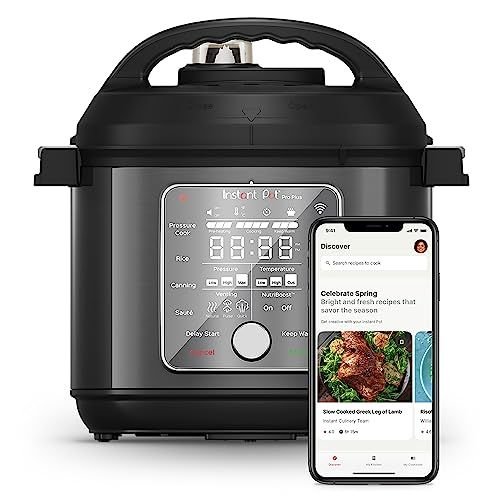
Imagine controlling your smart pressure cooker right from your phone, adjusting settings, and monitoring your meal without leaving your couch. Sounds convenient, right?
If you’ve ever wondered how to connect your smart pressure cooker to an app, you’re in the right place. This guide will walk you through simple steps to get your device synced, making cooking easier and more fun. Ready to turn your kitchen into a high-tech haven?
Let’s dive in and get your smart pressure cooker connected!
Choosing The Right Smart Pressure Cooker
Smart pressure cookers make cooking easier by connecting to your phone app. Picking the right one helps you cook better and save time.
Not all smart pressure cookers work the same. You should check their features and app compatibility before buying.
Features To Consider
Look for features that fit your cooking style. Some cookers have preset programs for different dishes. Others let you control temperature and time precisely.
- Multiple cooking modes for various meals
- Easy-to-read display and controls
- Safety features like lid locks and pressure release
- Good capacity for your family size
- Timer and delay start options
Smart pressure cookers with Wi-Fi or Bluetooth let you control cooking from anywhere. This adds convenience to your kitchen routine.
Compatibility With Apps
Check if the smart pressure cooker works with your phone’s operating system. Most apps support Android and iOS.
See what features the app offers. Some apps provide recipes, cooking guides, and remote control. Others only show basic status updates.
- App must be easy to use and update regularly
- Look for apps with recipe collections and cooking tips
- Remote control lets you start, stop, or adjust cooking
- Notifications tell you when cooking is done
- Check reviews to find reliable app performance

Credit: m.youtube.com
Installing The Companion App
Smart pressure cookers connect to apps for better control and recipes. Installing the companion app is the first step.
This guide explains how to find and install the right app for your smart cooker.
Finding The Right App
Check the cooker’s manual or box for app information. The brand usually has its own app.
Look for apps that match your cooker model to avoid connection issues.
- Search the app store for the cooker brand
- Read app descriptions and reviews
- Confirm app compatibility with your phone
Downloading And Installing
Open your phone’s app store. Type the app name in the search bar.
Tap the install or download button. Wait for the app to finish installing.
- Ensure a stable internet connection
- Allow the app to access necessary permissions
- Create an account if needed
Setting Up Wi-fi Connectivity
Smart pressure cookers use Wi-Fi to connect with apps. This lets you control cooking from your phone. Setting up Wi-Fi is simple and fast.
Follow clear steps to link your cooker to your home network. This guide helps you connect and fix common problems.
Connecting To Home Network
Turn on your smart cooker and open its app on your phone. The app will ask you to find your home Wi-Fi network.
Select your Wi-Fi name and enter the password. The cooker will try to connect to the network automatically.
- Make sure your phone is on the same Wi-Fi network.
- Use a 2.4 GHz Wi-Fi band if your cooker does not support 5 GHz.
- Keep your cooker close to the router during setup.
Troubleshooting Connectivity Issues
If the cooker does not connect, check your Wi-Fi password again. A wrong password is a common problem.
Restart your router and cooker to fix simple connection errors. This often helps clear network problems.
- Ensure your router is working and internet is active.
- Move the cooker closer to the router to improve signal strength.
- Check if your router blocks new devices or has MAC address filtering.
- Update your cooker’s app and firmware to the latest version.
Syncing The Cooker With The App
Smart pressure cookers connect to apps for easy control. Syncing the cooker with the app allows you to monitor cooking remotely.
This guide explains how to pair your cooker and keep a stable connection.
Pairing The Devices
Turn on your smart pressure cooker and open the app on your phone. Make sure Bluetooth or Wi-Fi is enabled on your device.
Follow the app instructions to find and select your cooker. Confirm the connection by entering any code shown on the cooker display.
- Power on the cooker
- Enable Bluetooth or Wi-Fi on your phone
- Open the cooker app
- Search for the cooker in the app
- Enter the pairing code if prompted
- Confirm connection
Ensuring A Stable Connection
Keep your phone and cooker close to each other to avoid connection drops. Avoid walls or metal objects between them.
Check your Wi-Fi or Bluetooth signal strength. Strong signals help maintain a smooth connection during cooking.
- Place devices near each other
- Avoid physical obstructions
- Keep Wi-Fi or Bluetooth strong
- Update app and cooker firmware regularly
Exploring App Features
Smart pressure cookers connect to apps to make cooking easier. These apps offer many features to control and customize your cooking.
Using the app, you can manage cooking times, temperatures, and find new recipes. This helps save time and improve meals.
Remote Control Options
The app lets you control your smart pressure cooker from anywhere. You can start, stop, or adjust cooking settings remotely.
This feature helps you manage cooking even when you are not in the kitchen. It also alerts you when cooking is done.
- Start or pause cooking with your phone
- Adjust temperature and pressure levels
- Receive notifications about cooking status
- Check remaining cooking time remotely
Recipe Recommendations
The app offers many recipe ideas tailored for your smart pressure cooker. These recipes help you try new meals easily.
Recipes include step-by-step instructions and cooking times. You can save favorites and create shopping lists in the app.
- Browse recipes by meal type or ingredients
- Follow guided cooking steps on your phone
- Save favorite recipes for quick access
- Create shopping lists based on chosen recipes

Credit: www.amazon.com
Updating Software And Firmware
Smart pressure cookers often connect to apps for better control. Keeping their software and firmware updated is important. Updates fix bugs and add new features.
Regular updates help your cooker work smoothly and safely. This guide explains how to check and install updates.
Checking For Updates
Check for updates in the cooker’s app or device settings. The app usually shows if an update is available.
Make sure your phone and cooker are connected to the same Wi-Fi. This helps the app find the latest updates.
- Open the smart cooker app
- Go to settings or device info
- Look for “Software Update” or “Firmware Update”
- Tap “Check for Updates”
- Wait for the app to show available updates
Installing Updates Safely
Install updates when your cooker is not in use. Make sure your phone battery is full or charging before starting.
Do not turn off the cooker or phone during the update. Interruptions can cause problems with the device.
- Connect the cooker to power
- Start the update in the app
- Wait until the update finishes completely
- Restart the cooker if needed
- Check if the app shows the update was successful
Safety And Security Tips
Smart pressure cookers connect to apps for easy control and monitoring. This connection adds convenience but also risks. Protect your device and data to keep cooking safe.
Follow simple safety and security tips. They help avoid hacks and keep your personal information safe.
Securing Your Device
Keep your smart pressure cooker safe by using strong passwords. Change default passwords right after setup. Use unique passwords to stop hackers from guessing them.
Make sure your Wi-Fi network is secure. Use WPA3 or WPA2 security and a strong Wi-Fi password. This stops outsiders from accessing your cooker through the network.
- Change default device passwords immediately
- Use strong, unique passwords for accounts
- Keep your Wi-Fi network secured with WPA3 or WPA2
- Update your cooker’s firmware regularly
- Turn off the device when not in use
Data Privacy Considerations
Smart cookers collect data like cooking times and user settings. Understand what data the app collects before connecting your device. Read the privacy policy carefully.
Limit app permissions to only what is needed. Avoid giving access to contacts or location if not required. This reduces the chance of personal data leaks.
- Review app privacy policy before use
- Allow only necessary permissions
- Disable data sharing options if possible
- Use apps from trusted sources only
- Regularly check for app updates and privacy changes

Credit: www.youtube.com
Troubleshooting Common Issues
Smart pressure cookers connect to apps to make cooking easier. Sometimes, you may face issues with this connection. This guide helps you fix common problems.
Knowing how to solve connection and app problems saves time. Follow simple steps to get your cooker working with the app again.
Connection Problems
Connection problems happen when your pressure cooker does not link to your phone or tablet. This can stop the app from working properly.
Check your Wi-Fi or Bluetooth settings first. Make sure both devices use the same network and are close to each other.
- Restart your pressure cooker and app
- Turn off and on your phone’s Wi-Fi or Bluetooth
- Update the app and cooker firmware
- Forget and reconnect the device in app settings
- Move closer to the cooker to improve signal
App Malfunctions
App malfunctions can cause slow response or crashes. Sometimes, the app may not show the cooker’s status correctly.
Try closing the app completely and restarting it. Clear the app cache if the problem stays. Reinstall the app if needed.
- Close and reopen the app
- Clear app cache from phone settings
- Update the app to the latest version
- Reinstall the app if problems continue
- Check app permissions to allow full access
Frequently Asked Questions
How Do I Connect My Smart Pressure Cooker To The App?
To connect, download the official app from your device’s app store. Enable Bluetooth on your phone and open the app. Follow the on-screen prompts to pair the pressure cooker. Make sure both devices are close for a stable connection.
What Are The Benefits Of App-connected Smart Pressure Cookers?
App integration allows remote control, recipe access, and cooking monitoring. It improves convenience and precision, enabling you to adjust settings from anywhere. Apps also provide cooking tips and notifications for better meal results.
Which Smartphones Are Compatible With Smart Pressure Cooker Apps?
Most smart pressure cooker apps support iOS and Android devices. Check the app’s description for specific version requirements. Ensure your phone has Bluetooth and internet access for full functionality.
Can I Update My Smart Pressure Cooker Via The App?
Yes, many smart pressure cookers receive firmware updates through their apps. Updating improves performance and adds new features. Always keep your app and cooker firmware up to date for best results.
Conclusion
Connecting your smart pressure cooker to its app makes cooking easier. You can control settings right from your phone. This saves time and helps you cook meals perfectly. Just follow the steps carefully to link the devices. Make sure your Wi-Fi is strong and the app is updated.
Once connected, enjoy the convenience and flexibility it brings. Smart cooking can fit easily into your daily routine. Give it a try, and see how simple cooking can become.